
Menus, mouse and windows
The desktop app works like the terminal app, with the same panes and keys. This page covers what’s different.
The desktop app has two styles. Both have the same layout, panes and keys; only the borders, edges and spacing differ.
- Native, the default, looks like a desktop app:
- Each pane is a card with rounded corners, with a gap between cards on a slightly darker background.
- Each card has a header in your system’s UI font, such as Segoe UI or SF Pro. It shows the pane’s number on a chip, the pane’s name, then the rest of its title.
- The focused pane has a border and a soft ring in the theme’s focus color. Other panes have a faint border and a dimmed title.
- The branches pane’s tabs are a row of buttons in its header. Click one to switch to it.
- The graph shows branches and tags as rounded labels, such as
main, instead of[main]. - Rows are a little taller, and the selected row has rounded corners.
- The help bar is a status bar with each key on a chip.
- Dialogs have rounded corners and a shadow, and the panes behind them are dimmed. The palette shows each command’s key on a chip at the right of its row.
- Terminal looks as the terminal app does: bordered boxes titled
[1] Graph, a help bar of keys, and everything in one monospace font.
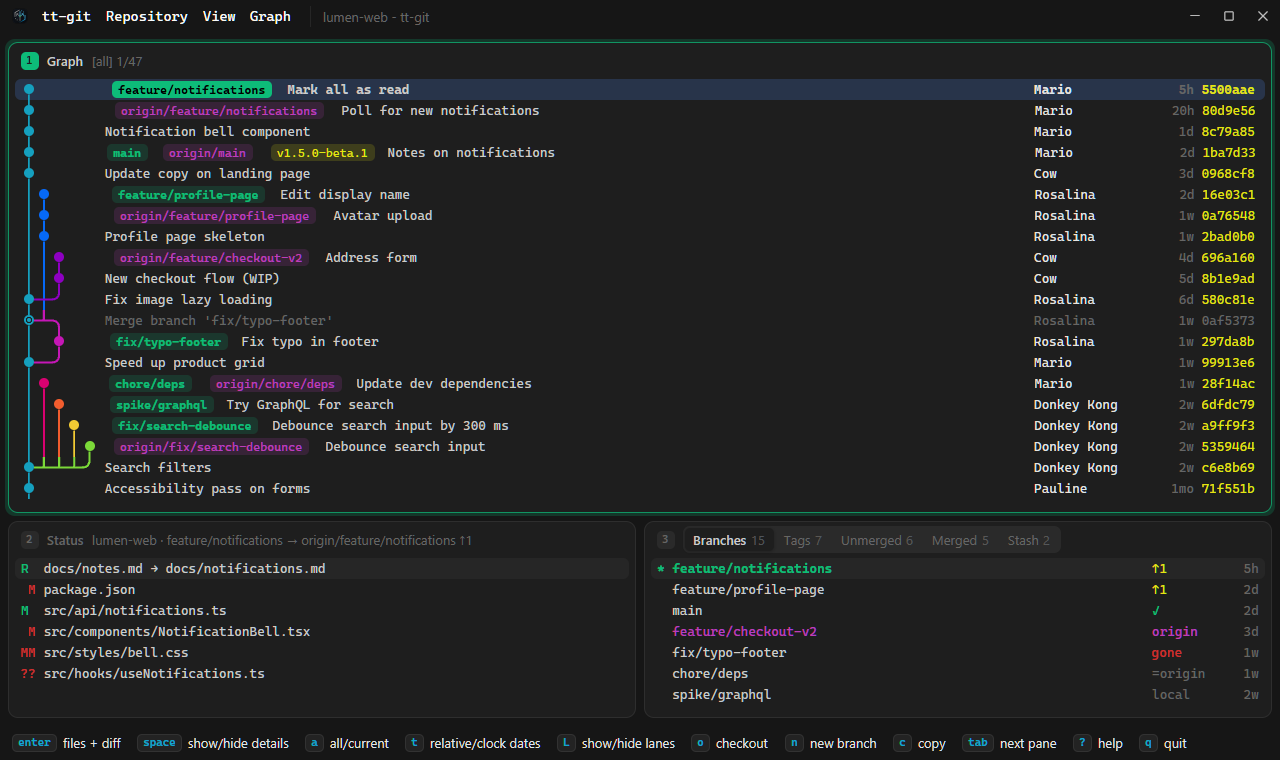
![The desktop app in the terminal style: the same panes as bordered boxes titled [1] Graph, [2] Status and [3] Branches, and a help bar of keys along the bottom](/tt-git/_astro/gui-terminal-windows.SIY4XltC.webp)
To switch, choose Native/terminal style in the tt-git menu
or the palette.
Every window switches at once, and the help bar says native style or
terminal style. It has no key, but you can
bind one to window_style.
The style is saved as style in [ui] in your
global config.toml, so the app opens in it next time. The style doesn’t
change your theme: it uses the theme’s
background, text and focus colors for its cards, borders and focus ring, so
every theme works in either style.
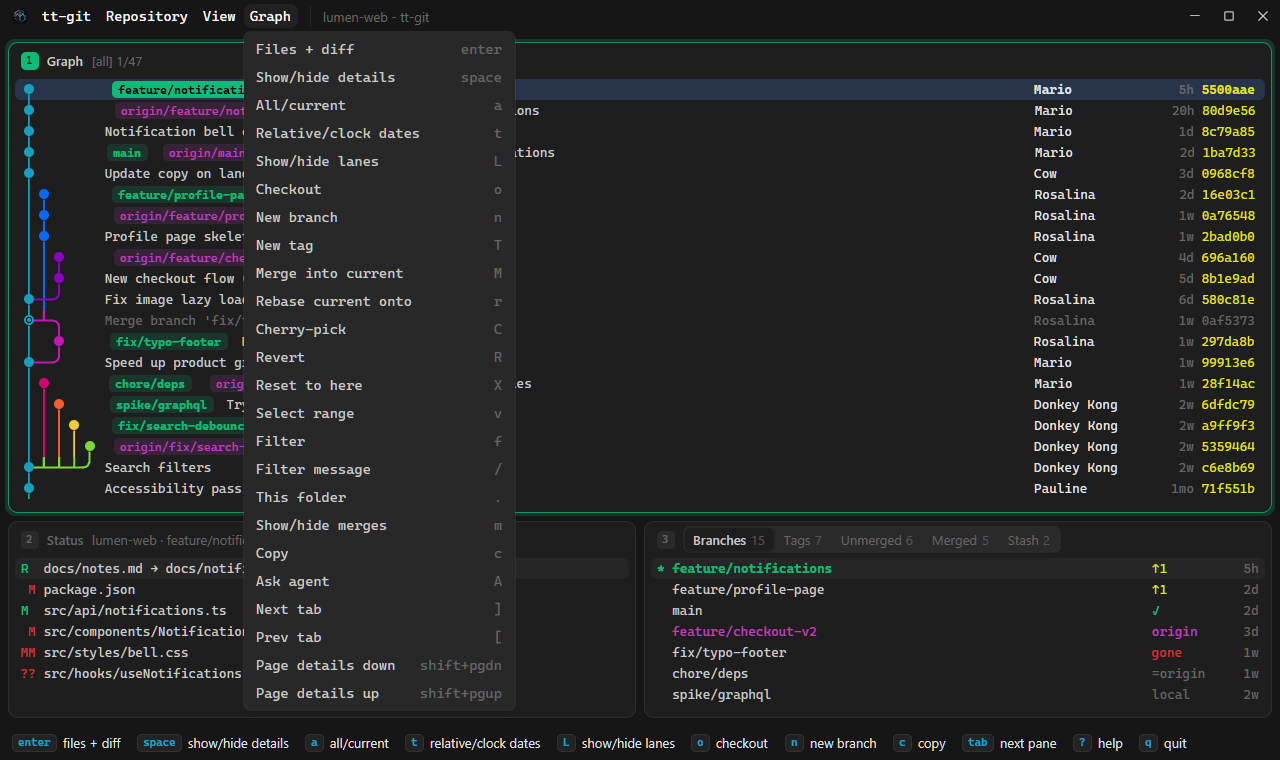
The menus list tt-git’s commands. Each item shows the key bound to it, so a key you’ve rebound shows up there too. Choosing an item does exactly what pressing its key does.
| Menu | Holds |
|---|---|
| tt-git | About tt-git (see About), Check for Updates… (see Updating), Theme, Font, Native/terminal style (see Style), Notifications (see Notifications), Plugin logs and Quit |
| Repository | Fetch, Prune gone, Pull, Push, Refresh; Continue merge/rebase, Abort merge/rebase, Undo; Ask agent; Open repository |
| View | Focus Graph, Status, Branches or Details; Next pane, Prev pane; Zoom; Zoom in, Zoom out, Reset zoom; Commands (the palette) and Help |
| The focused pane | Named after it (Graph, Status, Branches, Details, Stage, Blame, Stash or Worktrees): that pane’s commands, the ones the help popup lists first |
The last menu follows the focus, so its name and items change as you move between panes.
Where the menus are depends on the system:
- macOS: in the menu bar at the top of the screen. The key follows each
item’s name, like
Checkout (o). - Windows and Linux: drawn in the window’s own title bar, with the key at the right of each item. While a menu is open, keys go to the menu; it gives them back when it closes.
The window’s title bar starts with the tt-git icon (after the window buttons on macOS), then the menus on Windows and Linux, then the window’s title. In the native style the title bar has no line under it, and the title is dimmed after a divider.
While a dialog, the help popup or an error is open, the command items are greyed out, since a key would go to that instead. About tt-git, Check for Updates… and Quit always work. Quit closes every window; q closes only the window you press it in.
About tt-git opens a dialog with the tt-git icon, the version, the
developer, and links to the GitHub repository
and to GPUI, the toolkit the app is drawn with. Under
those, Prefer the terminal? links to the
terminal app’s install page: tt-git works
the same way and has its own About. Click a
link to open it in your browser. About in the palette
opens the dialog too, and the help popup
(?) shows the same on its About tab, a tab away.
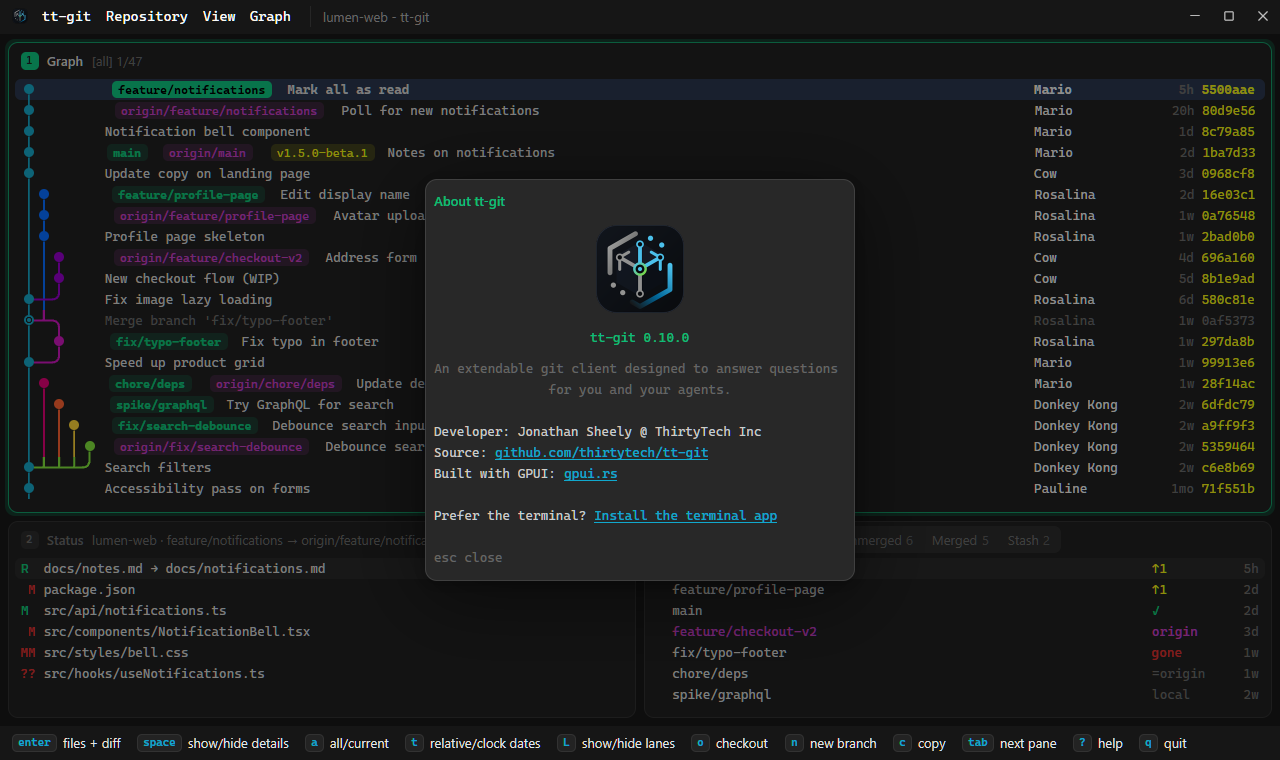
esc, enter, q, space or a click outside the dialog closes it. Other keys do nothing while it’s open, and the menus’ command items are greyed out.
Right-click menus
Section titled “Right-click menus”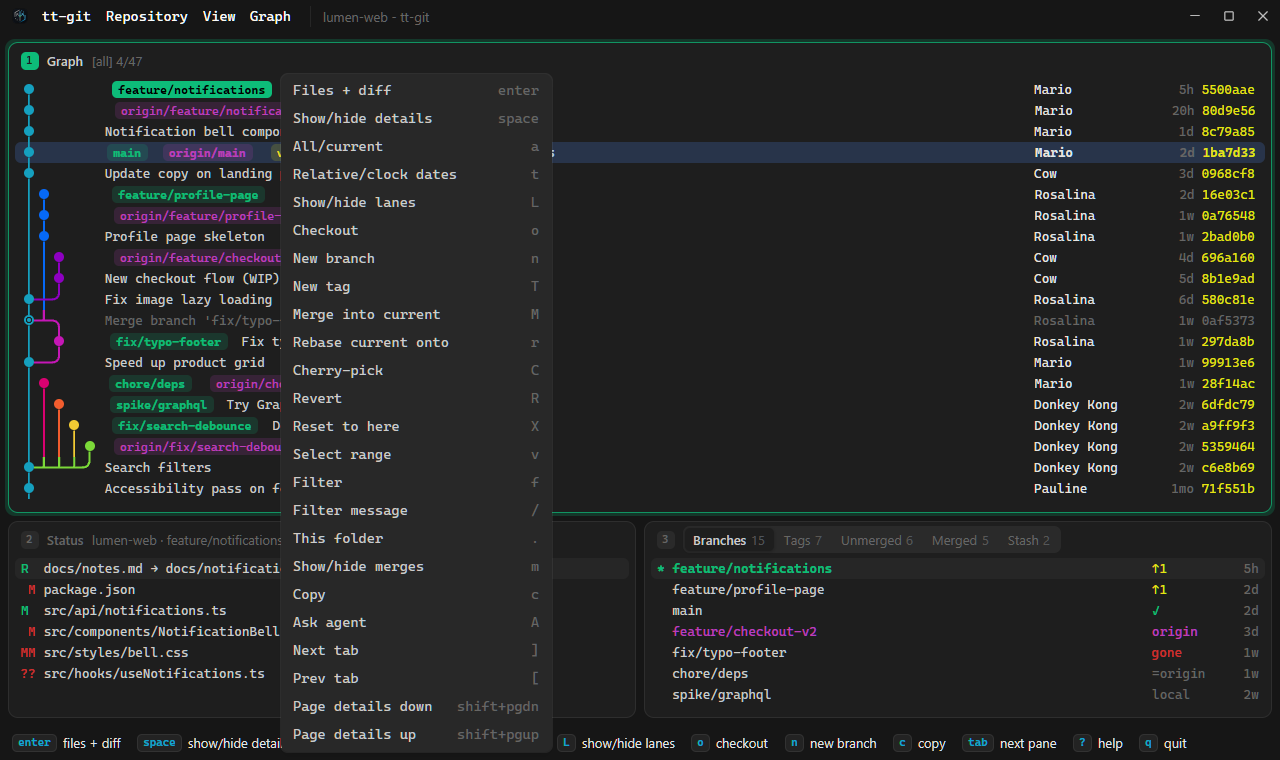
Right-click a row in any pane. The click focuses the pane and selects the row, as a left click does, then a menu opens with what you can do there: the pane’s commands that have a key, each with its key. Choose one, or move with up down and press enter. esc or a click elsewhere closes it.
Plugin and agent panes have no right-click menu: their mouse belongs to the program running in them.
The mouse
Section titled “The mouse”Everything the mouse does in the terminal app works here too: click to focus
a pane and select a row, double-click a row to do what enter does,
click a tab in the branches pane’s title, a file in the changed-files view
or a row in the staging view, and scroll with the wheel.
See The mouse. Setting
mouse = false turns clicks and the wheel off in the desktop app as well.
Holding ctrl while you turn the wheel zooms instead of
scrolling.
Selecting text
Section titled “Selecting text”Drag over the text in the details pane (a commit, a diff, plugin logs) to select it, and press ctrl+c (cmd+c on macOS) to copy it. While text is selected, ctrl+c copies rather than quits; with nothing selected it quits as usual. c and Copy in the right-click menu copy the selection too, or all of the text when nothing is selected. A click without a drag clears the selection, and so does showing other text. The selection stays where it is when you scroll.
Selecting stops at the edges of the text: dragging past the top or bottom doesn’t scroll, so scroll with the wheel while you hold the button.
Plugin errors
Section titled “Plugin errors”When a plugin fails, the help bar shows ✗ plugin <id> <action>: <why>,
cut short if it’s long. Click it to open
plugin logs in details, with the whole error and
the plugin’s output, ready to select or copy with c.
Resizing panes
Section titled “Resizing panes”Drag the border between two panes to resize them. Each split keeps the sizes you dragged it to while the window is open, even when the screen shows something else for a while (details open, a pane zoomed). The sizes aren’t saved: a new window starts from the sizes in your layout.
Zoom makes everything bigger or smaller together, as a browser does: the text in the panes, the spacing, the menus and dialogs. The title bar keeps its height.
| Key | Does |
|---|---|
| ctrl+= or ctrl++ | Zoom in. |
| ctrl+- | Zoom out. |
| ctrl+0 | Back to 100%. |
| ctrl+wheel | Zoom in (wheel up) or out (wheel down). |
They’re in the View menu and the palette too. Each step goes to the next of 50, 67, 75, 80, 90, 100, 110, 125, 150, 175, 200, 250 and 300%, and the help bar says the new zoom, such as zoom 110%.
The zoom is one setting for the whole app: every window follows it. It’s
saved as zoom in [ui] in your global
config.toml, so the app opens at the same size next time. You can set it
there yourself, to any percent from 50 to 300.
Not to be confused with Zoom (+), which shows one pane fullscreen.
The desktop app draws the panes’ text in one font. In the terminal style it draws everything in that font: the dialogs, the menus and the help bar too. The native style keeps it for the panes’ text and the keys, and uses your system’s UI font for the pane headers, the tabs, the status bar and the text in dialogs. Out of the box the panes’ font is your system’s usual monospace font: Cascadia Mono (or Consolas) on Windows, SF Mono (or Menlo) on macOS, and Noto Sans Mono, Liberation Mono or DejaVu Sans Mono on Linux.
To pick another, choose Font in the tt-git menu or the
palette. It has no key, but you can
bind one to font. The picker lists every font
installed on your system:
- Default (<font>) first, which goes back to the system’s usual font.
- Then the monospace fonts.
- Then the proportional ones, marked proportional.
Type to narrow the list, and move with up and down. The window draws in the highlighted font as you go, so you see it before you choose it.
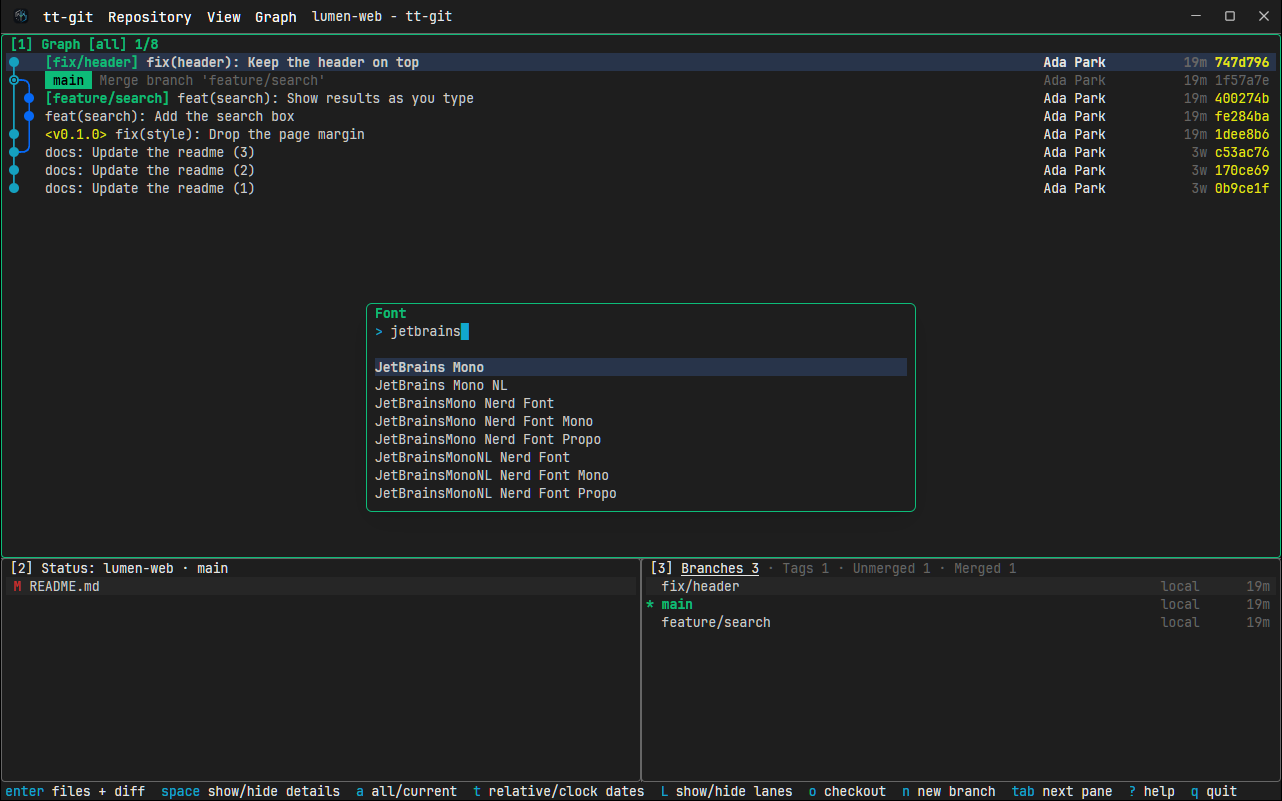
enter keeps the highlighted font, and the help bar says font <name>, saved to <config.toml>. esc closes the picker and puts the font you had back.
Like the zoom, the font is one setting for the whole app: every window
switches to it. It’s saved as font in [ui] in your
global config.toml, and choosing Default takes the setting out again.
The size is font_size there (13 pixels at 100%
zoom), and the zoom scales it.
tt-git lines its text up in columns, as in a terminal, so a proportional font draws but its columns don’t line up: the dates and hashes in the graph wander, and lines can overlap.
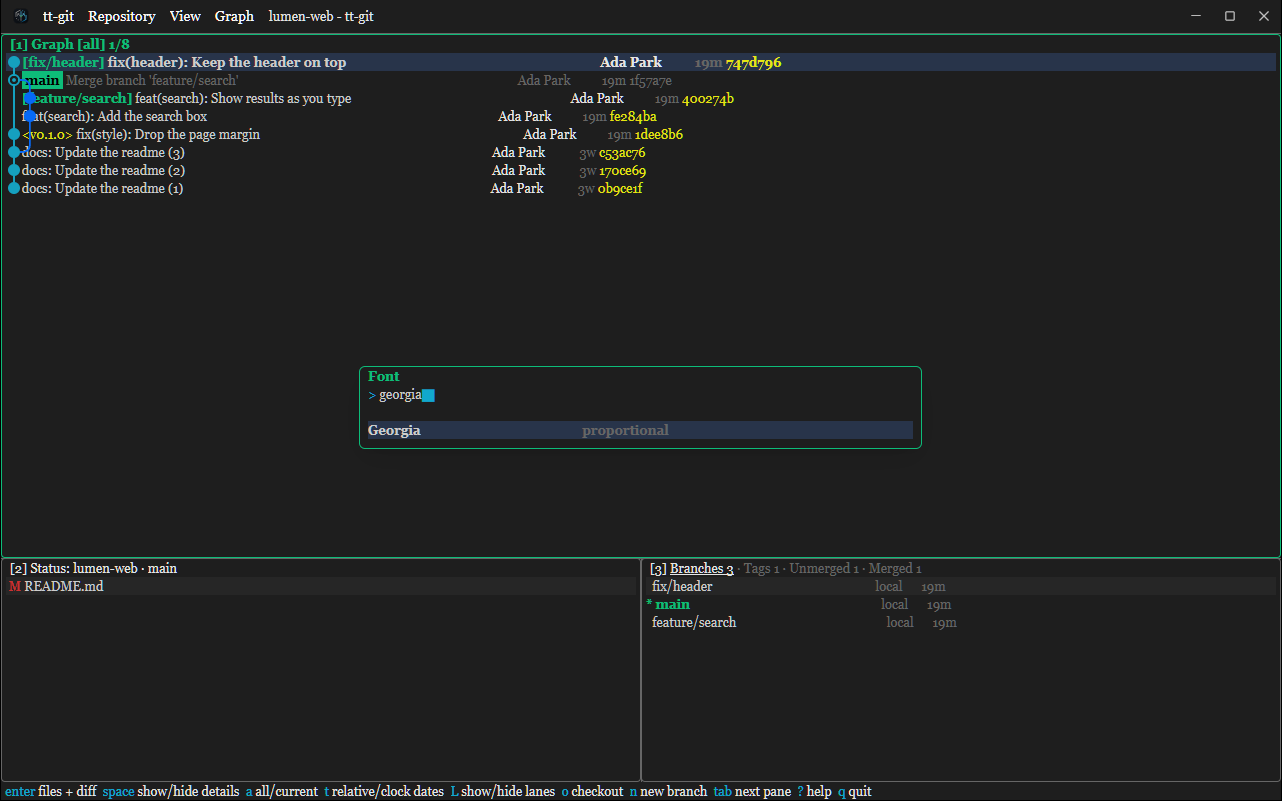
If the font in your config isn’t installed (you copied the config to another computer, say), the app draws in the system’s usual font instead, and the help bar says font <name> isn’t installed: using <font>.
Windows
Section titled “Windows”Each repository has a window of its own. Open repository (see Opening another repository) opens another one, or brings its window forward if it’s open already. On macOS, so does Open in tt-git on a folder in Finder (see the macOS tab of Download a release). It goes to the tt-git that’s running and starts one if none is.
One copy of the app
Section titled “One copy of the app”The app runs one copy at a time. Start tt-git-gui again while it’s open
(from a terminal, the Start menu, the jump list, Explorer’s Open in
tt-git or the file manager’s Open With) and the new copy hands its
folders to the one that’s running and exits. That copy opens each folder’s
repository in a window, or brings its window forward if it’s open already.
With no folder named, it opens the repository the command was started in,
or brings the start window forward outside one. A folder that isn’t in a
repository shows why in the start window.
To run a second copy anyway (to test something, say), start it with
--new-instance. A copy started with --config, --no-plugins,
--filter-to-cwd or --no-filter-to-cwd also runs on its own, since the
running copy has its own config and plugins. Such a copy doesn’t take hand-offs
from later ones either. If the running copy doesn’t answer within two
seconds, the new one starts on its own too.
The copies find each other through the
state folder: gui-handoff.lock and a socket
next to it (a named pipe on Windows). A copy with a different state
folder (TTGIT_STATE_DIR) is a separate app as far as this goes.
On Windows the window that’s brought forward takes the focus. On Wayland the compositor may leave it behind (GNOME says the app is ready instead): it gives the focus to the process that was started, and the desktop app can’t pass that on to the running copy yet.
Opening a worktree from the Worktrees tab, or checking out a branch another worktree has, replaces the window, as it replaces the screen in the terminal app: a window on the worktree opens and this one closes.
What it remembers
Section titled “What it remembers”The desktop app keeps a small file, gui.json, in the
state folder (next to the logs folder). It holds:
- Where the last window was: its position and size, and whether it was maximized or full screen. A new window opens there, moved down and to the right if another window is open. If that display is gone, it opens on one that’s there.
- The repositories you opened last, for the start window.
Two more things live in the state folder, for
updating (and gui-handoff.lock, for
one copy of the app): gui-update.json, when the app last
looked for a new release, and the gui-instances folder, where each running
copy of the app notes itself so an update can restart them all.
On Wayland the compositor decides where windows go, so only the size and maximized or full screen come back.
Jump list
Section titled “Jump list”On Windows, right-click tt-git on the taskbar, or its entry in the Start menu, for its jump list:
- Recent repositories: the ones you opened last, newest first, as the start window lists them. Each shows its folder’s name (with its parent folder’s when two have the same name) and the whole path when you rest the pointer on it. Click one to open it in the copy that’s running (see One copy of the app), or start tt-git on it. Folders that no longer exist are left out.
- Open repository…, under Tasks: starts tt-git with the folder picker
showing (
tt-git-gui --open-repository). Cancel it and the start window stays open.
The list is updated when tt-git starts and whenever you open a repository. Remove from this list on a repository also drops it from the start window’s recent repositories. Windows shows as many recent repositories as its Show recently opened items setting allows, and none when that’s off; Open repository… is always there.
The jump list belongs to tt-git’s AppUserModelID, ThirtyTech.tt-git, so
whichever copy started last (the installed one, the zip, or a release build
from source) writes it, and its entries start that copy. A debug build
(cargo run -p tt-git-gui) runs as ThirtyTech.tt-git.dev instead, with a
taskbar button and jump list of its own.
On Linux, right-click tt-git in the dock or the app launcher for
Open repository…, which does the same. It comes from ThirtyTech.tt-git.desktop,
so it’s there once tt-git is installed and lists
no recent repositories.
Dock menu
Section titled “Dock menu”On macOS, right-click tt-git in the Dock (or hold the click) for its menu:
- Recent repositories: the ones you opened last, newest first, up to ten, named as in the jump list. Click one to open it in a new window, or to bring its window forward if it’s open already. Folders that no longer exist are left out. If one can’t be opened (it’s no longer a repository, say), the start window opens and says why.
- Open Repository…: the folder picker, as in the Repository menu.
The menu is updated whenever you open a repository. macOS adds its own items under it (Options, Show All Windows, Hide, Quit).
Taskbar progress
Section titled “Taskbar progress”On Windows, while a repository’s window pushes, pulls or fetches, its taskbar button fills with a moving progress bar, so you can see it’s still going from another app. Pushing a tag, fast-forwarding a branch, deleting a branch or tag on a remote, pruning gone branches and updating tt-git show it too. git doesn’t say how far along it is, so the bar has no value. If the job fails, the bar turns red for two seconds, then clears; the error is in the window. Local work such as staging, committing or checking out is over too quickly to show, and a background fetch doesn’t show either.
On Linux, a dock that shows app progress (Dash to Dock and Ubuntu Dock on
GNOME, the task manager on KDE Plasma) shows a progress bar on tt-git’s
icon while any of its windows pushes, pulls or fetches. git doesn’t say how
far along it is, so the bar fills and starts again until the job is done.
A failed job just clears it. tt-git sends it through the Unity launcher API on the
session bus, for the installed ThirtyTech.tt-git.desktop, so a build from source
with no .desktop file installed shows nothing. GNOME’s own dash shows
neither the progress nor the badge below.
Notifications
Section titled “Notifications”The desktop app can tell you when new commits arrive while you’re working in something else, and badge its icon when a repository needs a hand. It’s off until you turn it on.
Turning them on and off
Section titled “Turning them on and off”Choose Notifications in the tt-git menu or the
palette. It has no key, but you can
bind one to notifications. The picker lists:
| Entry | What it turns on |
|---|---|
| Notifications | Everything below. Off, nothing shows, whatever the others say. |
| New commits on remote branches | Counting commits a fetch or pull brings to a remote-tracking branch. |
| New commits on local branches and worktrees | Counting commits made on a local branch from outside the window: in another worktree, a terminal, or by an agent. |
| New commits: system notification | The notification for new commits. |
| New commits: count on the app icon | The new commits on the taskbar, dock or Dock badge. |
| Conflicts: badge on the app icon | The badge while files have conflicts. |
| Stopped merge or rebase: badge on the app icon | The badge while a merge, rebase, cherry-pick or revert waits to be continued. |
| Test notification | Nothing: it sends a test notification now. See Testing them. |
Each entry says on or off on the right; an alert that’s on while Notifications is off says on (notifications off). Type to narrow the list. enter flips the highlighted entry and the picker stays open on it, so you can flip several; esc closes it. The help bar says what changed, such as notifications on, saved to <config.toml>.
The settings are one for the whole app: every open window uses the change
at once. They’re saved in your global config.toml,
notifications under [ui] and the alerts under
[ui.alerts], and only the lines that change
are touched, so your comments and other settings stay. Everything but
Notifications is on until you turn it off, so notifications = true
on its own turns on every alert. The terminal app
has no notifications, so it leaves Notifications out of its palette.
Testing them
Section titled “Testing them”To see how a notification looks, pick Test notification, the last
entry in the picker, or Test notification in the palette (bind a key to
test_notification if you want one). The picker closes and a notification
shows at once, through the same path as real ones: the repository’s name
over Test notification: 3 new commits on origin/main, with Open and
Pull. It shows even while the window is focused and even with
Notifications off; then the help bar says sent a test notification:
notifications are off, so real ones don’t show. Clicking it, Open or
Pull only brings the window forward: the test never pulls, and it
doesn’t replace a real notification for the repository. On macOS the first
test asks whether tt-git may send notifications, if it hasn’t asked yet.
New commits
Section titled “New commits”With notifications on, when new commits turn up and the repository’s window isn’t the one you’re in, a notification says so: the repository’s name over 3 new commits on origin/main, or 5 new commits on origin/main and 2 other branches. Only commits that no branch or tag in the repository had before count, so pushing your own commits, or fetching what a local branch already has, says nothing. A commit that lands on a local branch and its remote-tracking branch between two refreshes counts once. A newer notification for the same repository replaces the last one.
New commits come from two places:
- Remote branches. A fetch or pull brings commits to a remote-tracking
branch. tt-git fetches in the background
every minute, so these show up without anyone fetching. A fetch from
you, a plugin or
git fetchin a terminal brings them sooner. - Local branches and worktrees. Someone commits to a local branch from outside this window: an agent working in another worktree, you in a terminal, another tt-git window. When the branch is checked out in another worktree, the notification names it: 2 new commits on feature (worktree .worktrees/feature), with the worktree’s path from the main working tree’s folder, or just its folder’s name when it’s somewhere else. Commits this window makes itself (committing, amending, rebasing, resetting, cherry-picking, merging, pulling, undoing) don’t count. An agent can commit every few seconds, so after a branch notifies, its next commits wait a minute and then come in one notification.
The window refreshes when the repository changes, which is when it sees them. Opening a repository never notifies.
- Click a notification, or Open, to bring the repository’s window forward.
- Pull is there when the commits are on the branch the checked-out branch tracks. It brings the window forward and pulls, as p does.
Where they show
Section titled “Where they show”On Windows the notification is a toast from tt-git, with tt-git’s icon
large beside the text, a small one by its name, and no sound. Windows’ own
settings (Settings > System > Notifications) can turn tt-git’s off or
keep them out of sight. The installer gives the Start menu entry tt-git’s
AppUserModelID, ThirtyTech.tt-git, which toasts and the taskbar use.
Each time it starts, tt-git keeps two copies of the app icon in
%APPDATA%\tt-git (or TTGIT_STATE_DIR): notification-icon.png, the
large one each toast carries, and notification-badge-<hash>.png, a
32-pixel one it registers under HKCU\Software\Classes\AppUserModelId\ThirtyTech.tt-git
with its name. So a copy that wasn’t installed (the zip, or a build from
source) shows both icons too. Uninstalling removes the key; the icon files
stay with your settings. A debug build sends its toasts as
ThirtyTech.tt-git.dev and registers that key instead, so it leaves the
installed tt-git’s alone.
On Linux the notification comes from the desktop, under tt-git. When
the desktop knows the app, tt-git sends it through the desktop portal
(xdg-desktop-portal’s Notification portal), so it shows with tt-git’s
name and icon, and the desktop’s own notification settings for tt-git
apply. The desktop knows the app when its launcher,
ThirtyTech.tt-git.desktop, is installed (the packages, the tarball and
the install script put it in place) or when tt-git runs in a sandbox such
as Flatpak. Otherwise, as with the AppImage or a build from source, tt-git
sends it straight to the desktop’s notification service
(org.freedesktop.Notifications), without tt-git’s icon. GNOME then
names it after the window’s app id, ThirtyTech.tt-git, with a generic
icon. A desktop with neither shows nothing.
On macOS notifications come from tt-git.app, the app the
.dmg installs, and land in Notification Center under
its bundle ID, net.thirtytech.tt-git, with the app’s icon. The first time you open a
repository window with notifications on, or turn them on, macOS asks
whether tt-git may send notifications; after that it remembers your
answer, and System
Settings > Notifications > tt-git changes it. A build run straight from
the command line (cargo run -p tt-git-gui) isn’t an app bundle, so it
shows none and doesn’t ask. macOS can also refuse a build that’s only
signed ad hoc (an unsigned release, or one you package yourself) without
asking; the log, tt-git-gui.log, then says Notifications are not
allowed for this application.
The taskbar badge
Section titled “The taskbar badge”With notifications on, Windows also puts a small dot over the window’s taskbar button, for each of them you leave on:
| Dot | Means | Goes away |
|---|---|---|
| Red | Files have conflicts. | When none are left. |
| Amber | A merge, rebase, cherry-pick or revert stopped part way and waits to be continued. | When it’s continued or aborted. |
| Blue | New commits came in while the window wasn’t the one you’re in. | When you switch to the window. |
Only one shows at a time: red over amber over blue. A screen reader says what it means, such as 3 new commits. The dot has a white ring, so it shows on a light taskbar and a dark one.
Windows stacks tt-git’s windows on one taskbar button, which shows the most pressing dot of them all. So a blue dot for new commits in one repository stays while you’re in another’s window, until you switch to the window they came in or close it.
On Linux the dock has one icon for all of tt-git’s windows and no colored dots, so it shows this instead:
| Shows | Means | Goes away |
|---|---|---|
| A number | New commits came in while the window wasn’t the one you’re in, added up over every window. | When you switch to the windows they came in. |
| The icon marked urgent (Dash to Dock wiggles it, KDE highlights it) | Conflicts, or a merge, rebase, cherry-pick or revert that stopped, turned up while the window wasn’t the one you’re in, for example after a git merge in a terminal. | When you switch to the window. The conflicts themselves stay until you resolve them. |
The Dock badge
Section titled “The Dock badge”On macOS, with notifications on, the badge is on tt-git’s Dock icon instead. All windows share the icon, so it sums them up:
| Badge | Means | Goes away |
|---|---|---|
| ! | A repository has files with conflicts, or a merge, rebase, cherry-pick or revert stopped part way. | When no window has either. |
| A number | That many new commits came in while their windows weren’t the one you’re in, added up over the windows. | Each window’s count when you switch to it, or close it. |
! comes before a number. The Dock’s badge has one color, so conflicts and a stopped merge look the same; the window’s title bar and status say which. The Dock shows no progress for a push, pull or fetch.
Editing files
Section titled “Editing files”e opens a file in your editor, as in the terminal app. An editor with a window of its own, such as VS Code, opens as usual.
A terminal editor, such as vim or nano, has no terminal to take over, so it runs in a pane over the main area instead. The pane’s title is the command it runs and says quit <editor> to come back. Every key goes to the editor. When you quit it, the pane closes and tt-git refreshes, as when you come back from the editor in the terminal app.
The pane release keys (ctrl+\ and f12) don’t leave the editor, since that would lose your edits. The first press says <editor> is still running: quit it to come back, or press <key> again to stop it. A second press in a row stops it, and the help bar says stopped <editor>.
Closing the window while the editor runs asks first: An editor is still running. Closing the window stops it, and anything it hasn’t saved is lost. Choose Close or Cancel.
Quick Look
Section titled “Quick Look”On macOS, v and V in the details pane, or Quick look in its right-click menu, preview the file in view in the Quick Look panel, over the window as Finder shows it. See Previewing a file with Quick Look.
Plugins
Section titled “Plugins”Plugins load in every window, each with that window’s repository and its own API socket. Their panes draw as terminals inside the window.
Plugins talk to tt-git by running $TTGIT_BIN_PATH (see
Environment). The desktop app has no subcommands,
so it points TTGIT_BIN_PATH at the tt-git binary: the one in the same
folder as tt-git-gui or in the bin folder beside it (where the Windows
installer puts it), else the first on your PATH. Without any,
plugins get no TTGIT_BIN_PATH, and the ones that call it fail.
All the windows run in one process, which has one working directory: opening a repository changes it to that repository, so plugins started then start there, as in the terminal app.
Known gaps
Section titled “Known gaps”- No input method (IME) composition yet. Keys that compose a character through an input method, as for Chinese, Japanese or Korean text, don’t work in prompts.
- The folder picker needs the desktop portal on Linux. Without
xdg-desktop-portal, Open repository and Open folder… say they couldn’t show the folder picker. The start window can still open a recent repository, but there’s no way to type a path instead. - Quitting doesn’t ask about running editors. Quit in the tt-git menu stops every window’s terminal editor without asking. Closing a window asks.
- No app icon on Wayland and macOS without the packaged files. The icon
comes from
ThirtyTech.tt-git.desktopand its icons on Wayland and fromtt-git.appon macOS, which the release downloads include, so a build from source shows none. Windows and X11 always show it. - Pane sizes aren’t saved. Dragged split sizes last until the window closes.
- No updates from inside the app. Download the new release to update it; see Updating.
- A closed window’s API socket keeps listening until the app quits.
- A notification left after tt-git quits does nothing. Clicking it in the notification center doesn’t start tt-git again.