
Staging hunks and lines
Sometimes a file holds two changes that belong in different commits. The staging view opens one file’s changes fullscreen, with what’s unstaged on one side and what’s staged on the other, and lets you move them across a hunk or a single line at a time. You can also throw away just part of a file. Open it with enter on a file in the status pane.
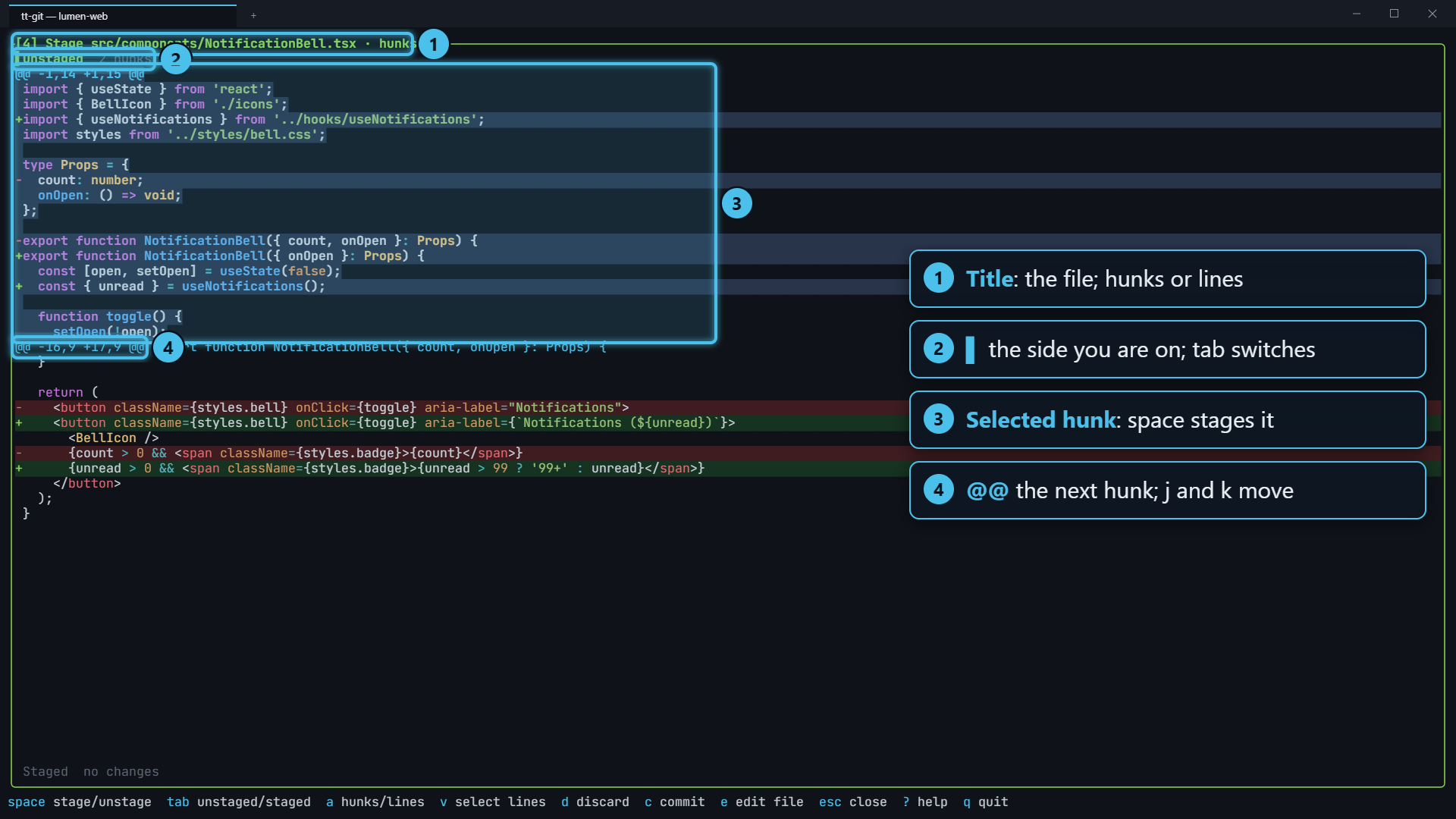
Opening the staging view
Section titled “Opening the staging view”- Focus the status pane (2) and select a file.
- Press enter.
- When you’re done, press esc to go back to the status pane.
The view has two sides:
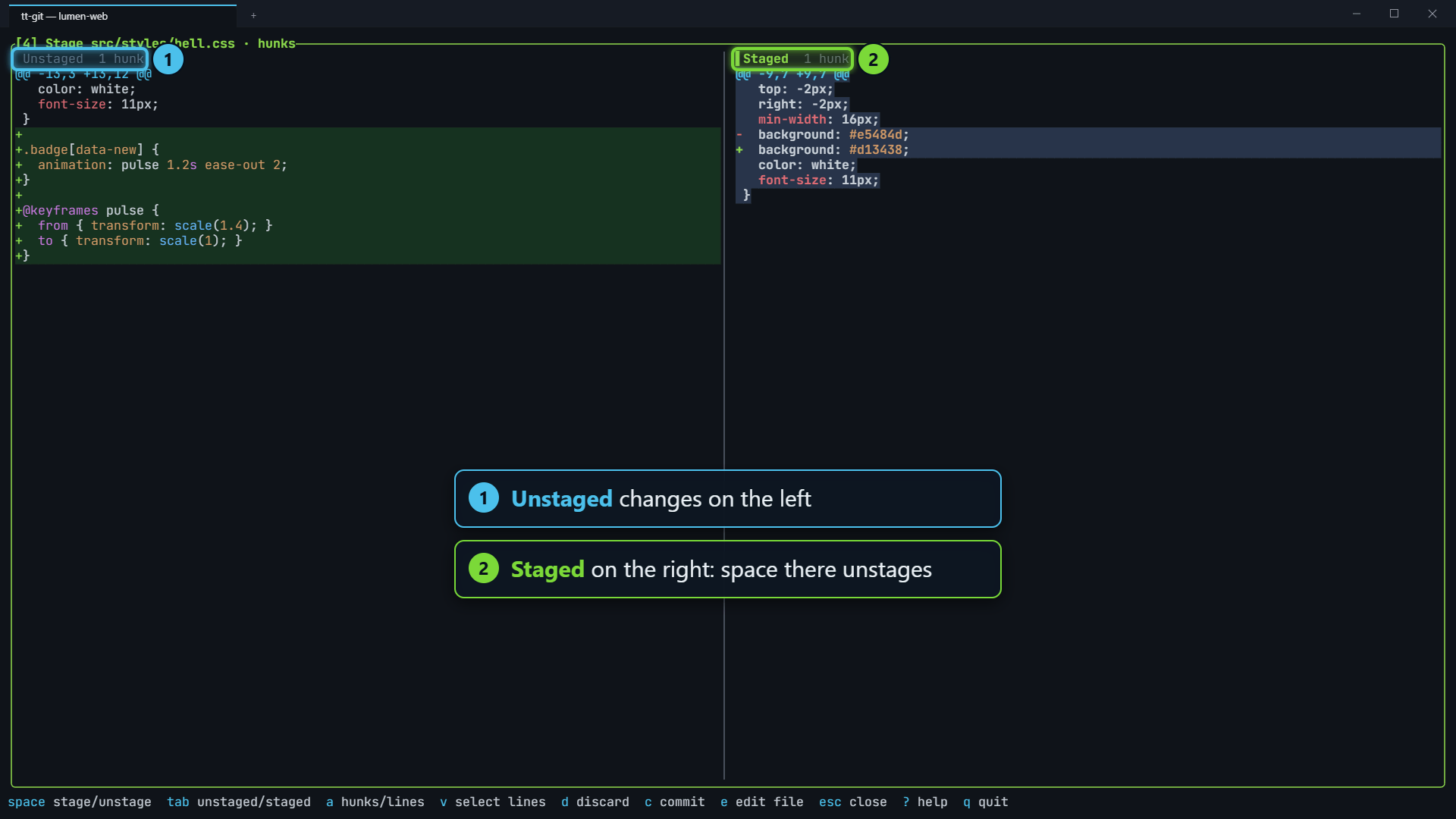
- Unstaged: changes in your working tree that aren’t staged yet.
- Staged: changes that will go into the next commit.
When your terminal is at least 140 columns wide they sit side by side, unstaged on the left. On a narrower terminal, unstaged is on top and staged below. A side with no changes shrinks to its title.
Each side’s title says how many hunks it has (3 hunks, 1 hunk, no changes). The side you’re
working on is marked with ▌; press tab to switch sides.
Code is colored by language, with added lines on a green background and removed lines on red. The selection’s highlight shows over them.
The pane’s title shows the file and the mode: Stage src/app.rs · hunks or
Stage src/app.rs · lines.
Hunk mode
Section titled “Hunk mode”The view starts in hunk mode. A hunk is one block of nearby changes, starting at an @@ line.
- j k move to the next or previous hunk. The whole hunk is highlighted.
- space stages the selected hunk.
After each change both sides reload, and the selection lands on whatever came next, so you can press space repeatedly to work down the file. The view closes by itself once the file has no changes left.
Line mode and ranges
Section titled “Line mode and ranges”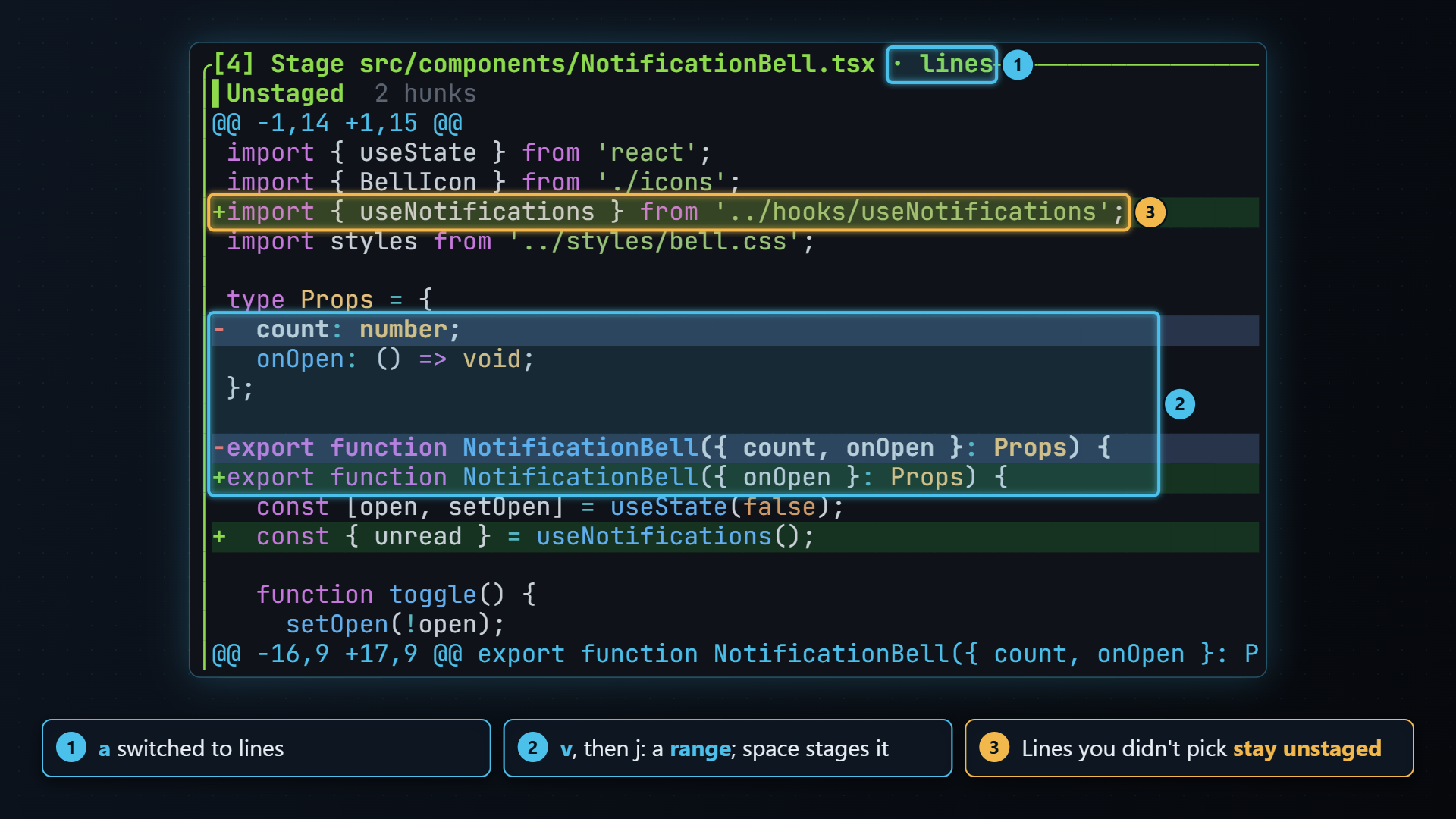
Press a to switch to line mode, and a again to go back to hunks.
- j k step through changed lines only (
+and-), skipping the unchanged context around them. - space stages the selected line.
- v starts a range at the selected line. Move with j k to extend it, then space stages every changed line in it. v again ends the range without staging. Pressing v in hunk mode switches to line mode and starts a range.
Lines you don’t pick stay as they are. Staging an added line without the removed line next to it works the way you’d expect: the removed line stays in the file until you stage it too.
Unstaging
Section titled “Unstaging”Press tab to move to the Staged side. Everything works the same way, but space unstages the selection, moving it back to the Unstaged side.
Discarding
Section titled “Discarding”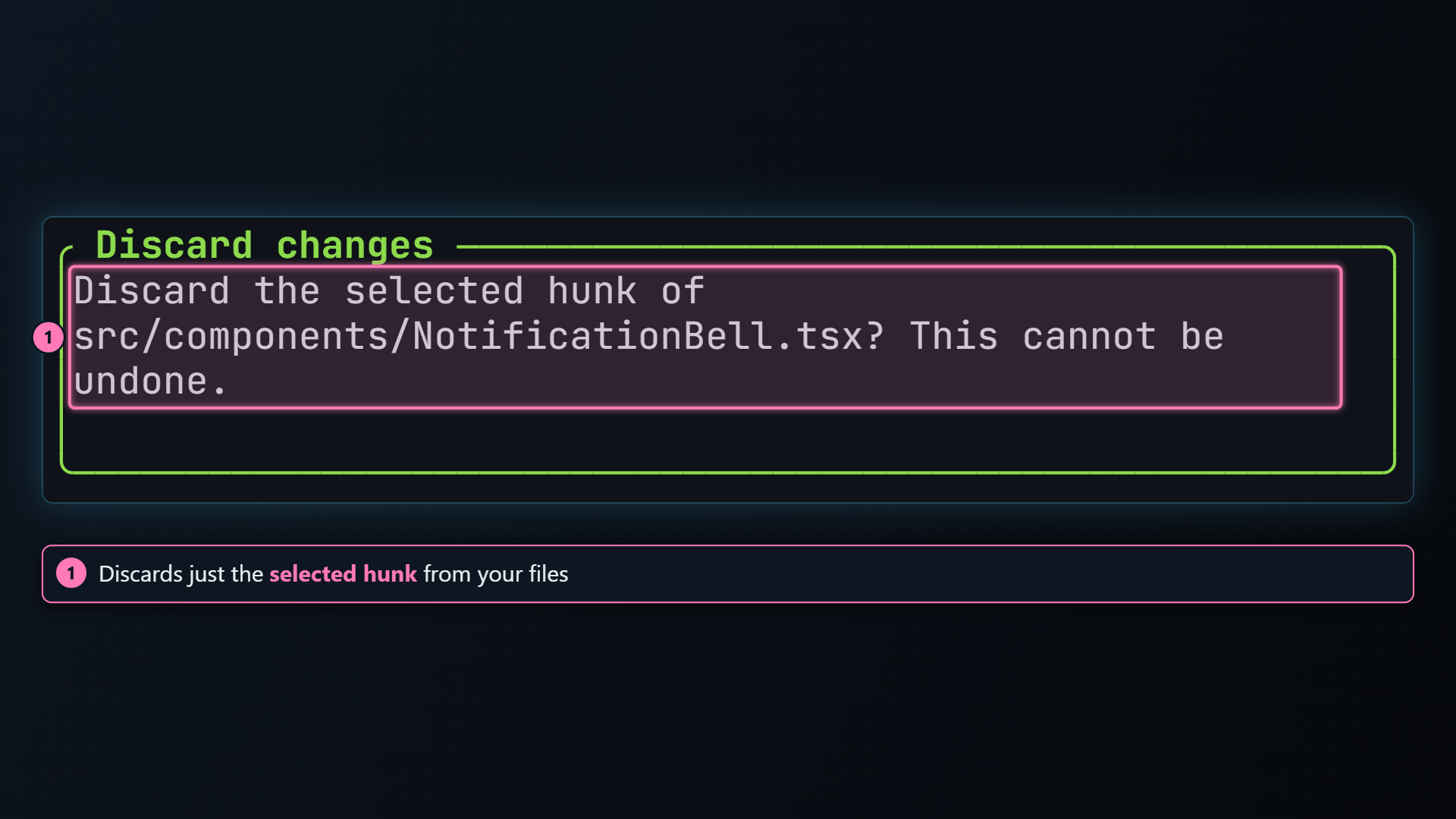
Press d on the Unstaged side to throw away the selected hunk or lines from your working tree. tt-git asks first, since this can’t be undone:
Discard the selected hunk of src/app.rs? This cannot be undone.Discarding only works on unstaged changes. On the Staged side, unstage first.
Committing from here
Section titled “Committing from here”Press c to commit what’s staged without leaving the staging view. It opens the same Commit message dialog as the status pane; see Committing and amending.
Opening the file in your editor
Section titled “Opening the file in your editor”Press e to open the file in your editor at the selection: the first changed line of the selected hunk, or in line mode the line the cursor is on. A removed line opens where it was.
On the Staged side, the line numbers in the diff are the index’s. tt-git carries them through your unstaged changes, so if you’ve since added lines above the change, the editor still lands on it in the file as it is now.
Which editor runs is set in [editor].
Files that can’t be split
Section titled “Files that can’t be split”Some files can only be staged whole. The side says why instead of showing hunks:
| Message | Why |
|---|---|
conflicted: resolve it, then stage the whole file | The file has merge conflicts |
binary: stage the whole file | The file isn’t text |
not UTF-8: stage the whole file | The diff isn’t valid UTF-8 text |
too large to split (… bytes) | An untracked file over 256 KiB |
… is an untracked directory | A new folder rather than a file |
Press esc and use space in the status pane to stage these.
While a change is being applied, keys wait: if you press space too soon, tt-git says
still applying the last change…, because what’s on screen is out of date until the new diffs
arrive.
For how tt-git turns your selection into a patch git can apply, see How tt-git uses git.
| Key | Does |
|---|---|
| j k | Next / previous hunk (in line mode: changed line) |
| g G | First / last hunk or line |
| ctrl+d ctrl+u | Scroll a page |
| space | Stage the selection (on the Staged side: unstage it) |
| tab | Switch between Unstaged and Staged |
| a | Hunks ↔ lines |
| v | Start or end a range of lines |
| d | Discard the selection from the working tree (asks first) |
| c | Commit what’s staged |
| e | Open the file in your editor at the selection |
| esc | Back to the status pane |