
Merged and unmerged
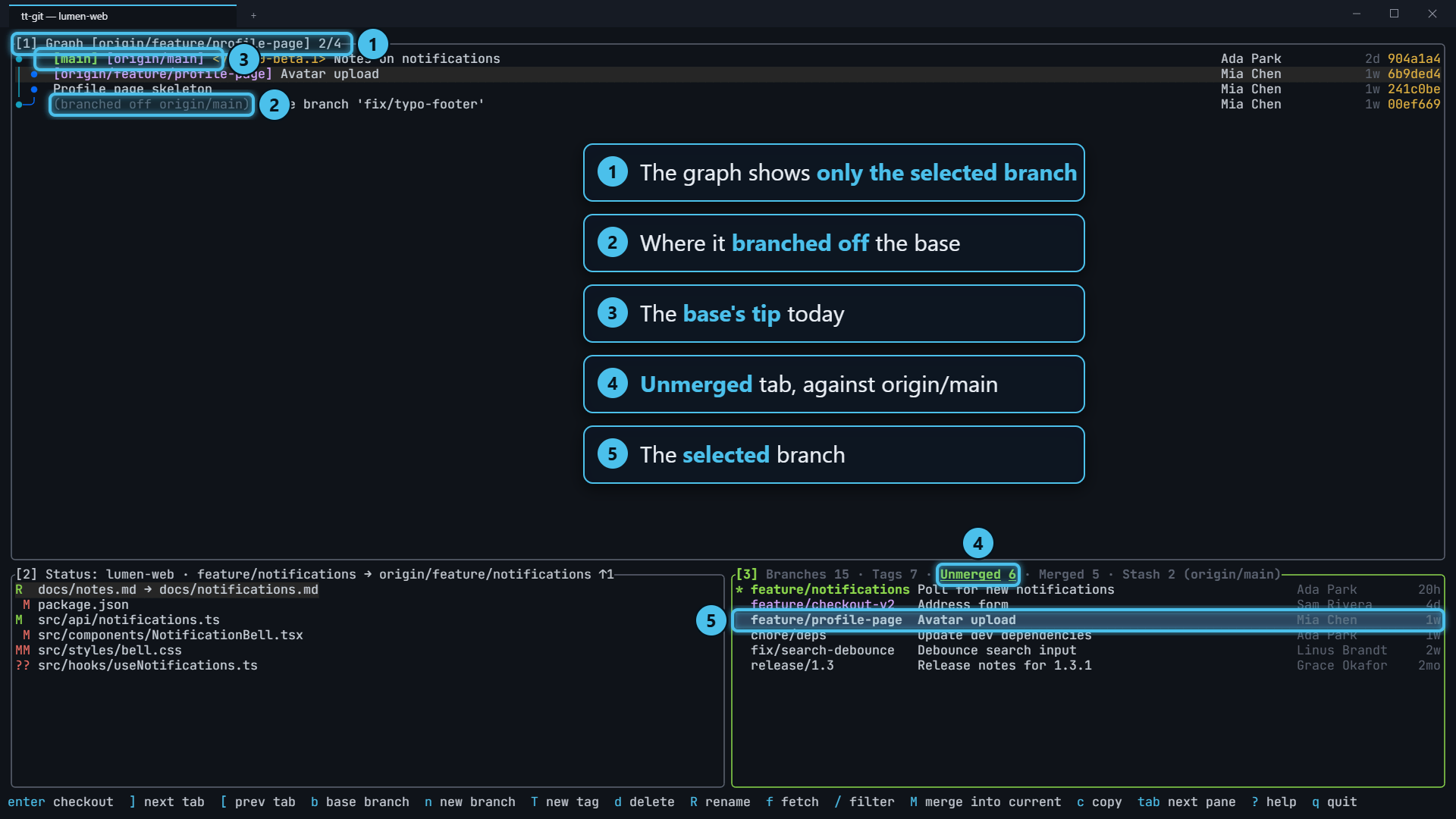
The Unmerged and Merged tabs of the branches pane
list the branches that are not yet merged into the project’s primary branch,
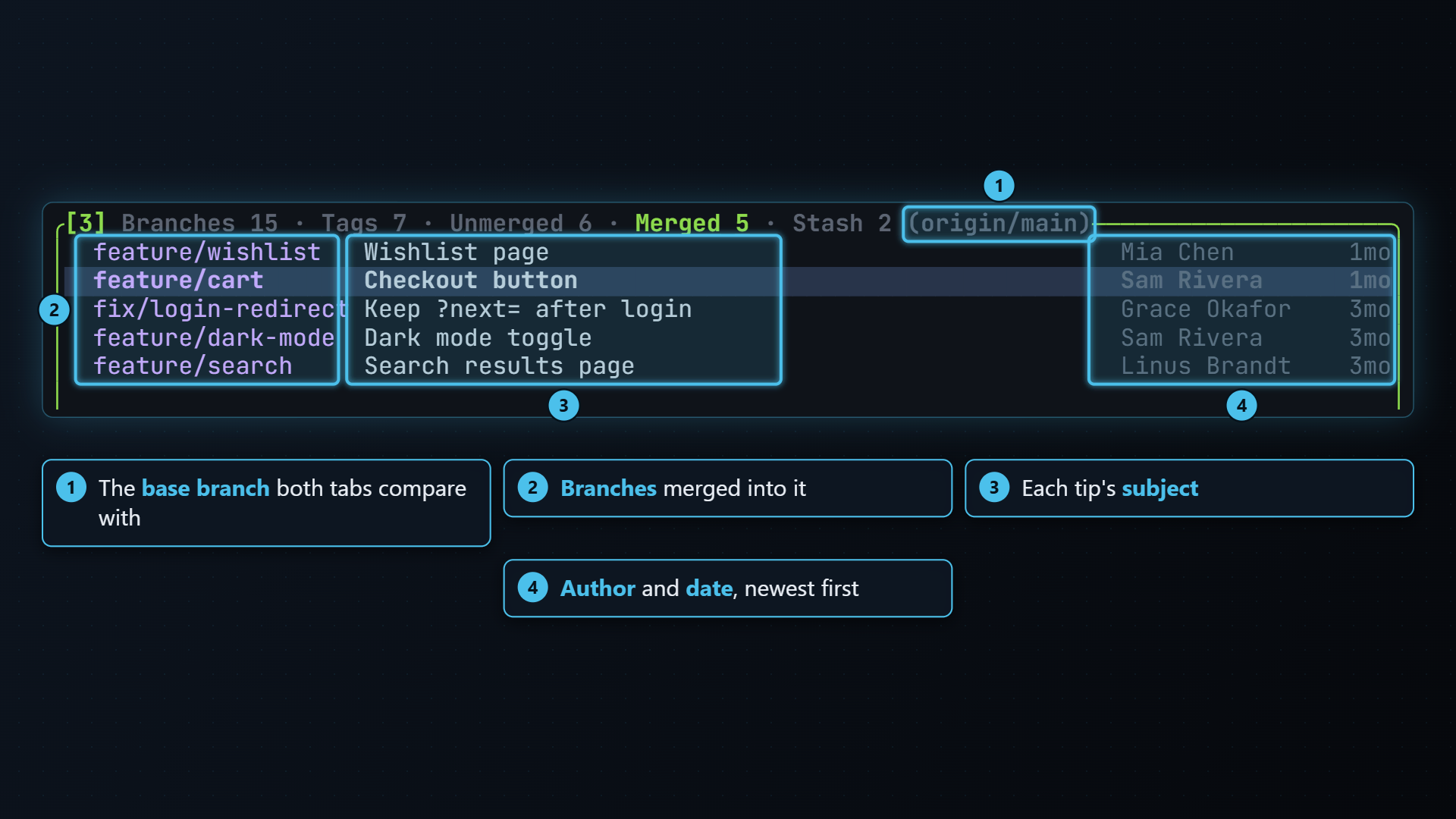
and the ones that are, each with its tip’s subject, author and date. They
work like the git branch -r --no-merged origin/main and --merged aliases
many people keep around, but you can act on each row, and the
graph shows only the selected branch: where it branched off,
its own commits, and where it was merged back in.
What the tabs list
Section titled “What the tabs list”Press ] on the branches pane to get from Branches past Tags to Unmerged, then Merged. Each row shows:
feature/login Add the login form Ada Lovelace 3h fix/null-config Handle a missing config Grace Hopper 2dthe branch name, its tip commit’s subject, the author (through .mailmap,
so one person is one name) and the commit date. Both tabs are sorted by
commit date, newest first.
- Merged means reachable: a branch is merged when its tip is the base branch or one of the base’s ancestors.
- Unmerged is everything else. A branch that was squash-merged or rebase-merged has a tip that isn’t in the base’s history, so it stays on Unmerged.
Some branches are never listed:
- The base branch itself.
- Long-lived branches, named exactly one of
safe_branches(by defaultmaster,main,productionandprod) on any remote. They’d be noise on both tabs, and you never want to delete one by accident. - Archived branches on Unmerged: names containing anything in
unmerged_exclude(defaultarchive), the way people addgrep -v archiveto the alias.
Both lists are set in the configuration file.
Like with like
Section titled “Like with like”If the base is a remote branch (origin/main), only branches on that remote
are compared. If it’s a local branch, only local branches are. That keeps
one row per branch and compares like with like.
The base branch
Section titled “The base branch”The tabs compare against the base branch, shown in the pane’s title:
Unmerged 4 (origin/main). tt-git detects it as the project’s primary
branch:
- whatever a remote’s
HEADpoints at,originfirst, - else the first of
main,master,development,developortrunkfound on a remote, - else the same names locally.
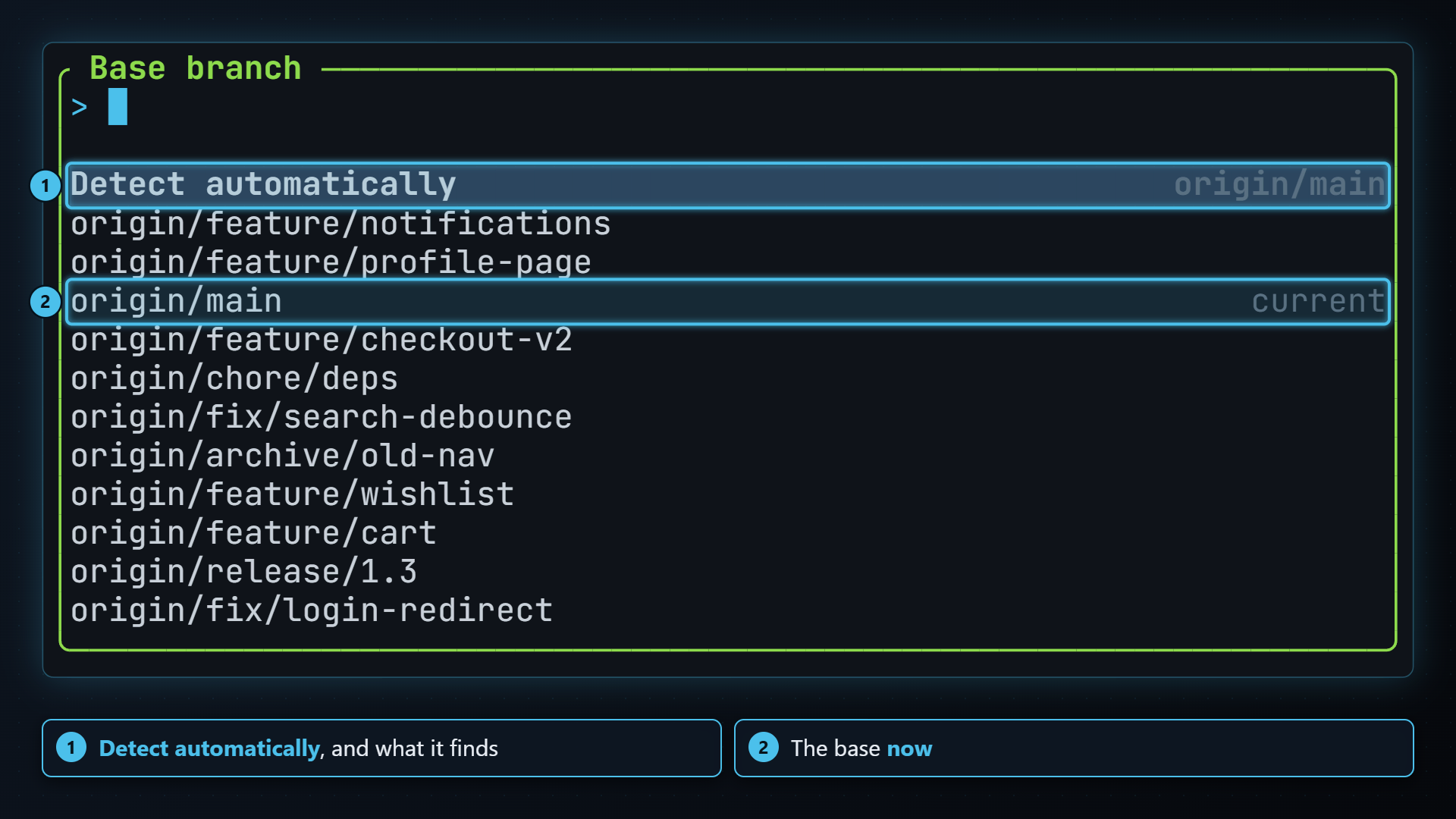
To compare against something else, press b. The Base branch picker lists Detect automatically first (with what detection would pick), then every remote branch, then every local one, with the current choice marked. Type to narrow the list and press enter.
tt-git saves your choice as tt-git.baseBranch in the repository’s own git
config, so each project remembers its own and nothing goes in your global
config. Pick Detect automatically to go back. If the saved branch is
later deleted, detection takes over again.
The Tags tab measures how far each recent tag is from the same base branch.
A branch’s history in the graph
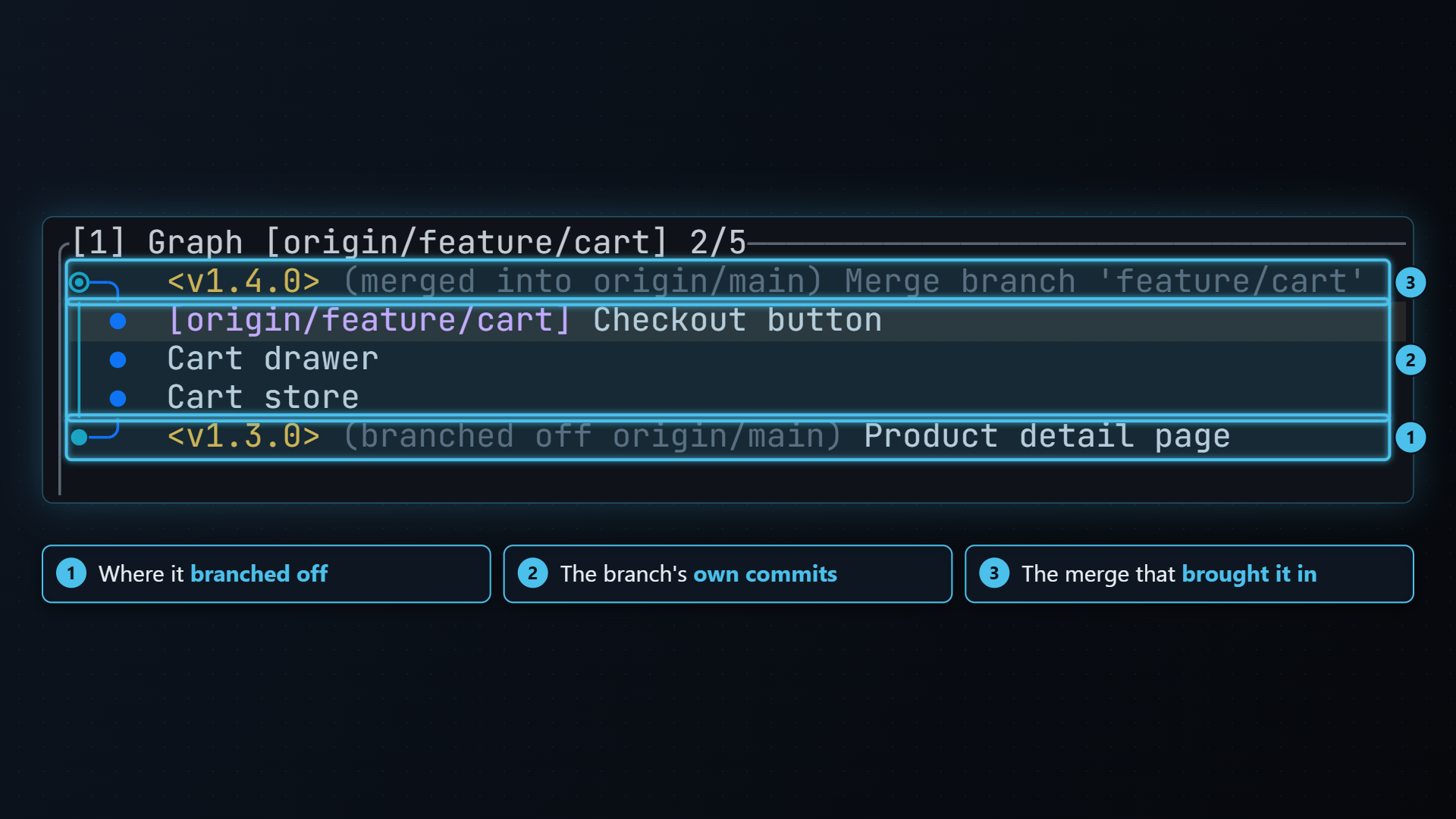
Section titled “A branch’s history in the graph”On Unmerged and Merged, the graph shows only the selected branch, so you can
see what it contains without the rest of the history in the way. The
graph’s title changes from Graph [all] to the branch’s name.
From the bottom up, you see:
-
Where it branched off: the base commit it started from, marked (branched off origin/main).
-
The branch’s own commits. Only its first-parent history, so commits it pulled in from other branches (say, a merge of
maininto it) are left out and you see only the work done on it. -
Where it was merged back in: the base commit that merged it, marked (merged into origin/main). For an unmerged branch, the base’s current tip takes this place, so you can see how far the base has moved on since the branch started.
The base’s commits in between are left out. A branch that was fast-forwarded into the base has no commits of its own left, so only its tip is shown.
Moving the selection redraws the graph for the next branch. Going back to the Branches tab, or pressing a in the graph, shows the full graph again. Any author or file filter on the graph is set aside while these tabs are open and comes back when you leave them.
How tt-git works this out with git is covered in How tt-git uses git.
Cleaning up merged branches
Section titled “Cleaning up merged branches”The Merged tab is a list of branches that are safe to delete: everything on them is already in the base.
- f to fetch and prune, so the list is current.
- ] to the Merged tab.
- Check a branch’s history in the graph if you want to be sure.
- d to delete it. A branch you have locally is deleted locally
(
git branch -d); a branch that’s only on the remote is deleted there (git push <remote> --delete <branch>), after the dialog shows you the command.
The other branch keys work on these tabs too: check out, new branch, rename, merge, rebase and copy. See Branches.
| Key | Does |
|---|---|
| ] [ | Next / previous tab |
| b | Pick the base branch (Detect automatically clears your choice) |
| enter space | Check out the branch |
| d | Delete it (locally if you have it, else on the remote; asks first) |
| n | New branch from it |
| M / r | Merge it into the current branch / rebase the current branch onto it |
| / | Filter as you type |
| f | git fetch --all --prune |
| c | Copy the branch name |