
Moving around
Focusing a pane
Section titled “Focusing a pane”Keys go to the focused pane, the one with the green border. These keys work from any pane:
| Key | Focuses |
|---|---|
| 1 | Graph |
| 2 | Status |
| 3 | Branches |
| 4 | Details (opening it if it’s hidden) |
| tab / shift+tab | The next / previous pane |
| ctrl+h ctrl+j ctrl+k ctrl+l | The pane to the left / below / above / right |
Focusing status or branches while details covers them closes details and brings them back.
Moving the selection
Section titled “Moving the selection”Every list moves the same way:
| Key | Moves |
|---|---|
| j / ↓ | Down one row |
| k / ↑ | Up one row |
| ctrl+d / ctrl+u | Down / up a page |
| g / G | To the top / bottom |
As you move in the graph or the branch list, the details pane (when it’s open) follows the selection. It only loads the row you stop on, so holding j through a long history stays fast.
+ makes a pane fill the screen, and + again puts it back. It zooms details if details is focused, and the graph otherwise.
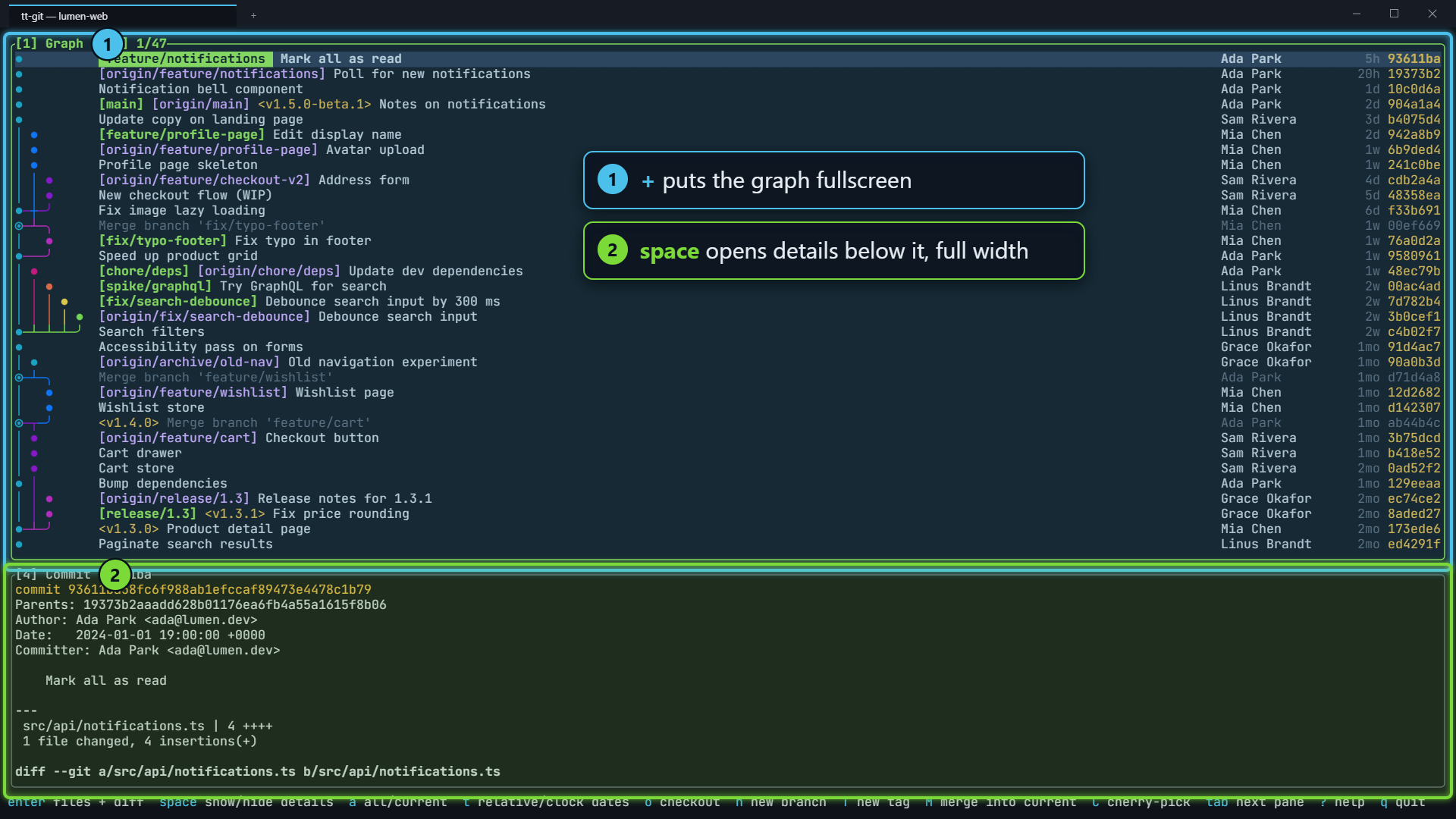
With the graph zoomed, space opens details below it at full width.
The mouse
Section titled “The mouse”The mouse is on by default:
- Click a pane to focus it, or a row to select it.
- Double-click a commit in the graph to open it fullscreen with its changed files beside the diff, as enter does.
- Click a tab’s name in the branches pane’s title (Branches, Tags, Stash, Worktrees and so on) to switch to it.
- Click a file in the details pane’s changed-files view to show its diff.
- Click an author or file in Filter graph to filter by it; a click outside the popup closes it.
- Scroll the wheel to scroll the pane under the pointer, focused or not. Over the diff in the changed-files view, the wheel scrolls the diff.
- ctrl+click a link in the details pane to open it with a plugin (see Links).
Set mouse = false in your configuration file to turn it
off, for example so your terminal’s own text selection works without
holding shift.
Getting help
Section titled “Getting help”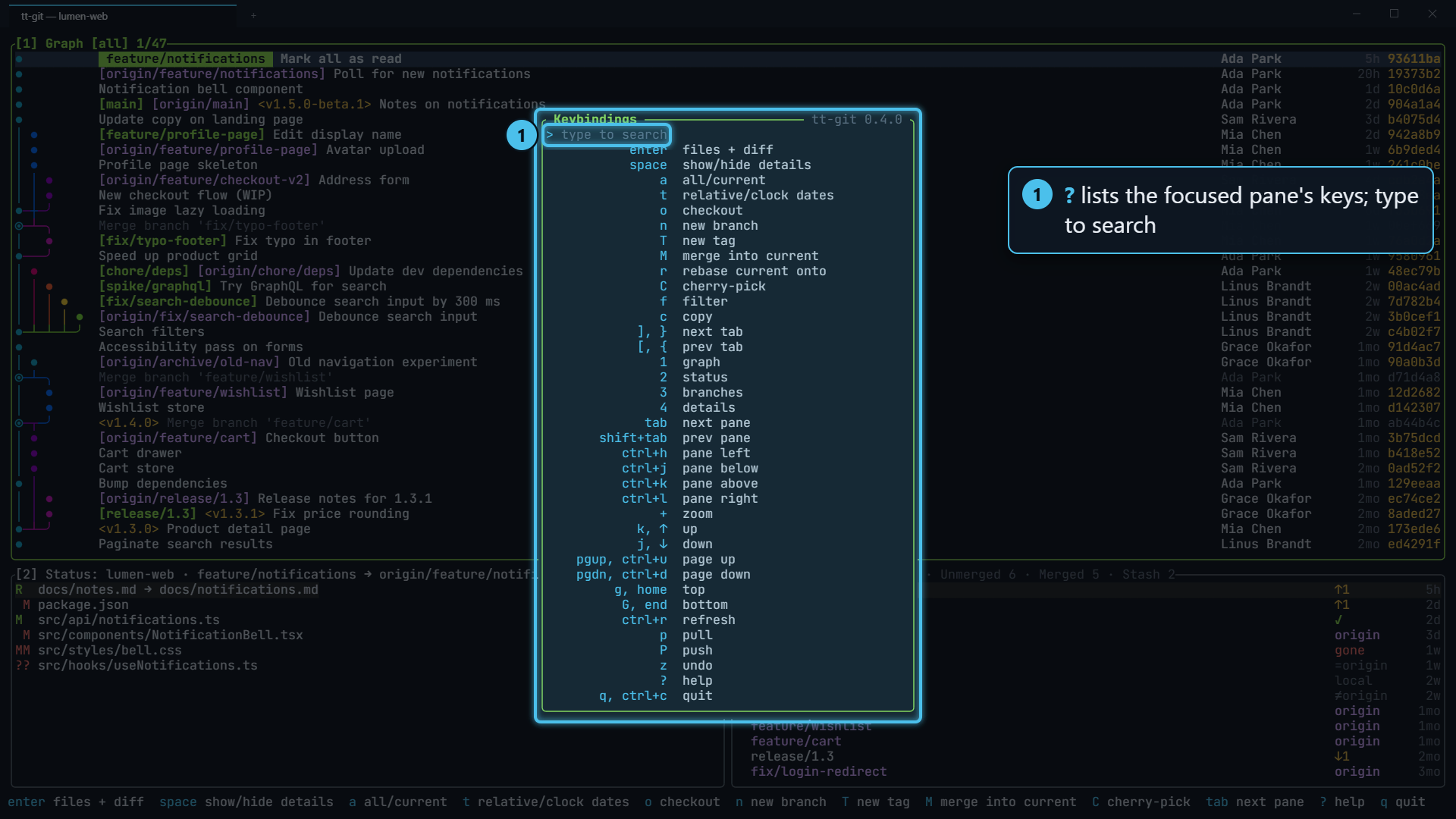
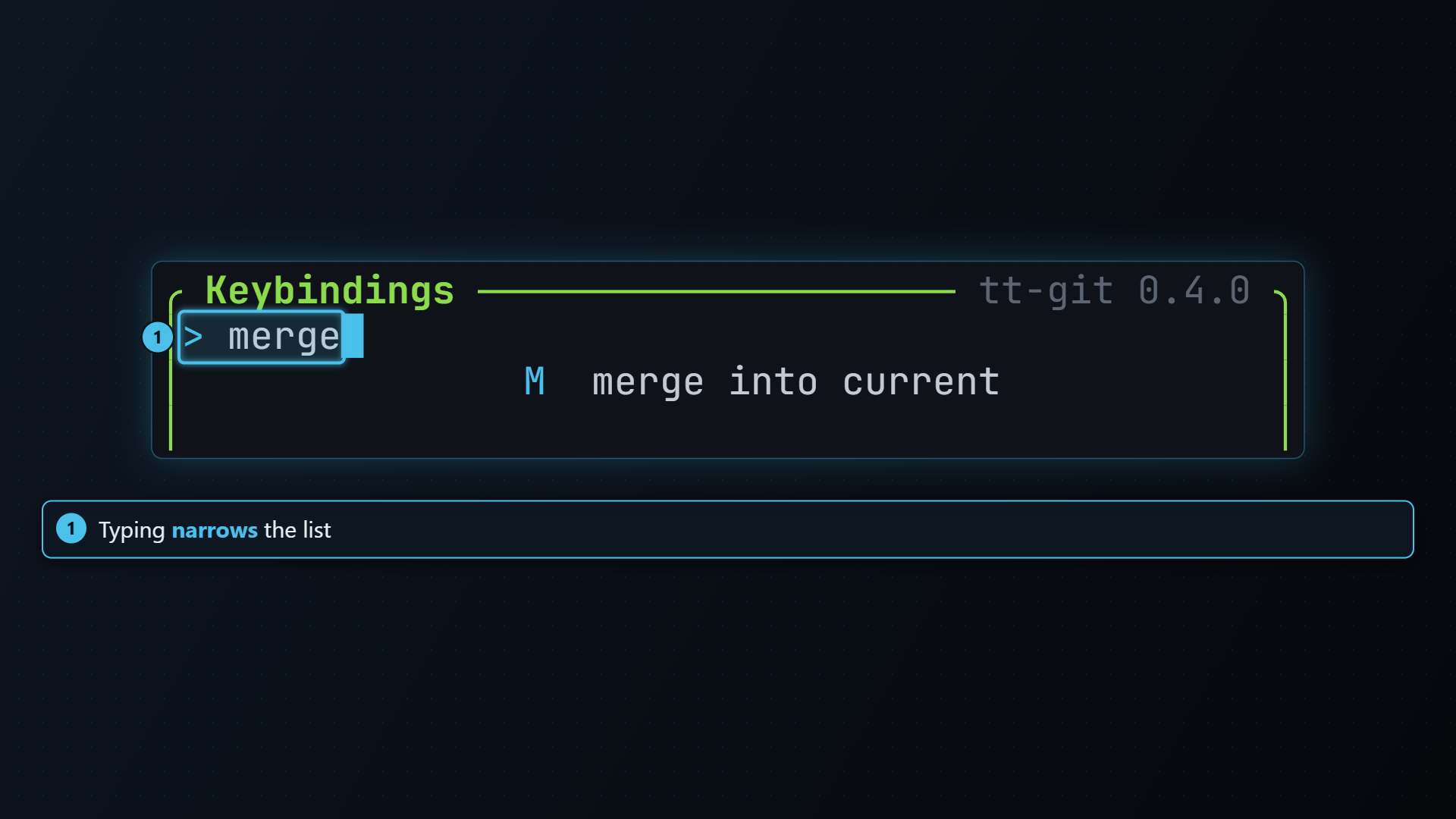
Press ? to see the keys for the focused pane, followed by the ones
that work everywhere. Start typing to narrow the list: stash finds every
stash key, ctrl every control key. backspace deletes a character,
ctrl+u clears what you typed, and esc closes the popup
(so does ? while nothing is typed).
The popup lists the keys as they’re bound now, so it includes any you’ve changed in your config. Its top right corner shows the version of tt-git you’re running, like tt-git 0.3.0.
To quit, press q or ctrl+c.
The full list of keys is in Keyboard shortcuts.