
Graph
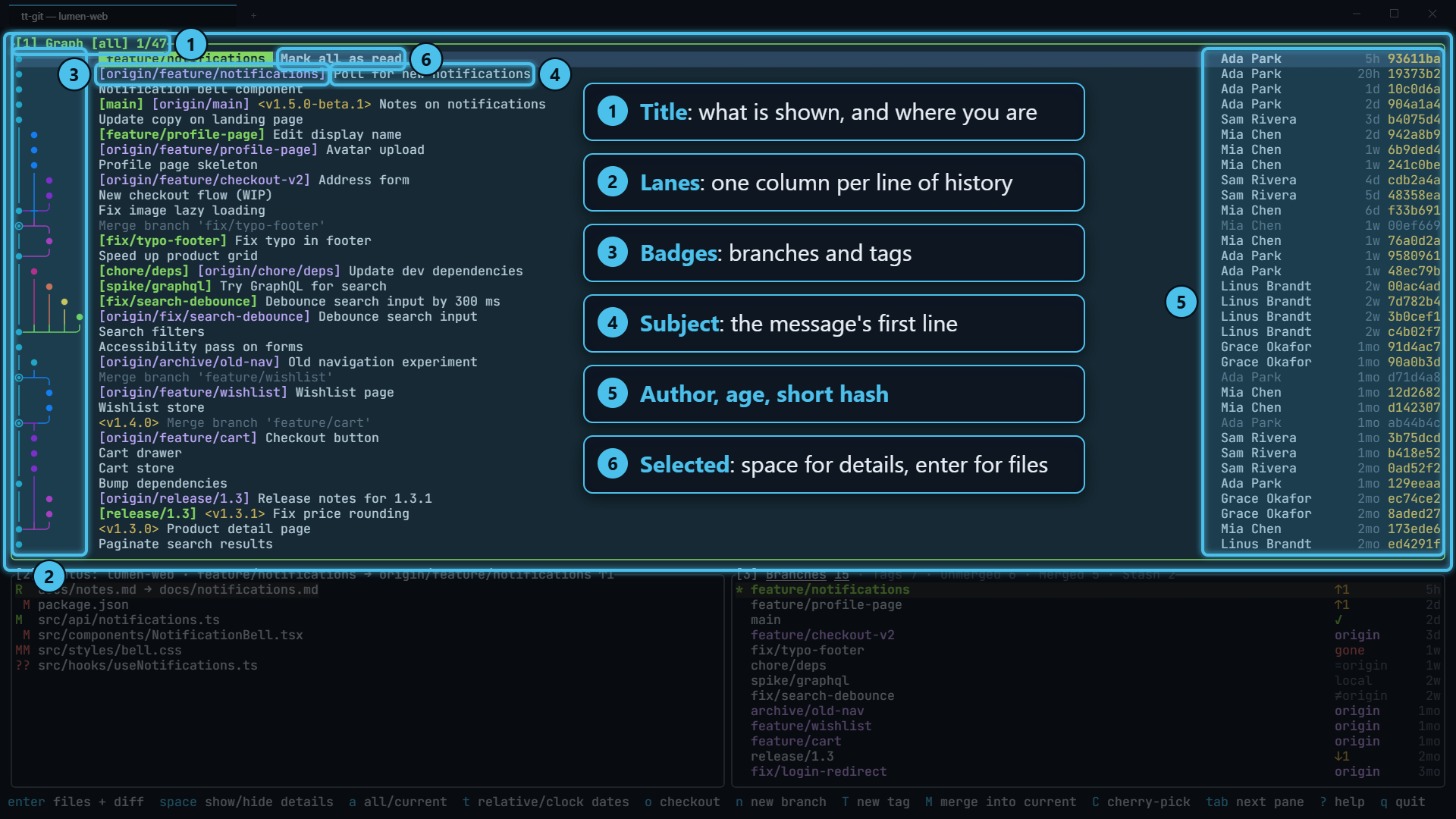
The graph is tt-git’s main view. It shows the history of every branch, remote branch and tag as one GitLens-style graph, newest commit first, with one row per commit. Branches keep their column from top to bottom, so you can follow a line by eye. From here you open a commit’s details, filter the history down to one author or one file, and start a branch, merge, rebase or cherry-pick at the selected commit. Press 1 to focus it from anywhere.
What it shows
Section titled “What it shows”Each row is one commit:
● [side] side experiment Test User 2h b66◉─╮ main <v1.0> Merge 'feature' Test User 3h 59f│ ● [feature] feature work Test User 1d 788● │ main work Test User 1d f75●─╯ base Test User 2d b29From left to right:
- Lanes: where the commit sits in the history, and how it connects to its parents.
- Badges for the branches and tags that point at it.
- The subject, the first line of the commit message.
- The author, how long ago it was committed (
now,5m,3h,2d,3w,4mo,2y) and the short hash.
On a narrow pane the author moves ahead of the other columns, so the subject stays readable.
Merge commits are dimmed: their subject, author, date and hash are drawn in gray, so the commits
that did the work stand out. Their badges and the ◉ in the lanes keep their colors.
The title tells you what you’re looking at: Graph [all] 12/4031 means every branch is shown and the
12th of 4,031 loaded commits is selected. A filter adds to it, for example
Graph [all · author Ada · file src/] 3/120. While a load is running the title ends in loading….
Reading the lanes
Section titled “Reading the lanes”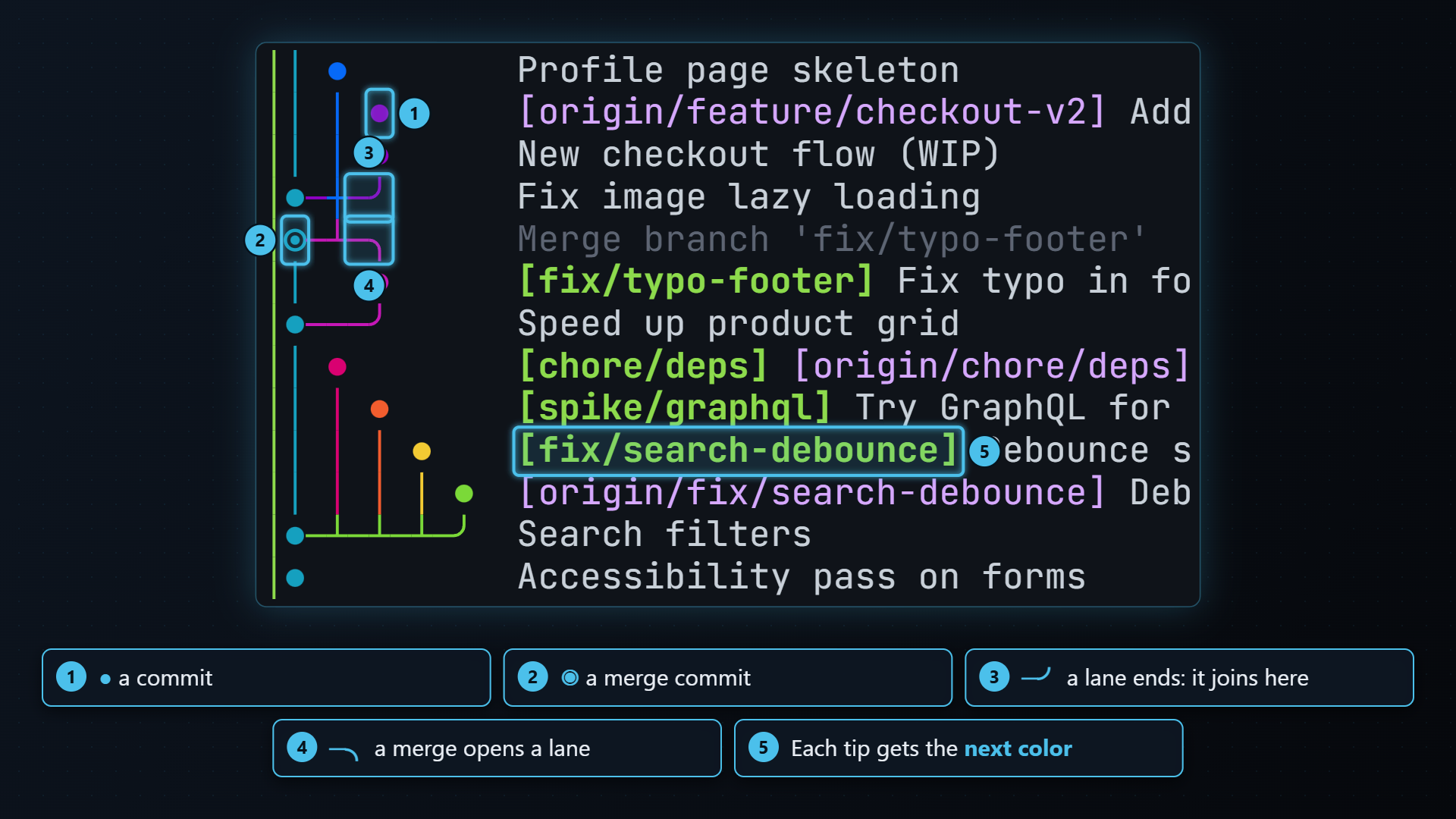
Every line of history has its own column and color, and keeps that column for as long as it runs. Branches go straight down instead of shifting sideways as other branches start and end.
| Glyph | Means |
|---|---|
● | A commit |
◉ | A merge commit (more than one parent) |
│ | A line of history passing through this row |
─╯ | A line ending here: it joins this commit |
─╮ | A merge opening a new line for its other parent |
… | More lanes than fit (see max_lanes below) |
A commit with nothing above it in its column is a branch tip. Each new tip and each merge’s extra parent gets the next of eight colors.
Only the first 16 lanes are drawn; wider histories collapse into …. You can change that with
max_lanes in the configuration file.
Branch and tag badges
Section titled “Branch and tag badges”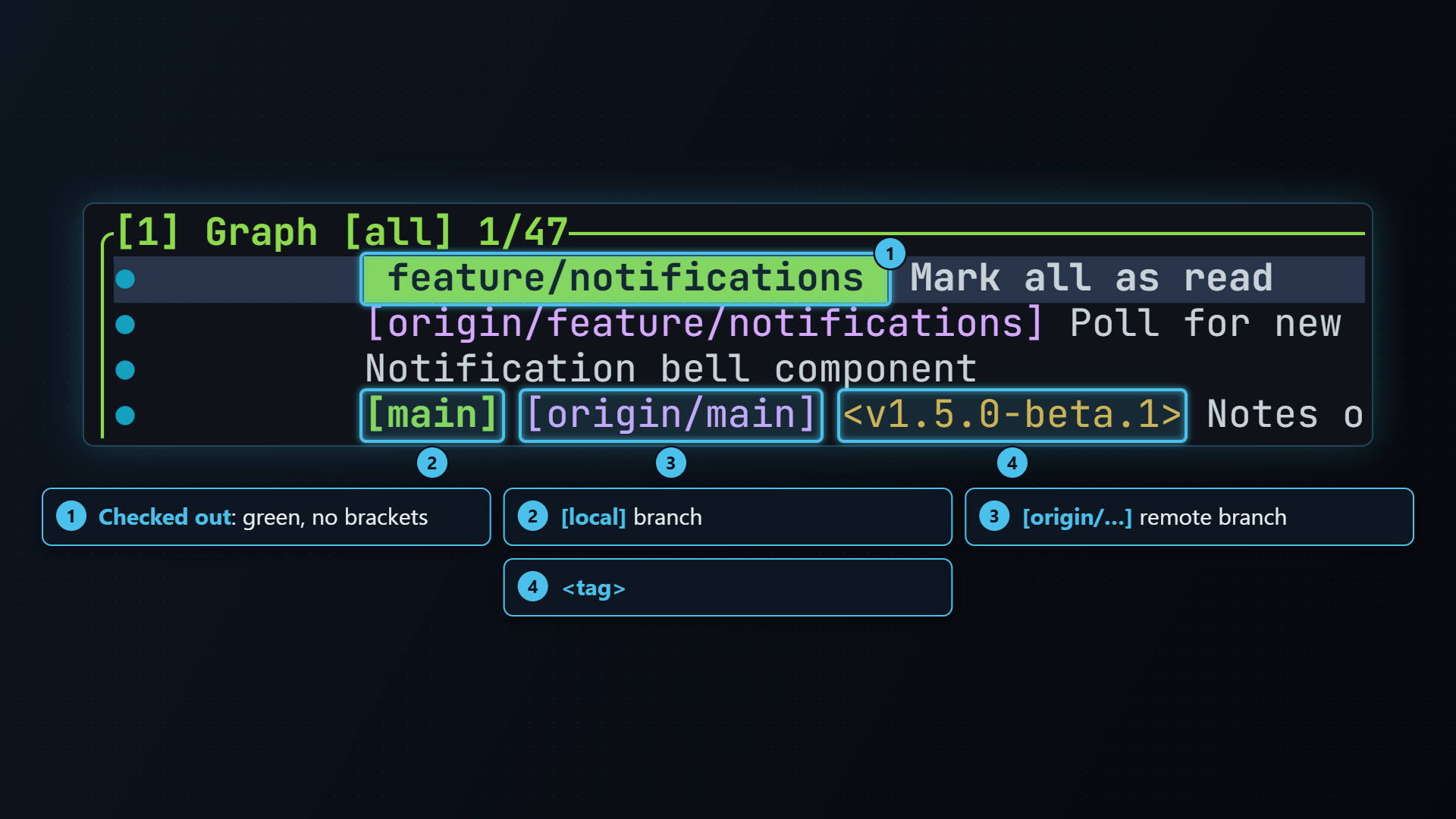
Badges sit between the lanes and the subject:
| Badge | Means |
|---|---|
main on green | The branch you have checked out |
HEAD on red | A detached HEAD |
[feature] (green) | A local branch |
[origin/main] (magenta) | A remote branch |
<v1.0> (yellow) | A tag |
Symbolic refs like origin/HEAD are left out, since they only repeat another badge. When a row is
too narrow for everything, badges are dropped before the subject is.
All branches or just the current one
Section titled “All branches or just the current one”Press a to switch between two views:
- all shows every branch, remote branch and tag.
- current shows only
HEADand its upstream, so you can see what you’d push or pull without the rest of the repository in the way.
The title shows which one you’re in: Graph [all] or Graph [current]. To leave the upstream out of
the current view, set current_includes_upstream = false in the configuration file.
The Unmerged and Merged tabs of the branches pane use the graph to show a single branch. While they do, the title shows that branch’s name, and a goes back to the full graph.
You don’t have to leave the graph to get there. With the graph focused, ] and [ (or } and {) step the branches pane to its next or previous tab, as they do in the branches pane itself. Focus stays on the graph, so you can flip to Unmerged or Merged and watch the graph follow.
Filtering by author or file
Section titled “Filtering by author or file”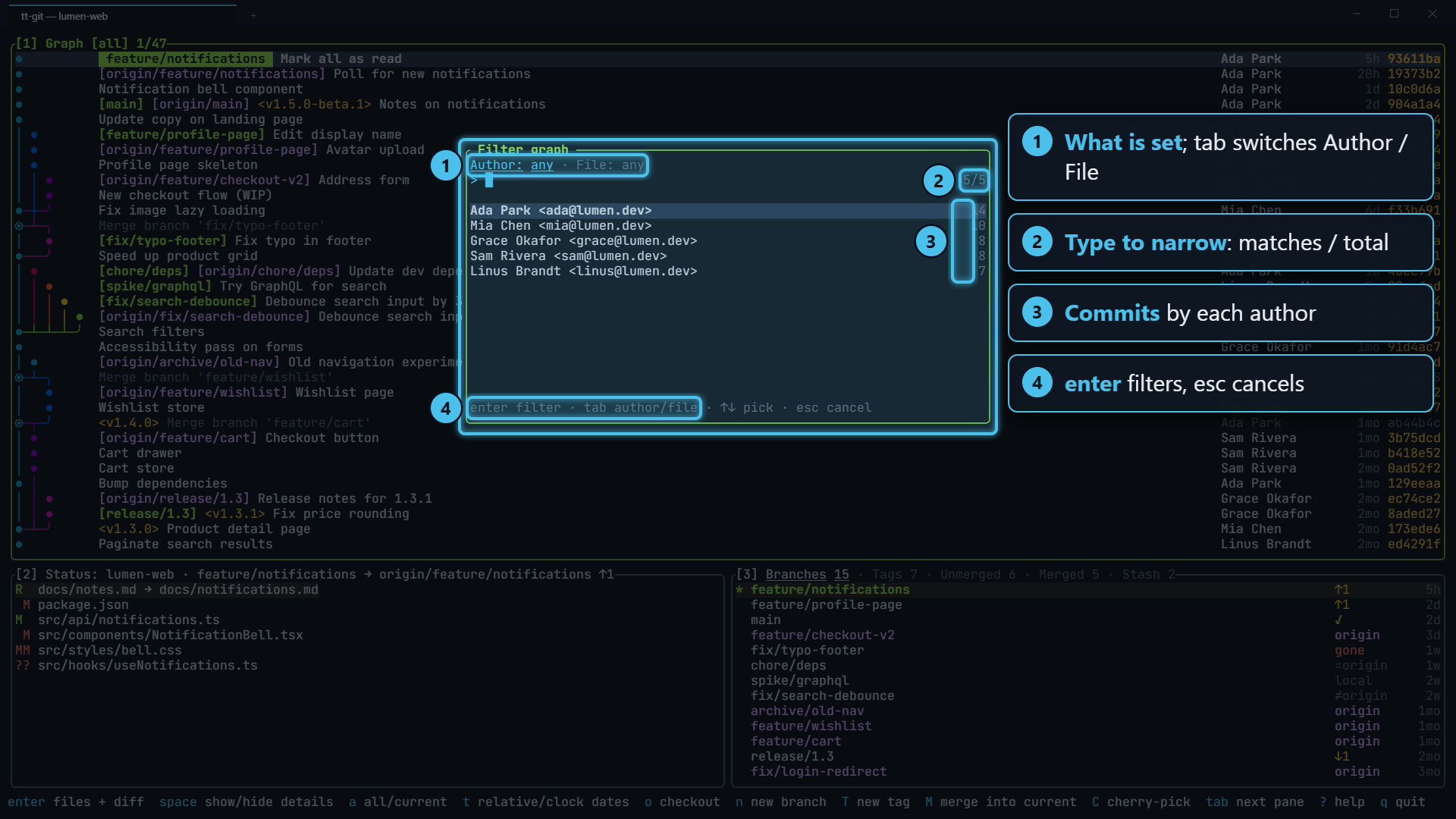
Press f to open Filter graph. It has two tabs, Author and File; tab switches between them. You can set one or both, and a commit has to match both.
- Press f.
- Type part of a name or path. The list narrows as you type.
- Pick an entry with ↑ ↓.
- Press enter. The graph reloads with only the matching commits.
With the mouse, click an entry to filter by it straight away, or click Author or File to switch tabs. The wheel moves the selection, and a click outside the popup closes it without changing the filter.
- Authors are listed with the most commits first. Each person appears once, even if they’ve
committed under several email addresses, as long as your
.mailmapsays they’re the same person. - Files lists every tracked file, with each folder listed just before the first file in it. Pick
a folder, such as
src/components/, to see every commit that touched anything under it. - Matching ignores case. Entries that contain what you typed come first, then entries that only
match it as a sequence of letters, so
apcmpstill findsapp/components/. - Deleted files aren’t in the list, since only files that still exist are. If nothing matches on
the File tab, enter uses what you typed as the path, so you can still see the history of
a file that’s gone. The popup says so:
no matches · enter shows commits that changed ….
When a filter is set, the first entry on its tab is Any author or Any file, which clears just that part. To clear the whole filter, close details and press esc in the graph.
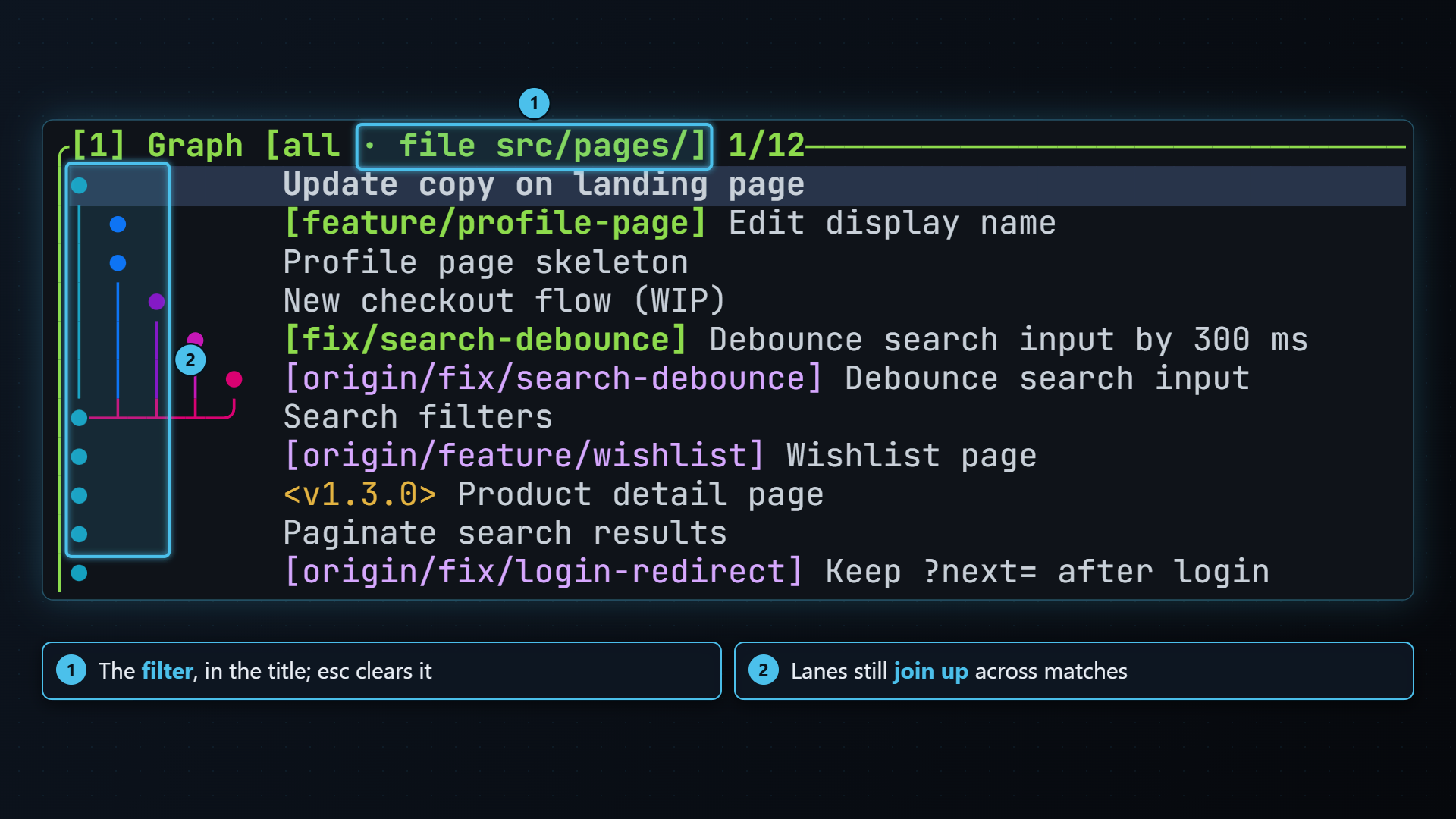
A file filter keeps the lanes joined up: each commit links to the nearest earlier commit that also
touched the path, so you still get a readable graph. An author filter can’t do that, so each run of
one person’s commits is its own short line. Renames aren’t followed. If no commits match, the graph
says no commits match the filter (f to change it, esc to clear it).
Acting on a commit
Section titled “Acting on a commit”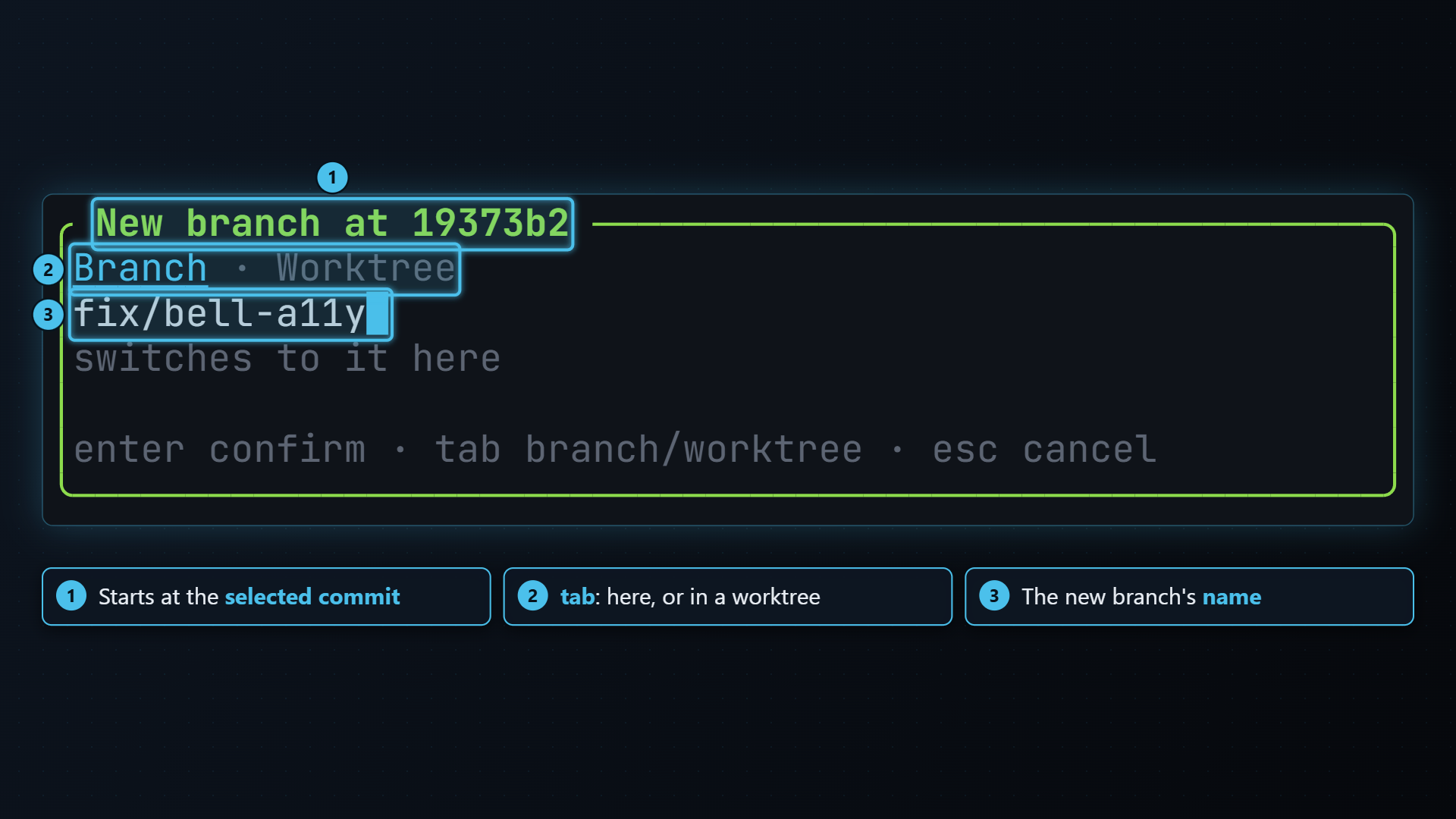
These keys act on the selected commit:
| Key | Does |
|---|---|
| enter | Opens the commit fullscreen: its changed files on the left, the selected file’s diff on the right. See Details. |
| space | Shows or hides the commit’s details. |
| o | Checks out the commit. See Checking out a commit. |
| n | Makes a new branch at the commit and switches to it. tab in the dialog makes it in a new worktree under .worktrees/ instead. |
| T | Makes a tag at the commit. tab in the dialog makes it annotated, and asks for a message next. See Tags. |
| M | Merges the commit into the current branch, after asking. |
| r | Rebases the current branch onto the commit, after asking. |
| C | Cherry-picks the commit onto the current branch, after asking. |
| c | Copies the full commit hash to the clipboard. |
| A | Asks an AI agent about the commit, or starts a ready-made request such as Explain branch. See Agent actions. |
For M and r, if a branch points at the commit, tt-git uses the branch name
(Merge feature into the current branch?); otherwise it uses the hash. If a merge, rebase or
cherry-pick stops on a conflict, see Merge, rebase and cherry-pick.
Copying uses your terminal’s clipboard support (OSC 52), so it also works over SSH.
Checking out a commit
Section titled “Checking out a commit”o checks out the selected commit:
- If a local branch points at it, tt-git switches to that branch
(
git switch <name>), so you don’t end up on a detached HEAD wheremainalready is. With several, the first alphabetically wins. - Otherwise it checks out the commit itself with HEAD detached
(
git switch --detach <commit>). The graph showsHEADon it. - If HEAD is already there, tt-git says so and does nothing.
With uncommitted changes, tt-git asks first: Uncommitted changes says how many files have changes and offers to stash them. y stashes everything, untracked files included, then checks out; the changes wait on the Stash tab to pop back later. n or esc leaves everything as it was. If the checkout still fails after stashing, tt-git pops the stash straight back so your changes aren’t left behind.
To check out a branch by name, use the Branches pane.
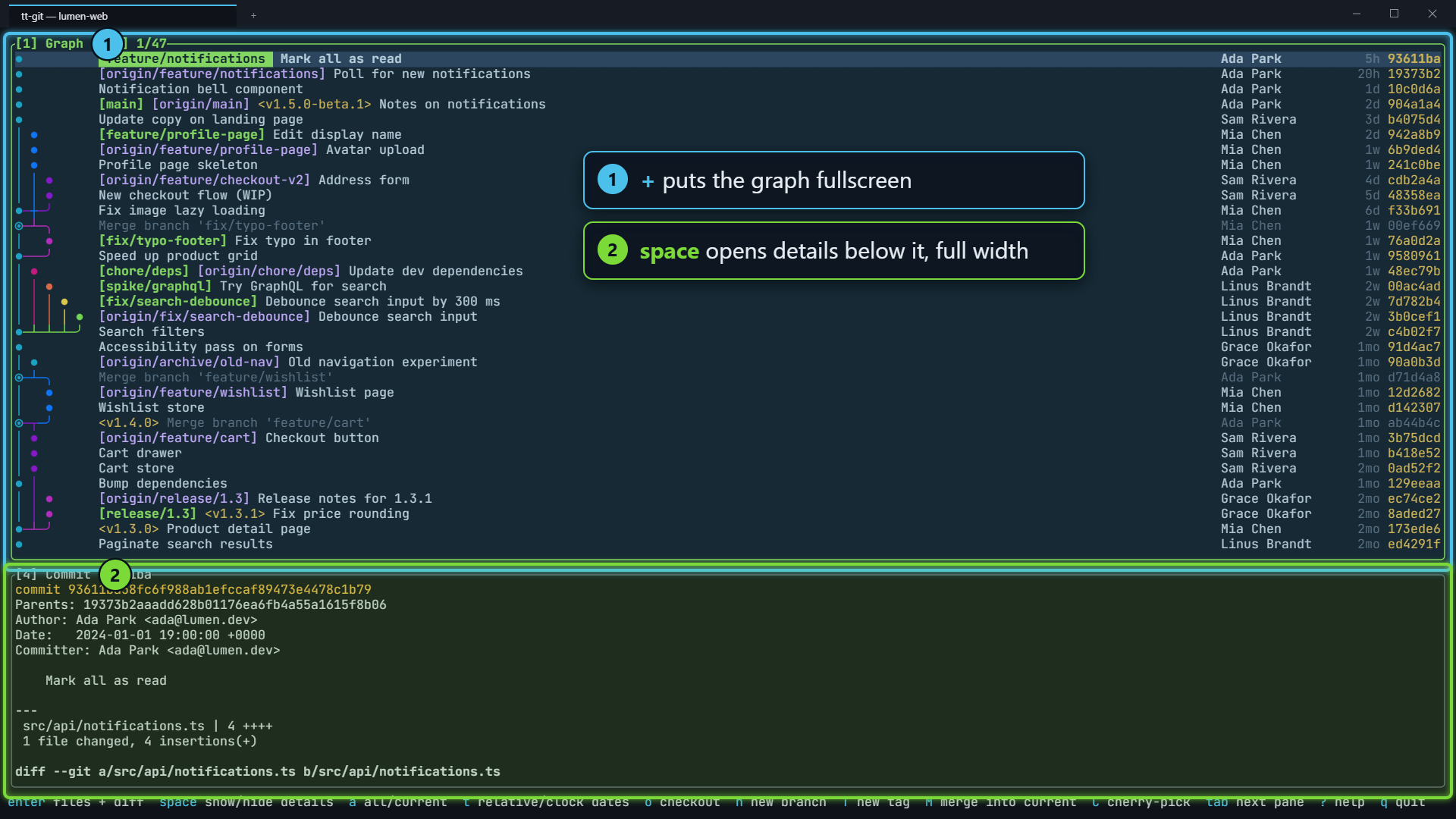
Press + to make the graph fill the screen, and + again to go back. With the graph fullscreen, space opens details below it at full width.
Large histories
Section titled “Large histories”The graph loads 1,000 commits at a time while git log is still running, so the first rows appear
straight away. It loads up to 20,000 commits (max_commits), and when you scroll within 200 commits
of the end, it loads the next batch. On a refresh the old rows stay on screen until the new ones
arrive, so the graph never flashes empty. A fetch that brings nothing new doesn’t reload it at all.
See How tt-git uses git for the details, and Memory and speed for what this costs on a large repository.
| Key | Does |
|---|---|
| j k ↓ ↑ | Next / previous commit |
| ctrl+d ctrl+u | Page down / up |
| g G | First / last loaded commit |
| enter | The commit fullscreen: changed files beside the diff |
| space | Show / hide details |
| esc | Hide details; with details hidden, clear the filter |
| a | All branches ↔ current branch |
| t | Dates as age ↔ local date and time (also in blame) |
| f | Filter by author or file |
| o | Check out the commit (its local branch if it has one) |
| n | New branch at the commit (tab in the dialog: in a worktree) |
| T | New tag at the commit (tab in the dialog: annotated) |
| M | Merge into the current branch |
| r | Rebase the current branch onto it |
| C | Cherry-pick |
| c | Copy the commit hash |
| A | Ask an AI agent about the commit |
| ] [ (} {) | Next / previous tab in the branches pane |
| + | Zoom the graph fullscreen and back |
The mouse works too: click a row to select it, double-click it to open the commit fullscreen as enter does, and use the wheel to scroll. In Filter graph, click an author or file to filter by it. Every key can be changed; see Key bindings.