
Status
The status pane lists every file you’ve changed, like lazygit’s files panel. From here you stage and unstage files, commit, amend, discard changes, stash, and finish or abort a merge, rebase or cherry-pick. Its title tells you which branch you’re on and how far it is from its upstream. Press 2 to focus it from anywhere.
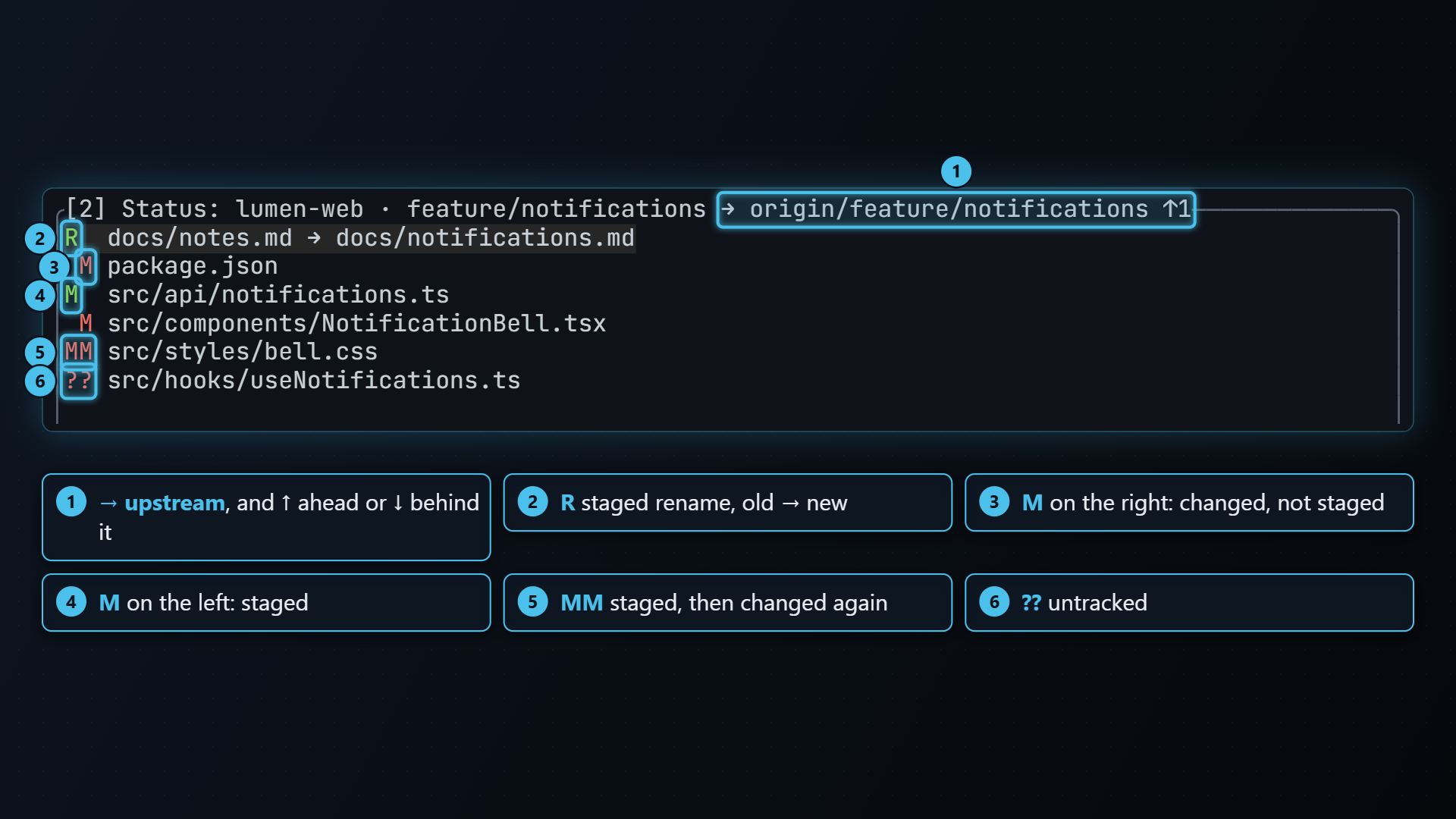
What it shows
Section titled “What it shows”One row per changed file, with the same two-letter code as git status -s. The first letter is the
staged state (the index), the second the unstaged state (the working tree):
M src/app.rs staged M src/lib.rs modified, not stagedMM README.md staged, then changed againA docs/new.md new file, staged D old.txt deleted, not stagedR a.rs → b.rs renamed, staged?? notes.md untrackedUU src/merge.rs conflictedThe code is colored so you can tell at a glance what’s left to do:
- green: fully staged, nothing left to stage
- red: has changes that aren’t staged
- error color: a conflict to resolve
Untracked files are listed one by one, even inside new folders. With nothing changed, the pane says
working tree clean.
The title
Section titled “The title”[2] Status: tt-git · main → origin/main ↑1 ↓2- the repository’s name,
- the branch you’re on, or
(detached), MERGING,REBASING,CHERRY-PICKINGorREVERTINGwhile one is in progress,- the upstream branch, and how many commits you’re ahead (
↑) and behind (↓) it. Nothing is shown for a count of zero.
Staging and unstaging files
Section titled “Staging and unstaging files”| Key | Does |
|---|---|
| space | Stages the selected file if it has unstaged changes, otherwise unstages it |
| a | Stages everything, or unstages everything if it’s all staged already |
| enter | Opens the file’s changes fullscreen, to stage part of it |
Staging a conflicted file marks it resolved. Unstaging works before your first commit too.
To stage only some of a file’s changes, a hunk or a line at a time, press enter. See Staging hunks and lines.
Committing and amending
Section titled “Committing and amending”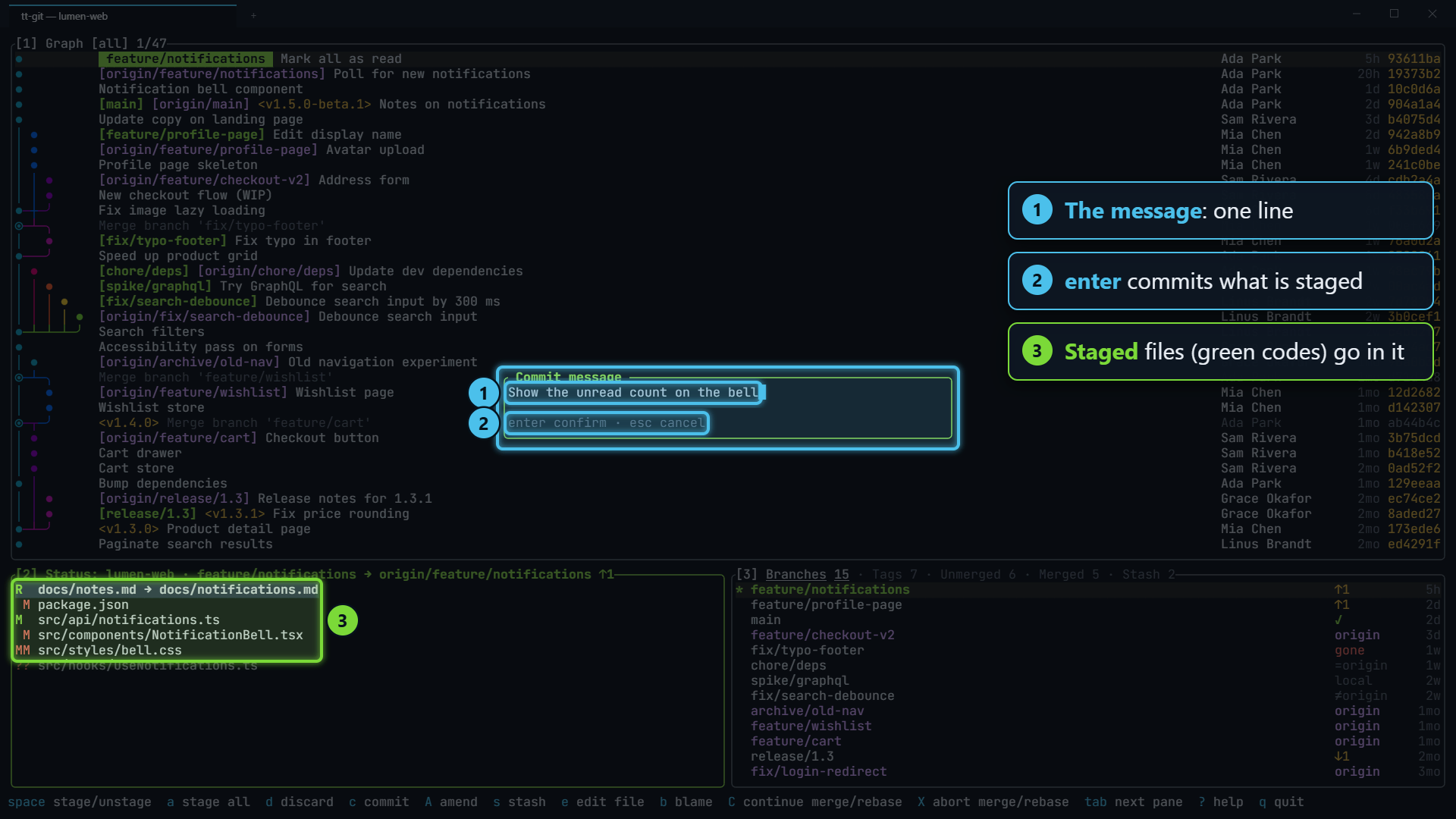
- Stage what you want in the commit.
- Press c. The Commit message dialog opens.
- Type the message and press enter. esc cancels.
If nothing is staged, tt-git says nothing staged to commit (space stages a file, a stages all)
instead of opening the dialog. An empty message isn’t accepted.
Press A to add what’s staged to the last commit, keeping its message. tt-git asks first:
Amend the last commit with the staged changes, keeping its message? Press y or
enter to go ahead, n or esc to cancel.
Your first commit walks through the whole thing, push included.
Discarding changes
Section titled “Discarding changes”Press d to throw away every change to the selected file. tt-git asks first, since this
can’t be undone: Discard all changes to src/app.rs? This cannot be undone.
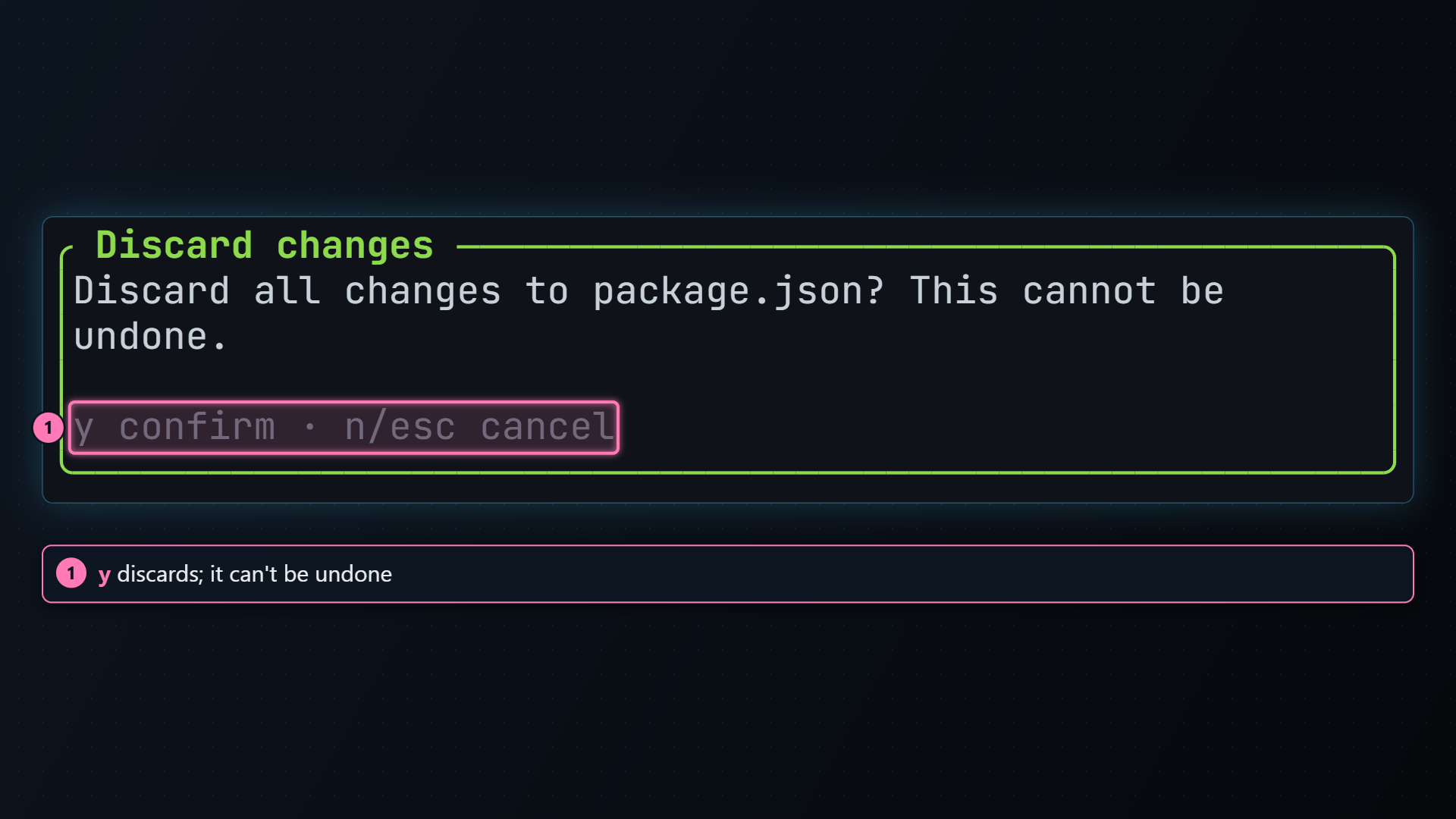
What discarding does depends on the file:
- an untracked file is deleted,
- a new file is removed from the index and the working tree,
- a rename is undone on both paths,
- anything else goes back to how it is in the last commit, staged and unstaged changes both.
To discard only part of a file, use the staging view.
Stashing
Section titled “Stashing”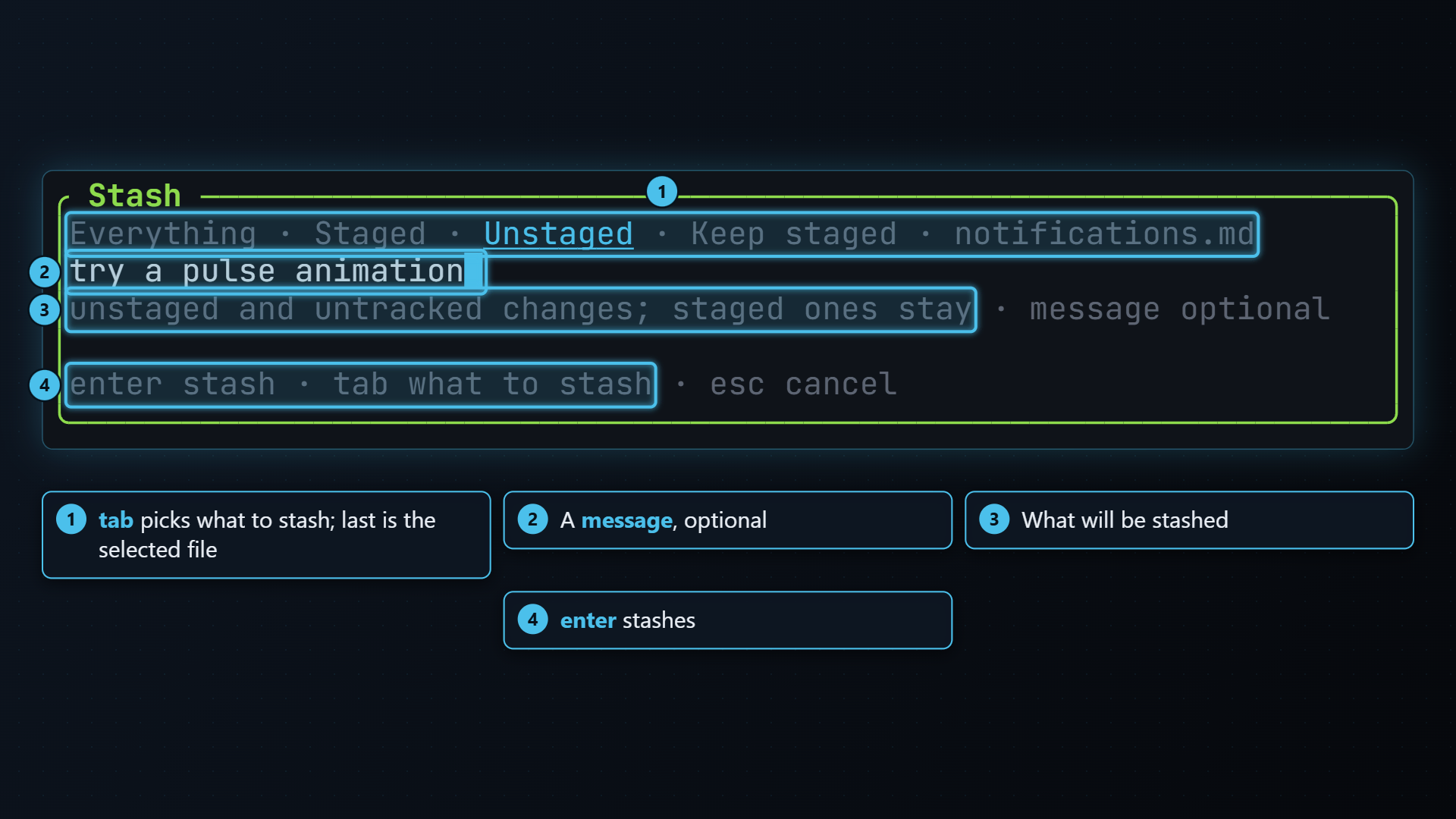
Press s to stash. The Stash dialog asks what to stash; tab (and shift+tab) moves between the choices:
| Choice | Stashes |
|---|---|
| Everything | Staged, unstaged and untracked changes |
| Staged | Only what’s staged |
| Unstaged | Only the unstaged and untracked changes; the staged ones stay staged |
| Keep staged | Everything, but leaves the staged changes in place too |
| the selected file | Only that file, untracked or not (both paths of a rename) |
The message is optional: press enter with it empty to stash with git’s default message.
With nothing changed, tt-git says nothing to stash.
Staged and Unstaged need git 2.35 or newer. Both refuse, leaving everything as it was, when a file’s staged and unstaged changes touch the same lines, since git can’t pull them apart. See Stash for the details.
Your stashes appear on the branches pane’s Stash tab, where you can pop, apply, drop and inspect them.
Opening a file in your editor
Section titled “Opening a file in your editor”Press e to open the selected file in your editor, at its first change. Where that is
comes from the file’s unstaged changes, or its staged ones when there are none. A conflicted file
opens at its first conflict marker (<<<<<<<), and a new untracked file at the top.
A file you deleted isn’t in the working tree, so there’s nothing to open: tt-git says
notes.txt isn't in the working tree.
When you quit a terminal editor, tt-git comes back and refreshes, so your edits show up straight
away. Which editor runs, and whether it gets the terminal or a window of its own, is set in
[editor].
Blaming a file
Section titled “Blaming a file”Press b to blame the selected file: see who last changed each line, when and in which commit. It opens fullscreen, and esc comes back to the status pane.
Blame shows the file as it is in your working tree, with lines you haven’t committed marked You.
A file you deleted is blamed as it was in HEAD. An untracked file, or one you’ve added but never
committed, has no history yet, so tt-git says notes.txt isn't committed yet: nothing to blame.
Merges, rebases and cherry-picks in progress
Section titled “Merges, rebases and cherry-picks in progress”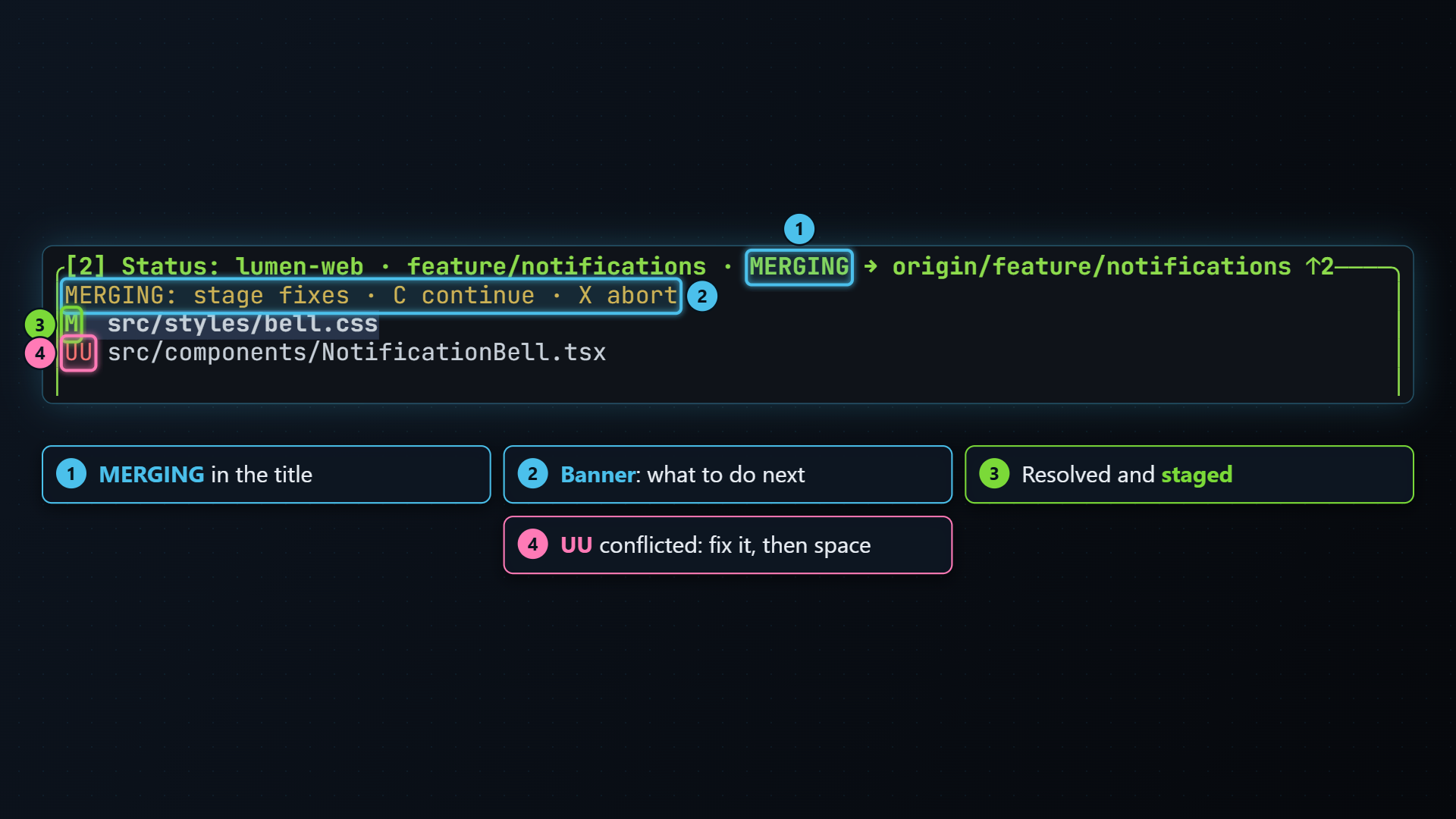
When a merge, rebase, cherry-pick or revert stops, the title shows which one, and a banner across the top of the pane tells you what to do next:
REBASING: stage fixes · C continue · X abortUU src/merge.rs- Fix the conflicts in your editor. e opens the selected file at its first conflict.
- Stage each fixed file with space. Staging a conflicted file marks it resolved.
- Press C to continue. tt-git keeps the message git prepared, so no editor opens.
C refuses while a file is still conflicted (resolve and stage the conflicted files first). To give up instead, press X: tt-git asks, then puts everything back the way it was
before the operation started.
Continue and abort are also in the command palette, so you can run them from any pane. Merge, rebase and cherry-pick covers the whole flow.
Other panes and details
Section titled “Other panes and details”With the status pane focused, details follows the selected file and shows its diff, staged changes first, then unstaged. In the default layout details shares the bottom row with status, so you see this when you give details a pane of its own in the layout. Most of the time enter into the staging view is the better way to read a file’s changes.
| Key | Does |
|---|---|
| j k ↓ ↑ | Next / previous file |
| space | Stage / unstage the file |
| enter | Stage by hunk or line |
| a | Stage all (or unstage all) |
| d | Discard changes to the file (asks first) |
| c | Commit what’s staged |
| A | Amend the last commit, keeping its message |
| s | Stash |
| e | Open the file in your editor at its first change |
| b | Blame the file |
| C | Continue a merge, rebase or cherry-pick |
| X | Abort it (asks first) |