
A tour of the screen
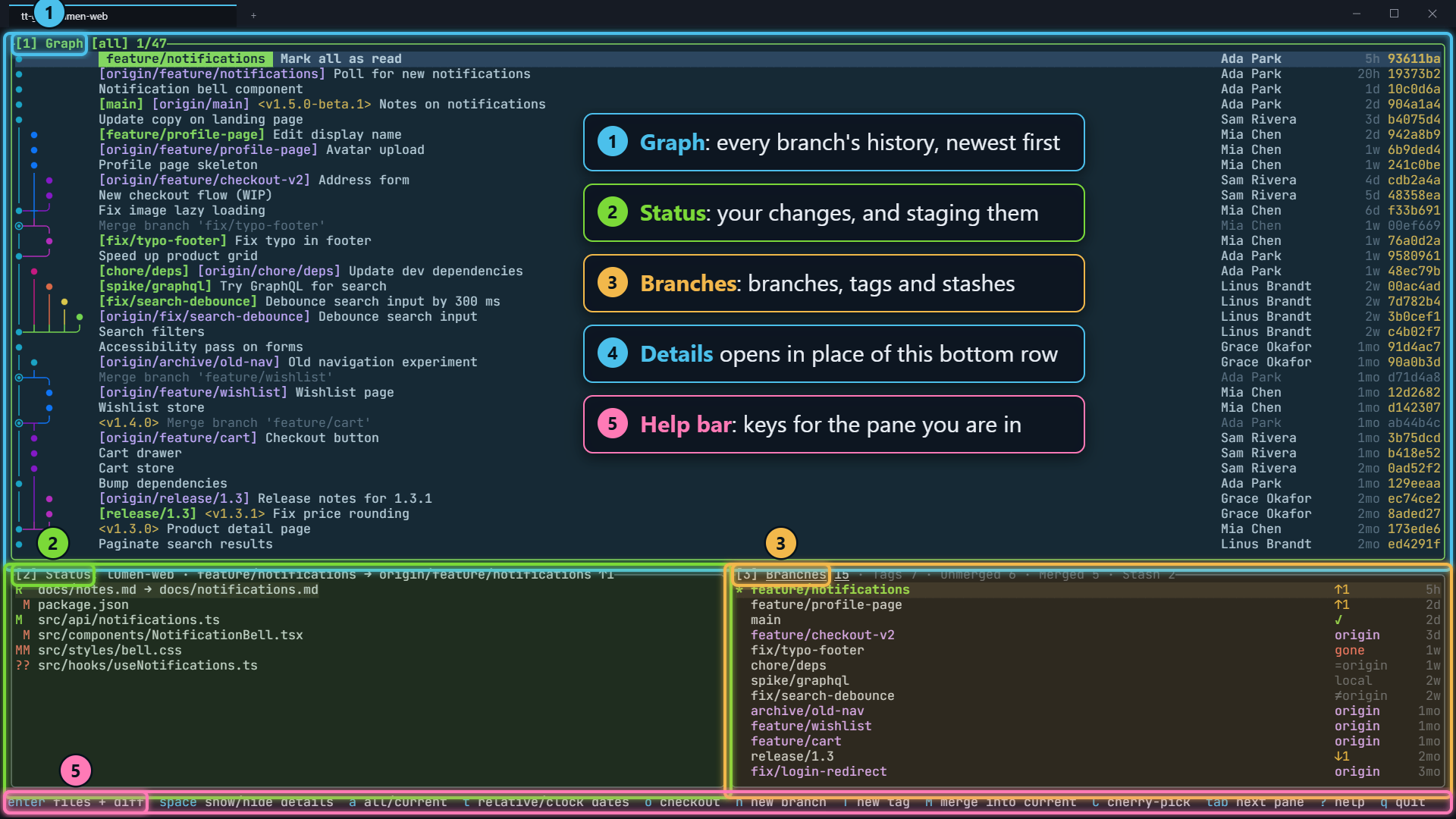
The default layout
Section titled “The default layout”When tt-git starts, the screen is split in two:
- The graph takes the top 70%.
- Status and branches sit side by side below it.
- The help bar is the last line.
The details pane is hidden until you ask for it. When you press space on a commit, details takes the place of the bottom row, and space again puts status and branches back.
Each pane’s title starts with its number. Press 1, 2, 3 or 4 to focus it, or tab to move to the next one. The focused pane has a green border and a bold title.
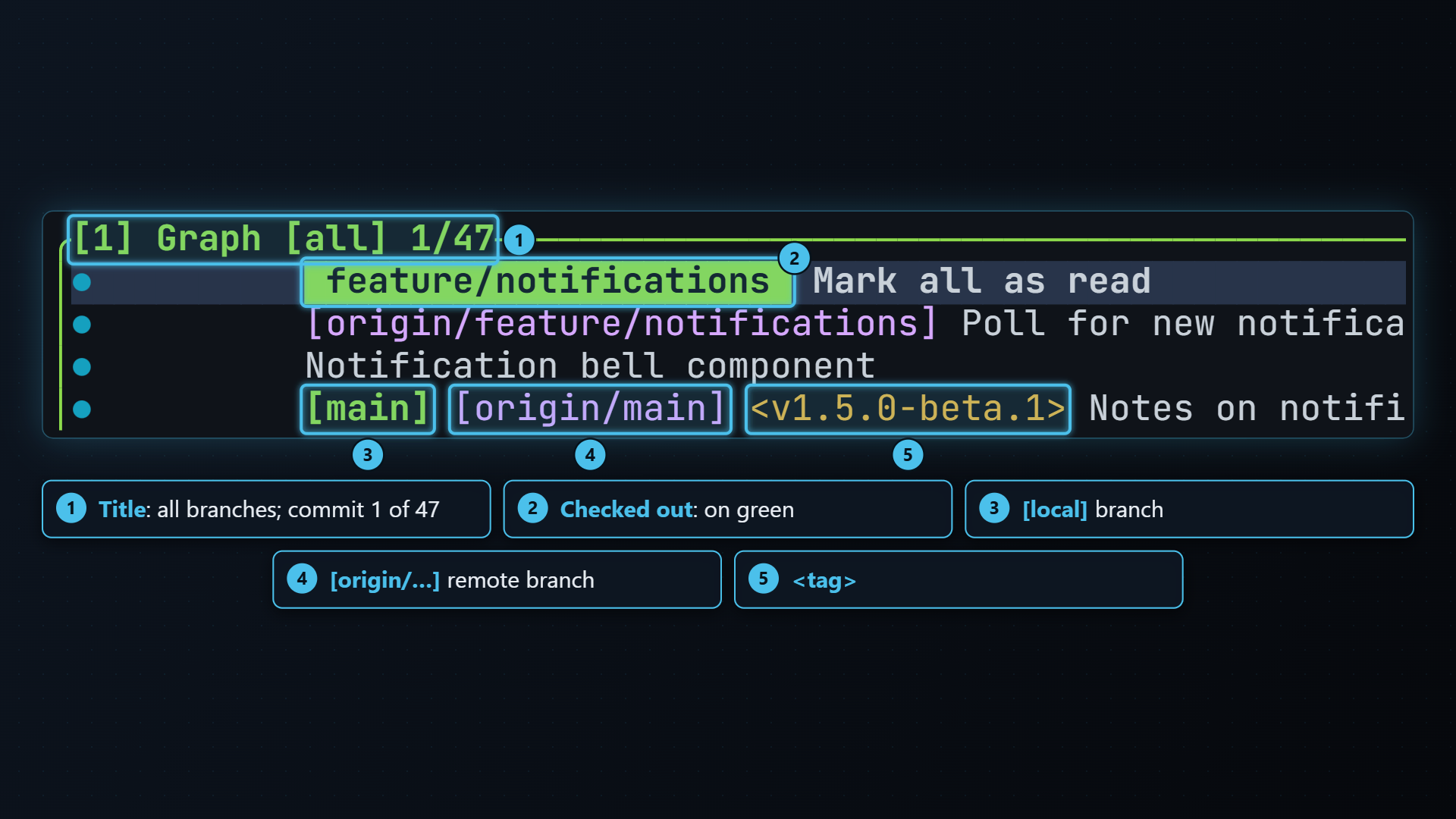
The graph shows the history of every branch, remote branch and tag, newest
commit first. Each line of development keeps its own column and color, merges
are drawn as ◉ and other commits as ●. Badges on a row name the branches
and tags that point at it: the checked-out branch on a green background,
local branches in [brackets], remote branches like [origin/main], and tags
like <v1.0>.
The title shows what’s loaded and where you are: Graph [all] 1/120 means
all branches, first of 120 commits. Press a to show only the
current branch and its upstream.
Read more in Graph.
Status
Section titled “Status”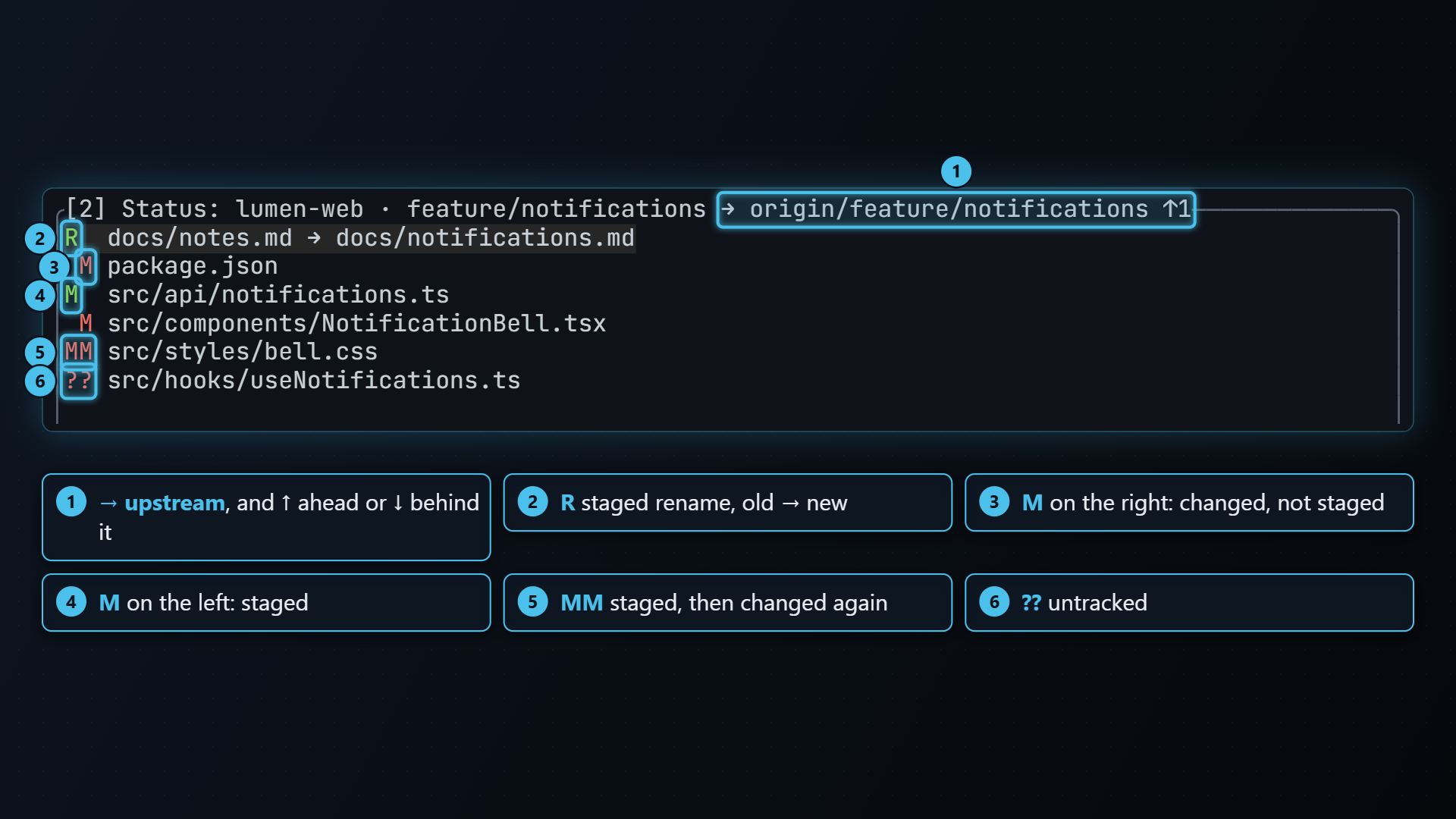
The status pane lists every changed file with the same two-letter code as
git status -s. The title shows the repository, the current branch, its
upstream and how far ahead or behind it is.
Press space to stage or unstage a file, c to commit, and enter to open a file and stage it a hunk or line at a time. Read more in Status.
Branches
Section titled “Branches”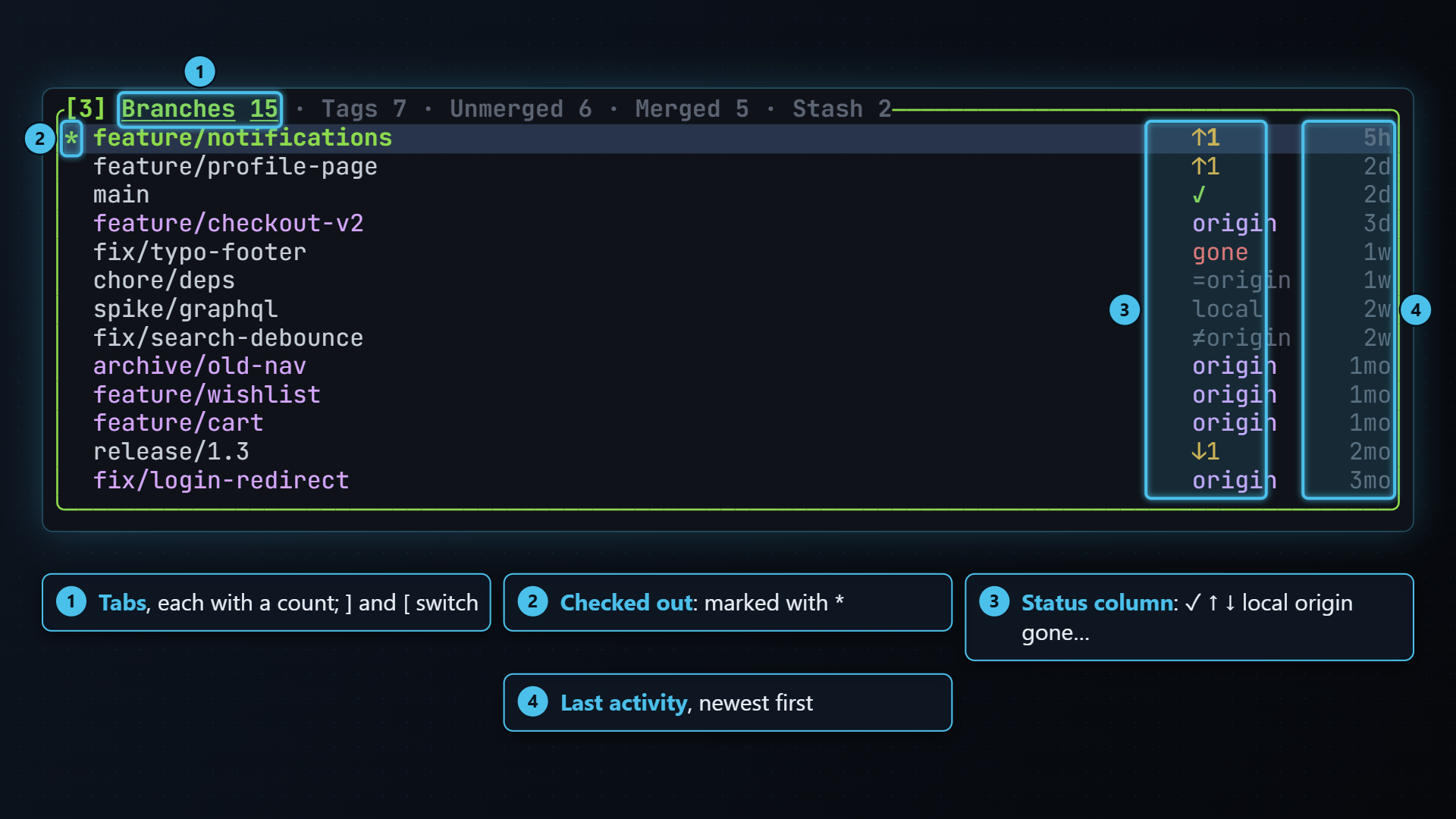
One list holds your local and remote branches, with main and origin/main
on a single row. The branches you’ve used most recently are at the top. The
column after the name says how each one relates to its remote: ✓ in sync,
↑2 two commits to push, local never pushed, gone deleted upstream.
Press enter to check a branch out. ] and [ switch to the Tags, Unmerged, Merged, Stash and Worktrees tabs. Read more in Branches.
Details
Section titled “Details”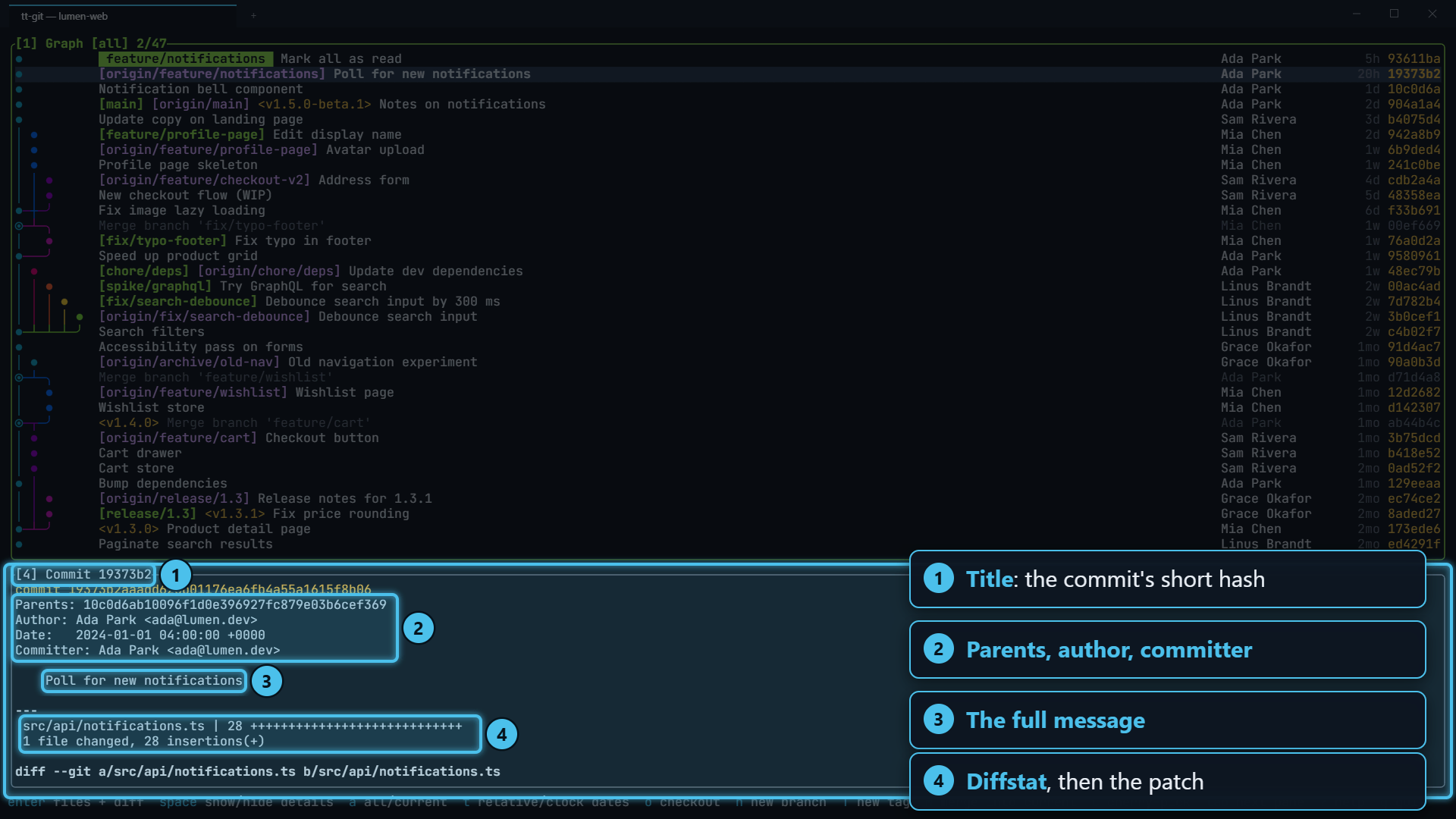
Details shows whatever is selected: a commit’s message and diff, a stash, or the diff of a file in the status pane. It follows your selection as you move.
Press space in the graph to show or hide it, or enter to open the commit fullscreen with its changed files beside the diff. Read more in Details.
The help bar
Section titled “The help bar”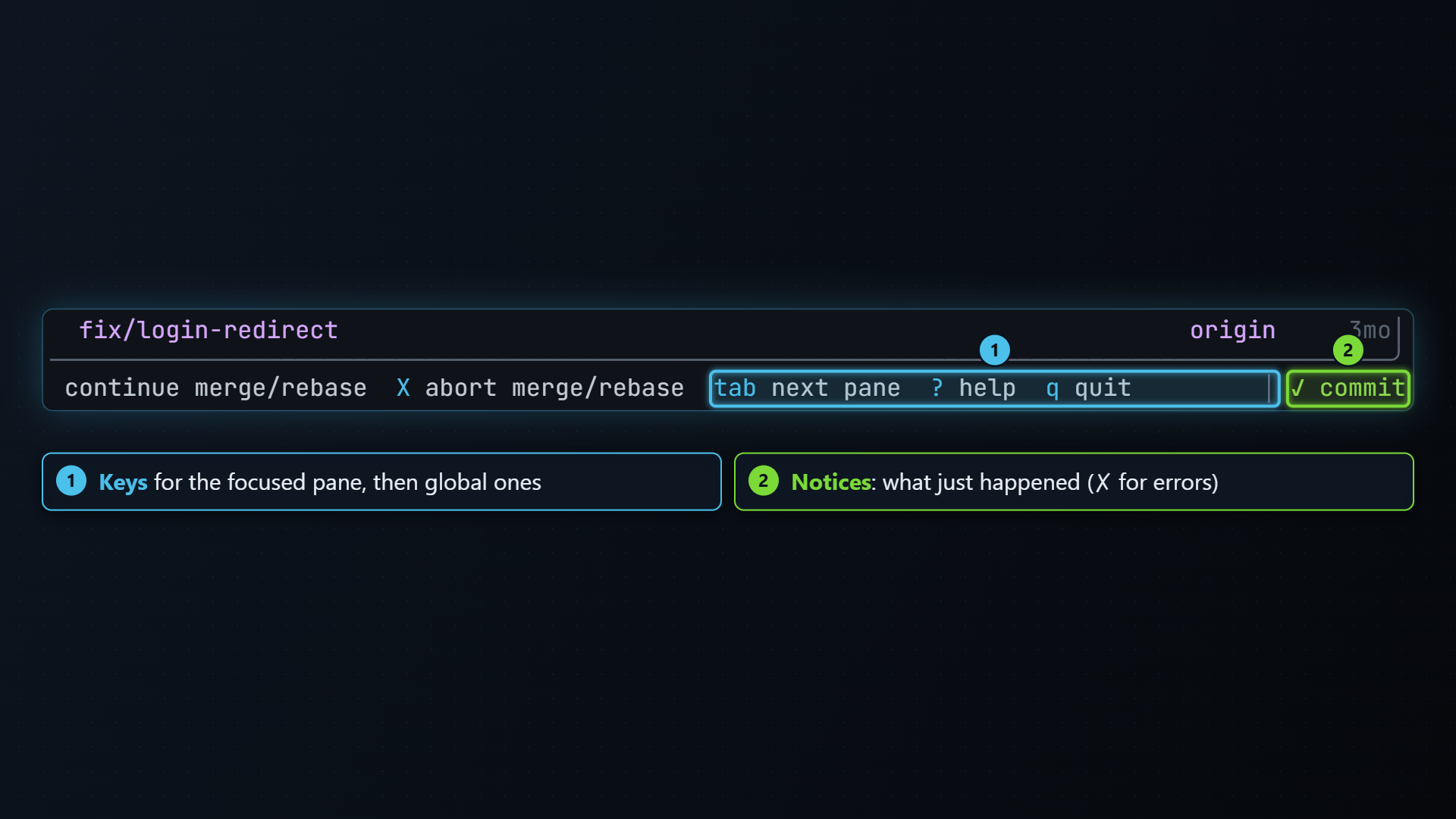
The last line lists the most useful keys for the focused pane, followed by tab, ? and q, which work everywhere. It changes as you move between panes. Keys that don’t fit are left off; press ? for the full list.
On the right, the help bar shows what tt-git is doing. While git works, a
spinner turns beside what it’s doing, like pushing main → origin/main,
with the seconds it has taken. When it’s done the help bar says what
happened, like ✓ pushed main → origin/main, in green for a few seconds
before it fades. See While it runs. When
something fails, an Error box opens with git’s own message. Press
enter or esc to close it.