
Push, pull and fetch
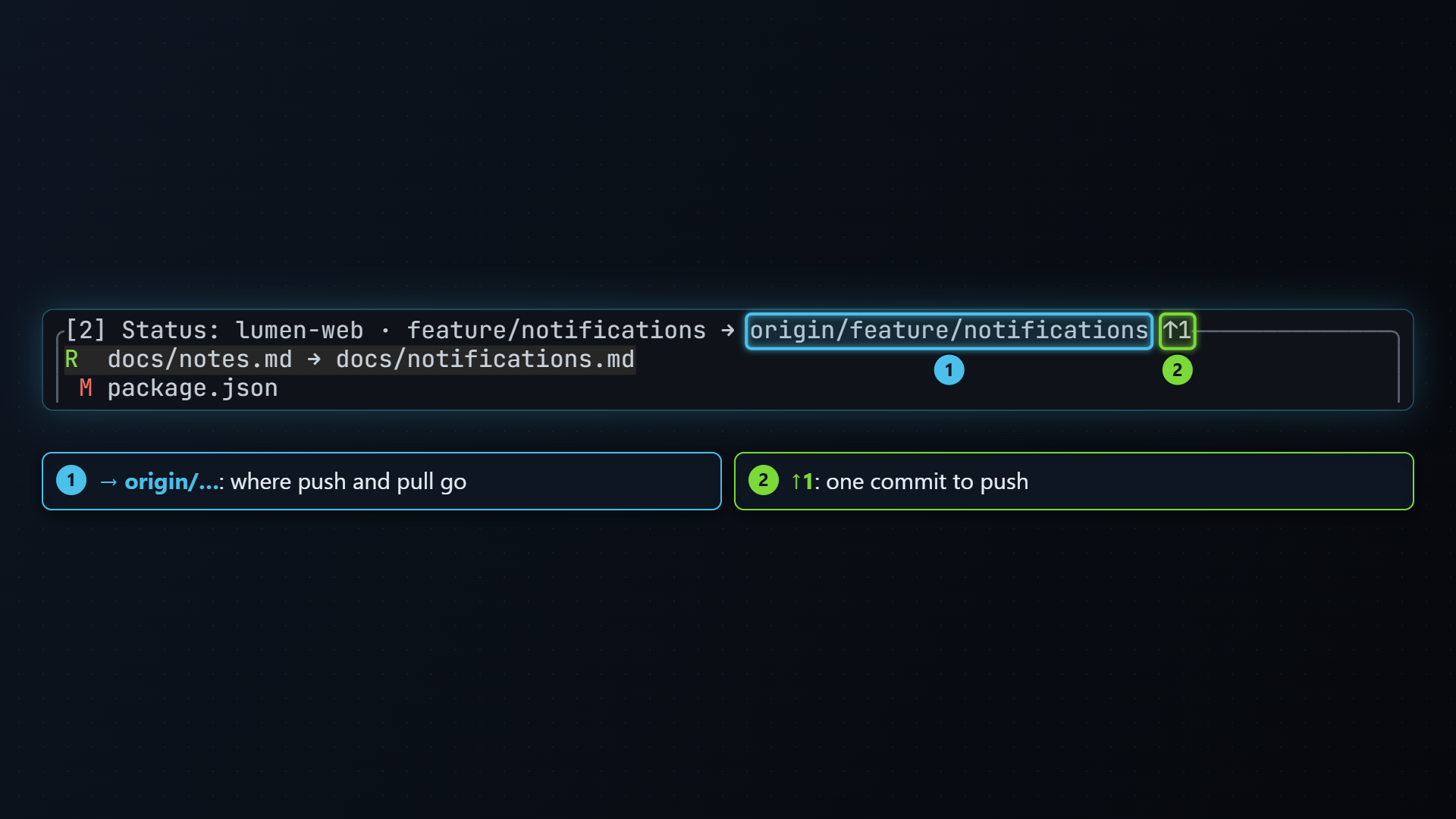
The status title always shows how the current branch stands against its
upstream: main → origin/main ↑1 ↓2 is one commit to push and two to pull.
The branches pane shows the same for
every branch.
Press P (shift+p) from any pane to push the current branch.
- If the branch has an upstream, tt-git runs
git push. - If it doesn’t, tt-git pushes it to
originand sets that as its upstream, likegit push -u origin HEAD. With no remote calledorigin, it uses the first remote. With no remotes at all, it tells you there’s nothing to push to.
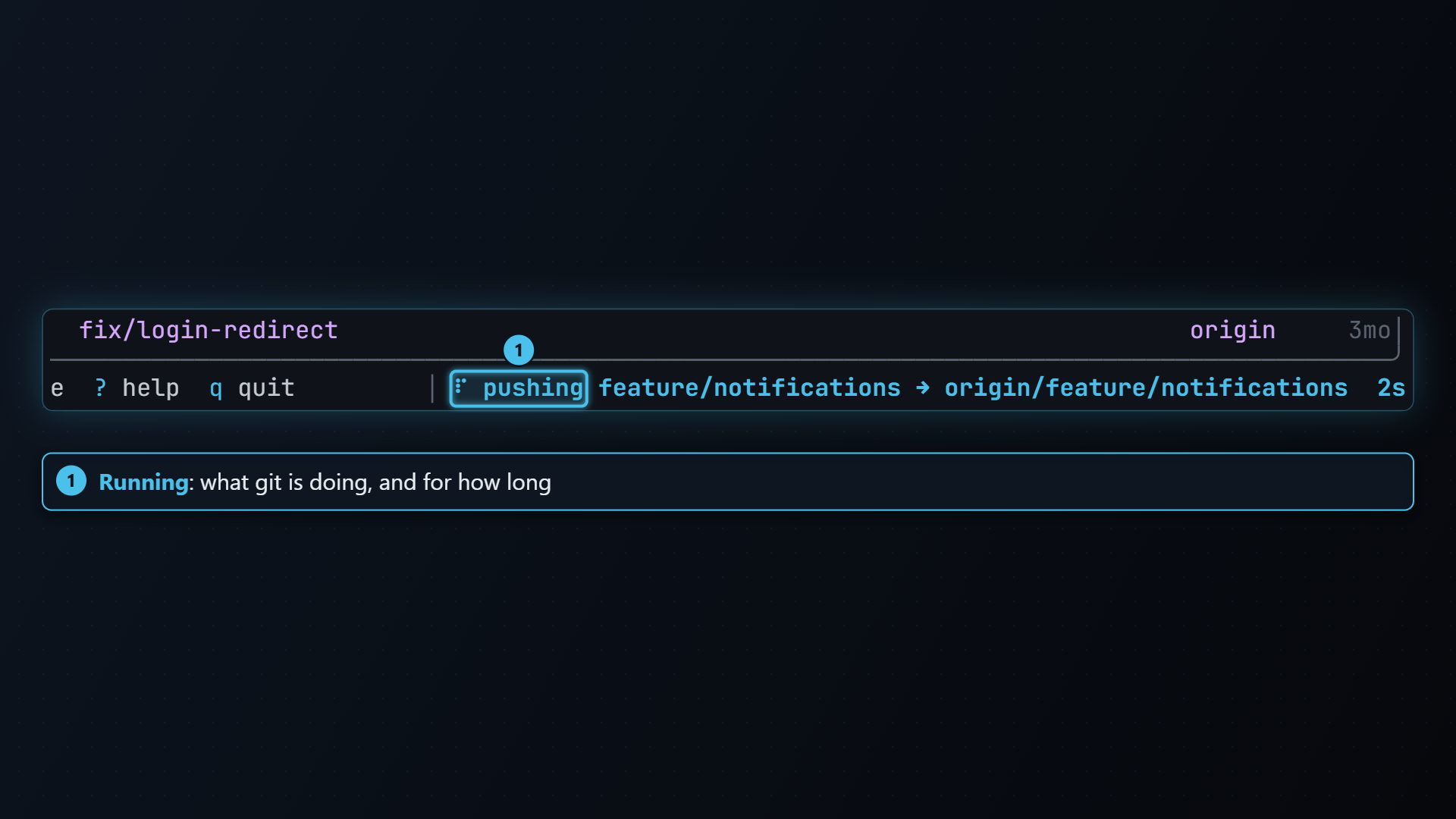
While it runs, the help bar shows pushing main → origin/main with a
spinner (see While it runs), then ✓ pushed main → origin/main. If git refuses, for example because the remote has commits you
don’t, the error box shows git’s message. Pull, then push again.
Pushing a branch doesn’t push tags. On the branches pane’s Tags tab, P pushes the selected tag instead; see Tags.
Press p from any pane. tt-git runs git pull --no-edit, so
whether it merges or rebases is up to your git config (pull.rebase,
pull.ff), and a merge commit keeps git’s default message instead of
opening an editor.
The help bar shows pulling origin/main into main while it runs, then
✓ pulled origin/main into main.
If the pull stops on a conflict, the status pane shows a banner and the conflicted files. See Resolving conflicts.
Press f in the branches pane to run git fetch --all --prune. It
fetches every remote and removes remote branches that were deleted on the
server. A local branch whose upstream was deleted then shows gone in red in
the branch list, which usually means it was merged and can be deleted.
A fetch that brings nothing new doesn’t reload the graph.
The help bar shows fetching all remotes while it runs, then
✓ fetched all remotes.
While it runs
Section titled “While it runs”Push, pull and fetch run in the background, so you can keep working. The right end of the help bar shows what git is doing, in the key color, with a spinner and, after the first second, how long it has been running:
- Done: it says what happened, like
✓ pushed main → origin/main, in green. After five seconds it fades to grey, so a fresh result stands out from an old one. - Failed: the spinner goes and an Error box shows git’s message.
- Pressed again: pressing P while a push runs (or
p during a pull, f during a fetch, P on
a tag being pushed) says
already pushinginstead of starting a second one. - Several at once: a fetch and a push together show
fetching · pushing. - Other messages: something else that happens meanwhile, such as
copied …, shows beside the spinner for three seconds and then makes way for it.
Other git operations (commit, checkout, stash and so on) show the same spinner with their name while they run, usually too briefly to notice.
Credentials
Section titled “Credentials”tt-git runs git with its terminal prompts turned off
(GIT_TERMINAL_PROMPT=0), so a username or password prompt can’t hang the
screen. Git still uses your credential helper (Git Credential Manager, the
macOS keychain, gh auth and so on) and SSH still uses your ssh-agent.
If git needs a credential it can’t get on its own, the push, pull or fetch
fails with git’s message. Run the same command once in a terminal, or set up
a credential helper, and it’ll work from tt-git after that.