
Your first commit
This page walks through one change from edit to push. You don’t need to refresh anything along the way: tt-git notices when files change and updates itself.
Make a change
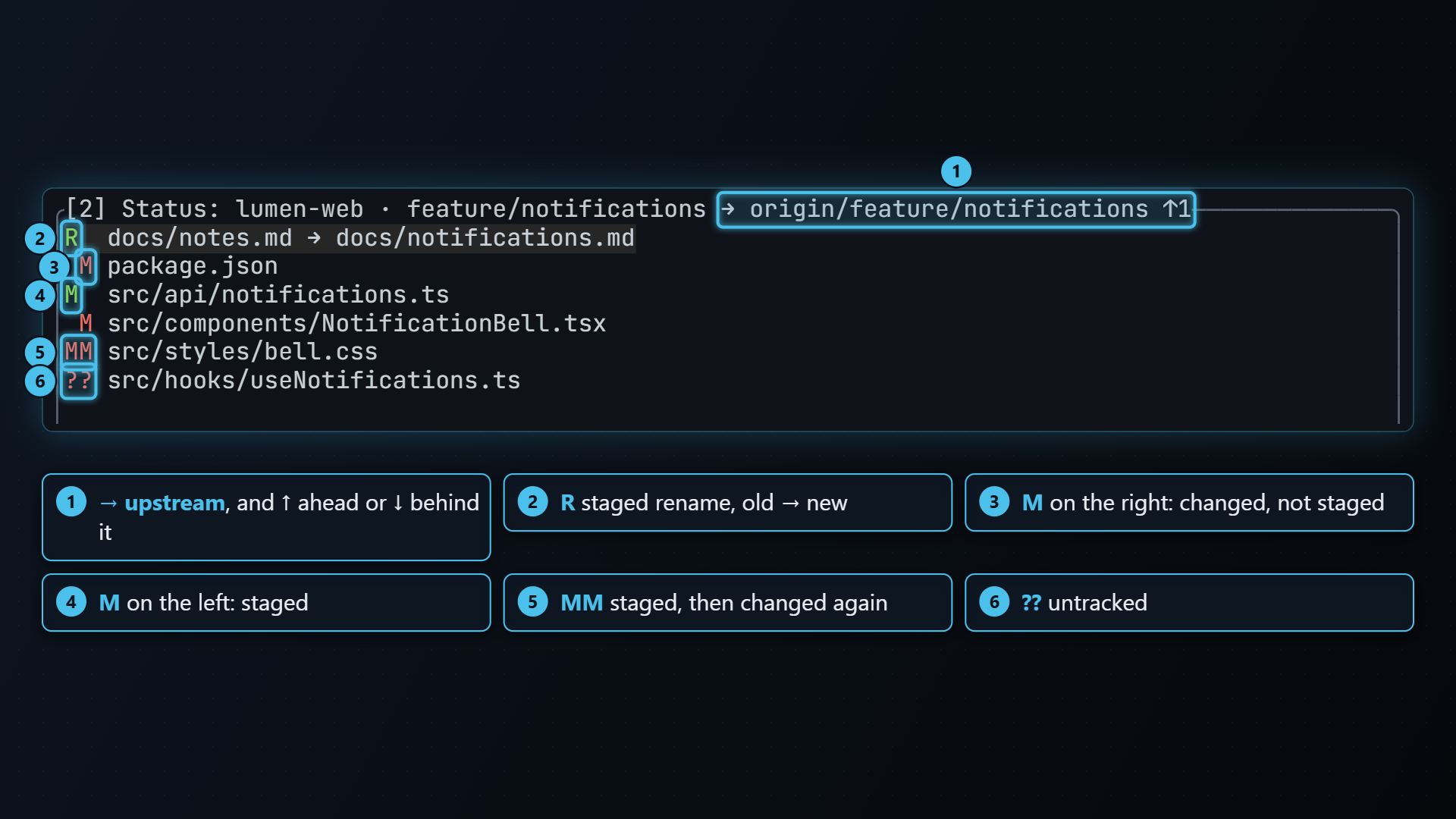
Section titled “Make a change”Edit a file in your repository with your usual editor and save it. In a
moment it appears in the status pane with M (modified, not staged) in red.
A new file shows ?? (untracked).
Stage it
Section titled “Stage it”-
Press 2 to focus the status pane.
-
Move to the file with j and k. Its diff shows in the details pane if details is open.
-
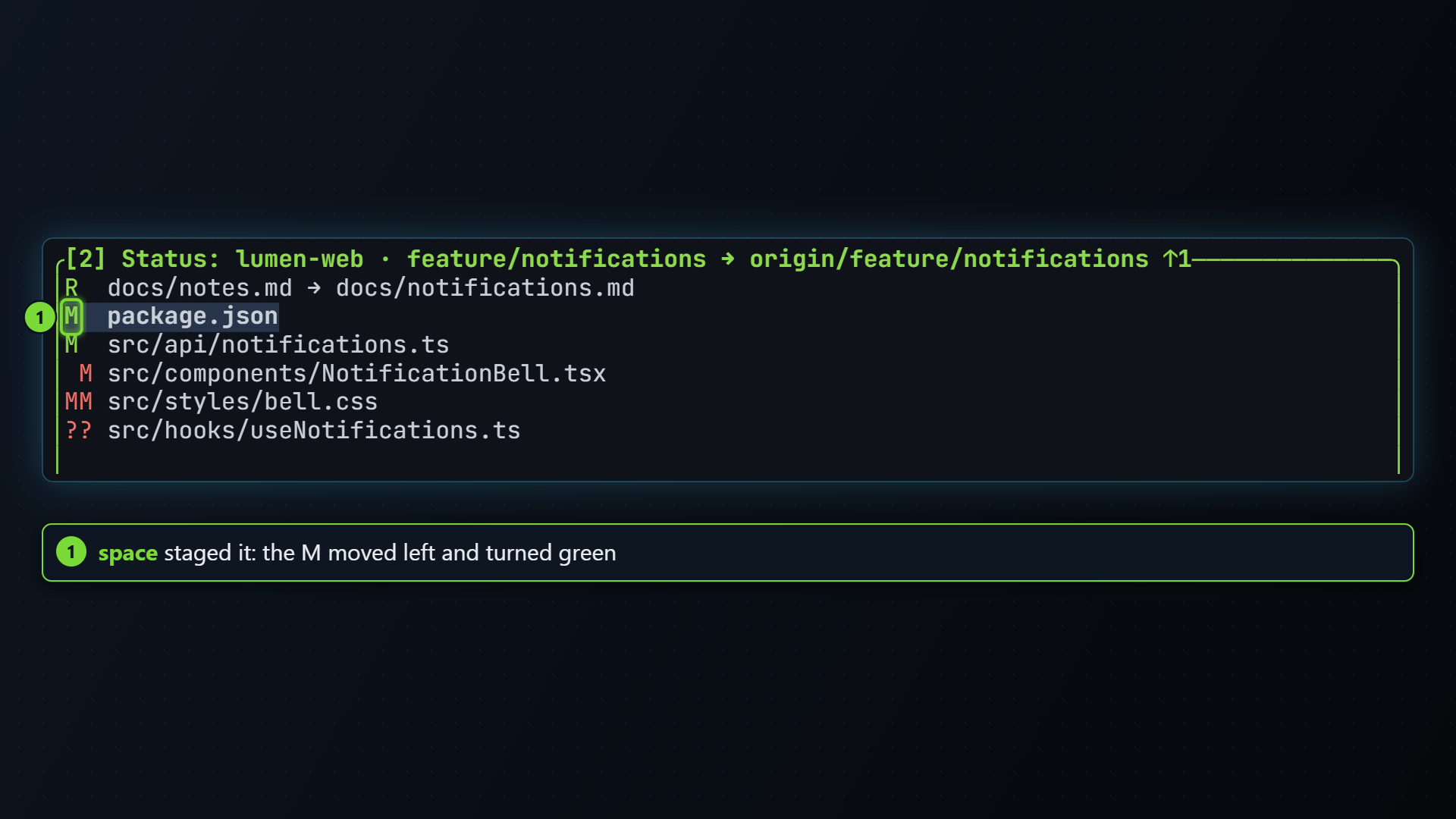
Press space to stage it. The code turns to
Min green: staged, nothing left unstaged.
a stages every file at once. Press space on a staged file to unstage it.
To stage only part of a file, press enter on it instead and pick the hunks or lines you want. See Staging hunks and lines.
Commit
Section titled “Commit”-
Press c. A Commit message box opens.
-
Type the message and press enter. esc cancels.
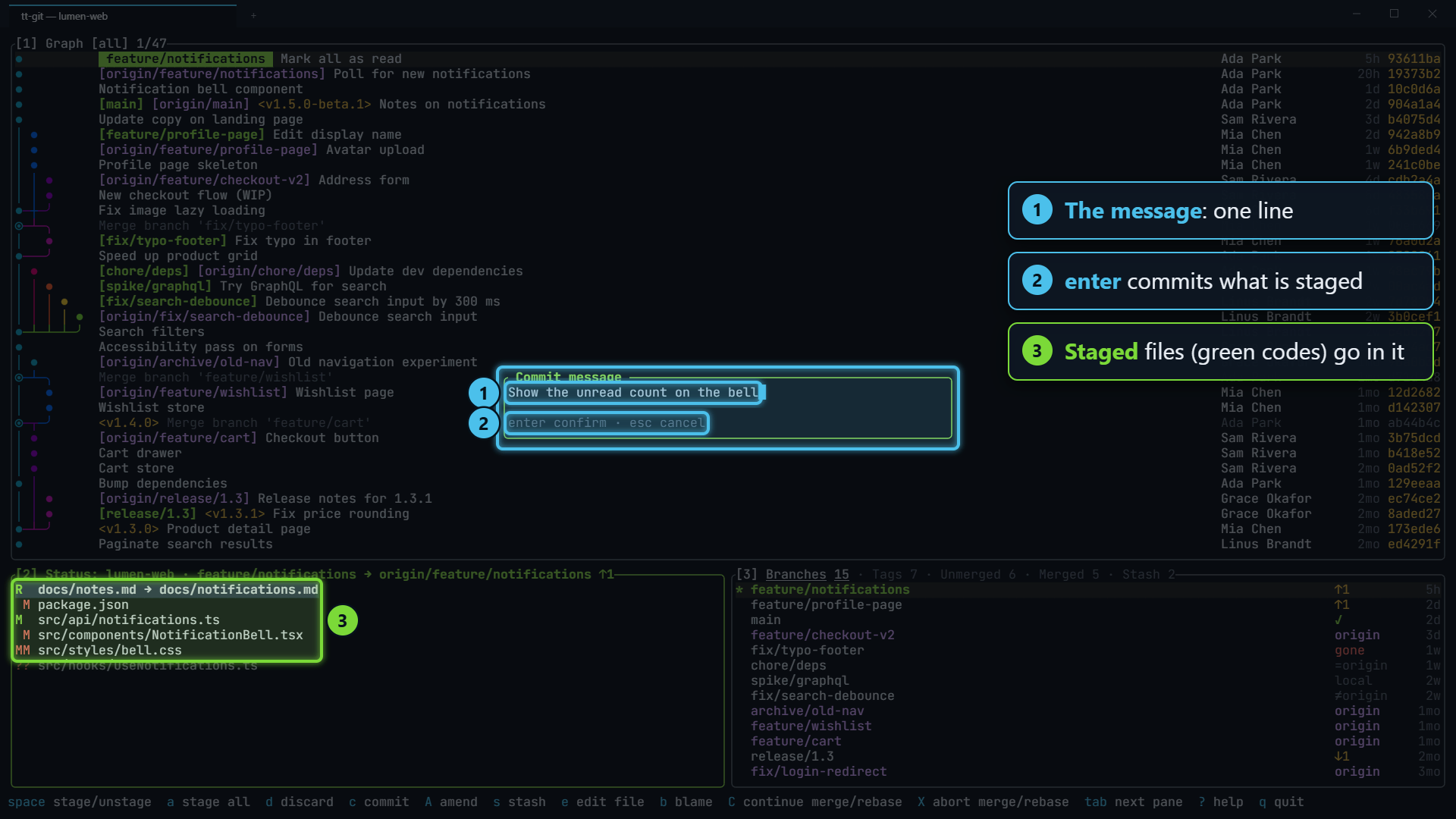
The help bar shows ✓ commit, the file leaves the status list, and the graph
jumps to your new commit. The status title now shows ↑1: one commit your
upstream doesn’t have.
Press P (shift+p) from any pane. tt-git runs git push, and the
↑1 goes away when it’s done.
If the branch has never been pushed, tt-git pushes it to origin (or to the
first remote, if there’s no origin) and sets it as the upstream, like git push -u origin HEAD.
Press p to pull. See Push, pull and fetch for details.