
Details
The details pane shows whatever you have selected in full: a commit’s message and diff, the list of files it changed, a stash, or a working-tree file’s diff. It follows the selection, so moving through the graph updates it as you go. In the default layout details is hidden until you ask for it, and then takes the place of the status and branches panes at the bottom of the screen. Press 4 to focus it from anywhere.
Opening and closing details
Section titled “Opening and closing details”| Key | Where | Does |
|---|---|---|
| space | graph | Shows or hides the selected commit’s details |
| 4 | anywhere | Opens details and focuses it |
| enter | graph | Opens the commit fullscreen as changed files beside a diff |
| enter | Stash tab | Opens the stash fullscreen |
| esc | graph | Hides details |
| esc space | details | Closes details |
Details also closes when you focus a pane it covers, for example 2 for status. Where details opens is part of the layout: you can give it a permanent pane of its own instead, so it’s always on screen.
The commit view
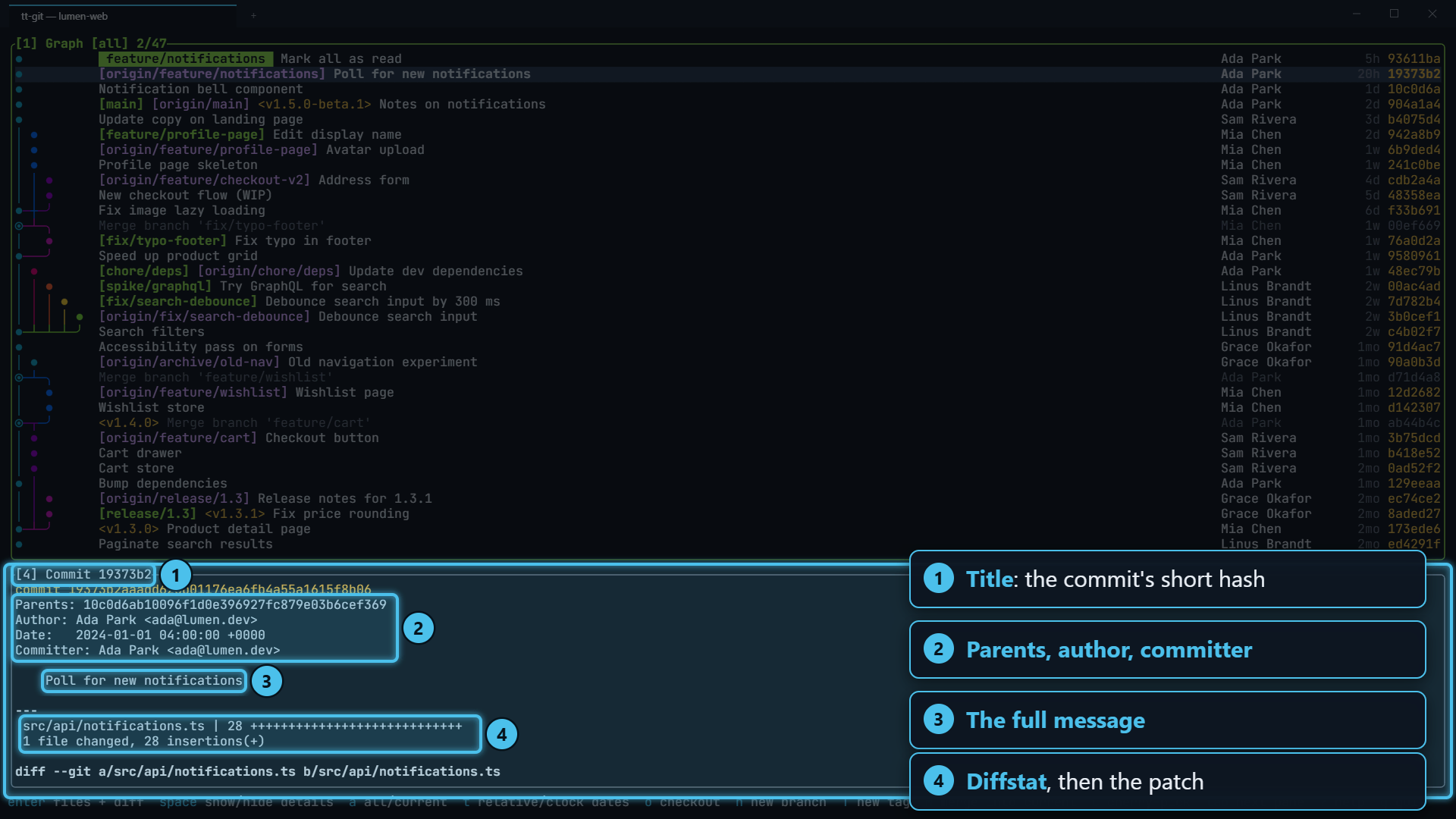
Section titled “The commit view”The title is Commit and the short hash, for example [4] Commit 59f1c2a. Below it is what
git show prints for the commit:
- the hash, author, committer, dates and parents,
- the full commit message,
- a summary of changed files with
+and-counts, - and the patch, with hunk headers (
@@ … @@) in cyan. Code in a language tt-git knows is colored by syntax, with added lines on a green background and removed lines on red. Anything else shows added lines in green and removed lines in red.
A merge commit is shown as what it brought into the branch, compared with its first parent, which is what you usually want to review. Renamed files show as renames rather than a delete and an add.
Very long diffs stop after 5,000 lines with a count of what’s left, so a huge generated file can’t stall tt-git.
Scroll with j k, a page at a time with ctrl+d ctrl+u (or pagedown pageup), and jump to the top or bottom with g G.
Changed files
Section titled “Changed files”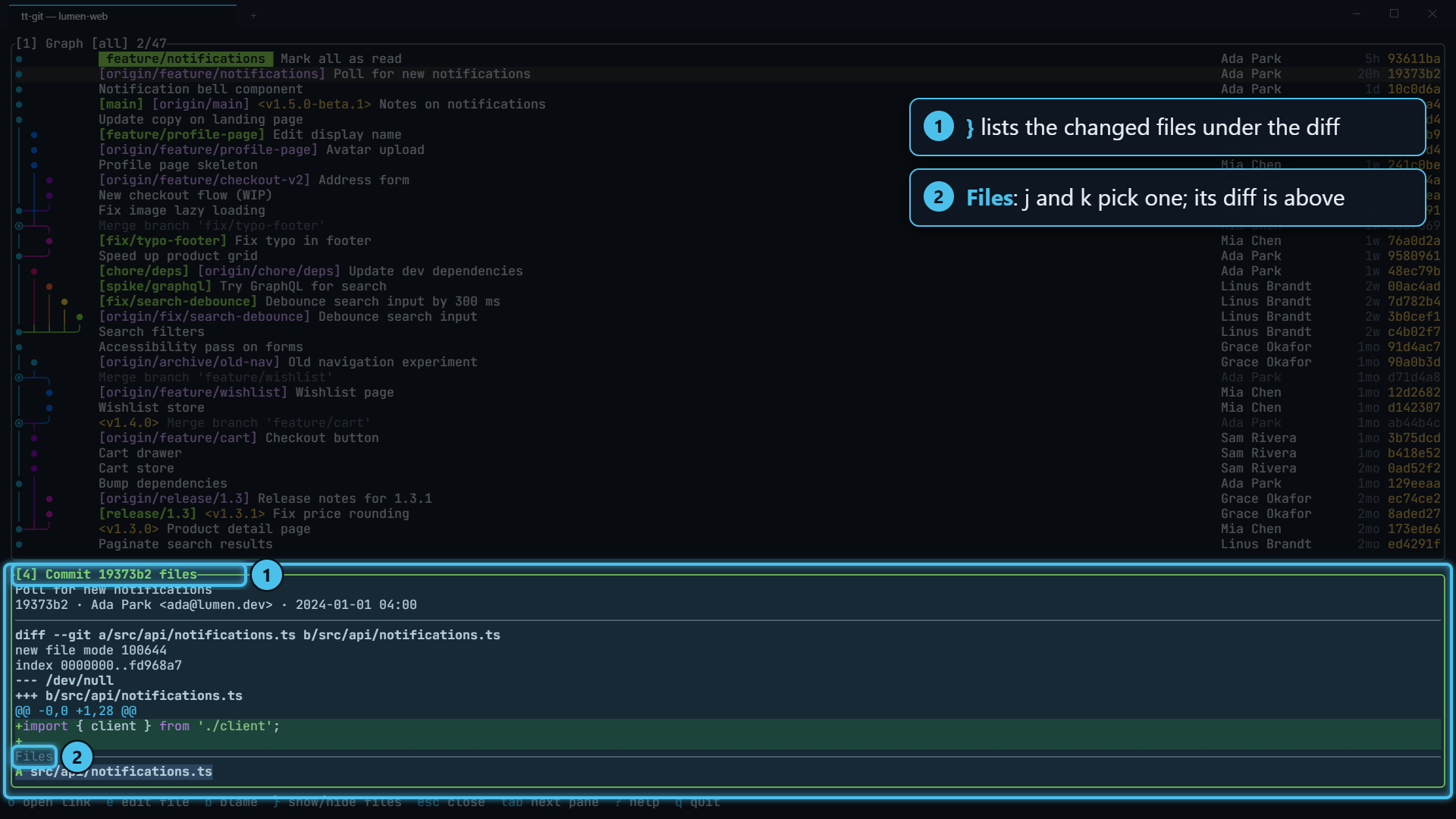
Press } in details to switch to the changed-files view. The commit header stays at
the top, the selected file’s diff fills the middle, and the list of files sits below it under a rule
titled Files (6). Press } again to go back to the whole commit.
In this view:
- j k pick a file, and its diff shows above. Clicking a file picks it too.
- ctrl+d ctrl+u (or pagedown pageup) scroll the diff.
- The mouse wheel scrolls the diff when the pointer is over it, and moves through the files when it’s over the list.
- Renamed files are listed as
old → new.
Each file’s diff loads when you pick it, and stays cached while the view is open. When you move to another commit in the graph, details stays in the files view and the old list stays up until the new one arrives, so the layout doesn’t jump.
Fullscreen files and diff
Section titled “Fullscreen files and diff”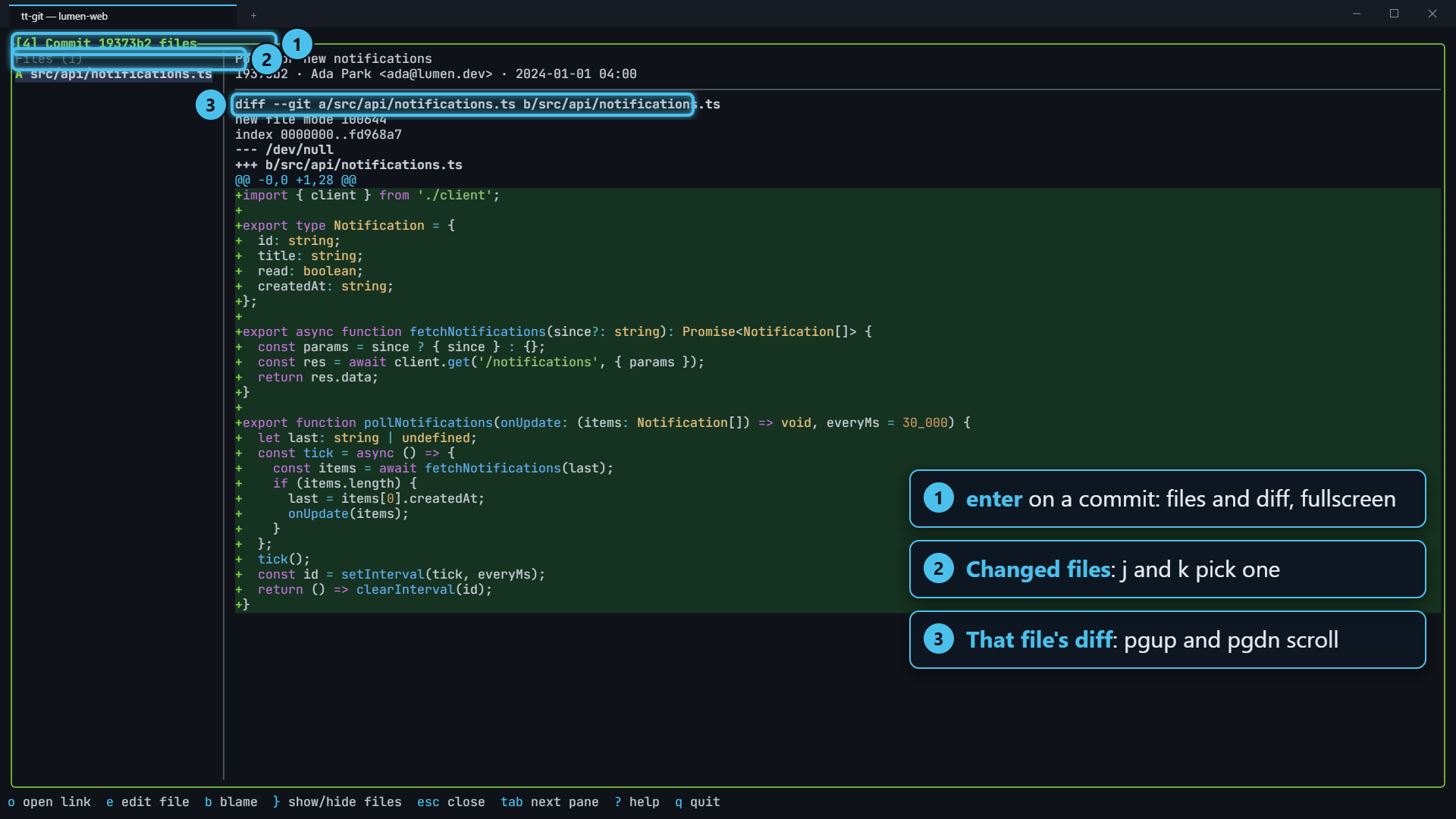
Press enter on a commit in the graph, or double-click it, to open it fullscreen. The changed files are listed on the left and the selected file’s diff fills the right, like a pull request’s “Files changed” tab.
- Select a commit in the graph and press enter, or double-click it.
- Pick a file with j k, or click it. Scroll its diff with pagedown pageup, or the mouse wheel over the diff.
- Press esc or space to go back to the graph.
+ also makes the details pane fullscreen from wherever it is, and with the files view on, fullscreen moves the file list to the left.
Other things details shows
Section titled “Other things details shows”- A stash: on the Stash tab, details shows what the selected stash holds, untracked files included.
- A file’s diff: with the status pane focused, details shows the selected file’s staged and
unstaged changes, titled
Diffand the path. In the default layout you see this when details has a pane of its own; to stage part of a file, use the staging view. - Staging: enter in the status pane turns details into the staging view.
- Plugin logs: Plugin logs in the command palette lists recent plugin runs in details.
- A plugin pane: a plugin pane with the
splitplacement takes details’ place. See Plugin panes.
Code colors
Section titled “Code colors”Wherever tt-git shows a file’s code (diffs here, the staging view and
blame), it colors it by language: comments, strings, keywords, types, functions,
numbers and so on. In a diff, an added line sits on a green background and a removed line on a red
one, with its + or - still in green or red, so you can read the code and the change at once.
The language comes from the file’s name or extension, and for a file with neither, like a script,
from a #! line at the top. Around 200 languages are known, among them Rust, TypeScript and TSX,
JavaScript, Go, C#, Dart, HTML, CSS, Markdown, YAML, JSON and TOML. A file in a language tt-git
doesn’t know shows as before: added lines in green, removed lines in red.
Each side of a diff is colored on its own, the old side from its unchanged and removed lines and the new side from its unchanged and added lines, so a comment opened on a removed line doesn’t color the added lines after it. Each hunk starts afresh, because what’s between hunks isn’t in the diff. Code inside a hunk that starts in the middle of a block comment or a long string can be colored wrongly until the hunk passes its end.
Files of more than 20,000 lines, and lines longer than 2,000 bytes (minified code, data), aren’t
colored. To turn colors off everywhere, set syntax = false.
Opening a file in your editor
Section titled “Opening a file in your editor”Press e to open the file you’re looking at in your editor, at the line at the top of the diff. Scroll so the line you want is the top one, then press e.
| Showing | Opens |
|---|---|
| The changed-files view | The selected file |
| A whole commit or a stash | The file whose diff is at the top of the view; above the first file, the first file |
| A file’s diff from the status pane | That file |
Above a file’s first hunk, or on an @@ line, the editor opens at the hunk’s first change. A removed
line opens where it was.
When the file is in your working tree, tt-git opens that, not the version in the commit, so you can edit it. If the file has changed since that commit, the line numbers may have moved and the editor lands near the line rather than on it.
When it isn’t, say because the commit is on a branch you don’t have checked out, tt-git opens a
read-only copy of the file as it was in that commit, at the same line, and says
old.rs isn't in the working tree: opened a read-only copy from 1a2b3c4. A file the commit deleted
opens as it was just before the commit. The copies go in your temp directory, under
tt-git/<repo>/<commit>/, with the file’s own path and name, so your editor still recognises the
language. Saving changes to a copy doesn’t change anything in the repository. With nothing to open,
such as plugin logs, tt-git says no file to open here.
Which editor runs is set in [editor].
Blaming a file
Section titled “Blaming a file”Press b to blame the file you’re looking at: see who last changed each line, when and in which commit. Which file is the same as for e above, and blame opens on the line at the top of the diff.
For a commit, blame shows the file as of that commit, not as it is now. A file the commit deleted is blamed as it was just before the commit. For a file’s diff from the status pane, it shows your working tree. Blame opens fullscreen, and esc comes back to exactly this view.
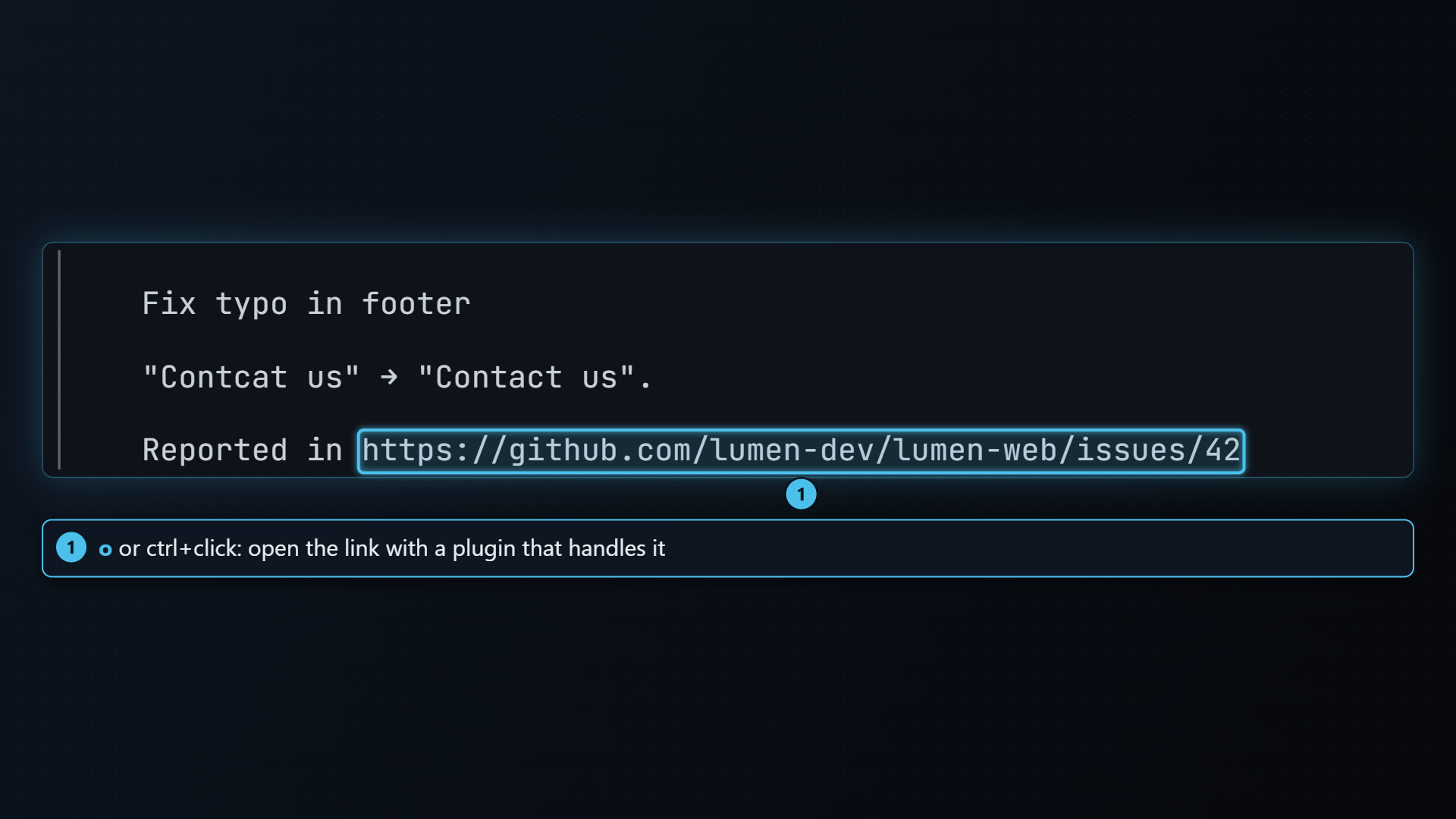
Commit messages often contain links to a pull request or a ticket. Press o, or
ctrl+click the link, and tt-git hands the first http:// or https:// link in view to a
plugin that knows what to do with it, for example opening it in your browser.
A plugin says which links it handles with a [[link_handlers]] pattern in its manifest; see
Writing a plugin. If no plugin handles the link, the help bar
says no plugin handles … rather than guessing which program should open it.
| Key | Does |
|---|---|
| j k | Scroll the diff a line (in the files view: pick a file) |
| ctrl+d ctrl+u, pagedown pageup | Scroll a page |
| g G | Top / bottom |
| } | Show / hide the changed files |
| o | Open the link in view with a plugin |
| e | Open the file in view in your editor |
| b | Blame the file in view, as of the commit |
| esc space | Close details |
| + | Fullscreen and back |
The mouse wheel scrolls details too. In the files view, click a file to show its diff; the wheel scrolls the diff over the diff and moves through the files over the list.