
Branches
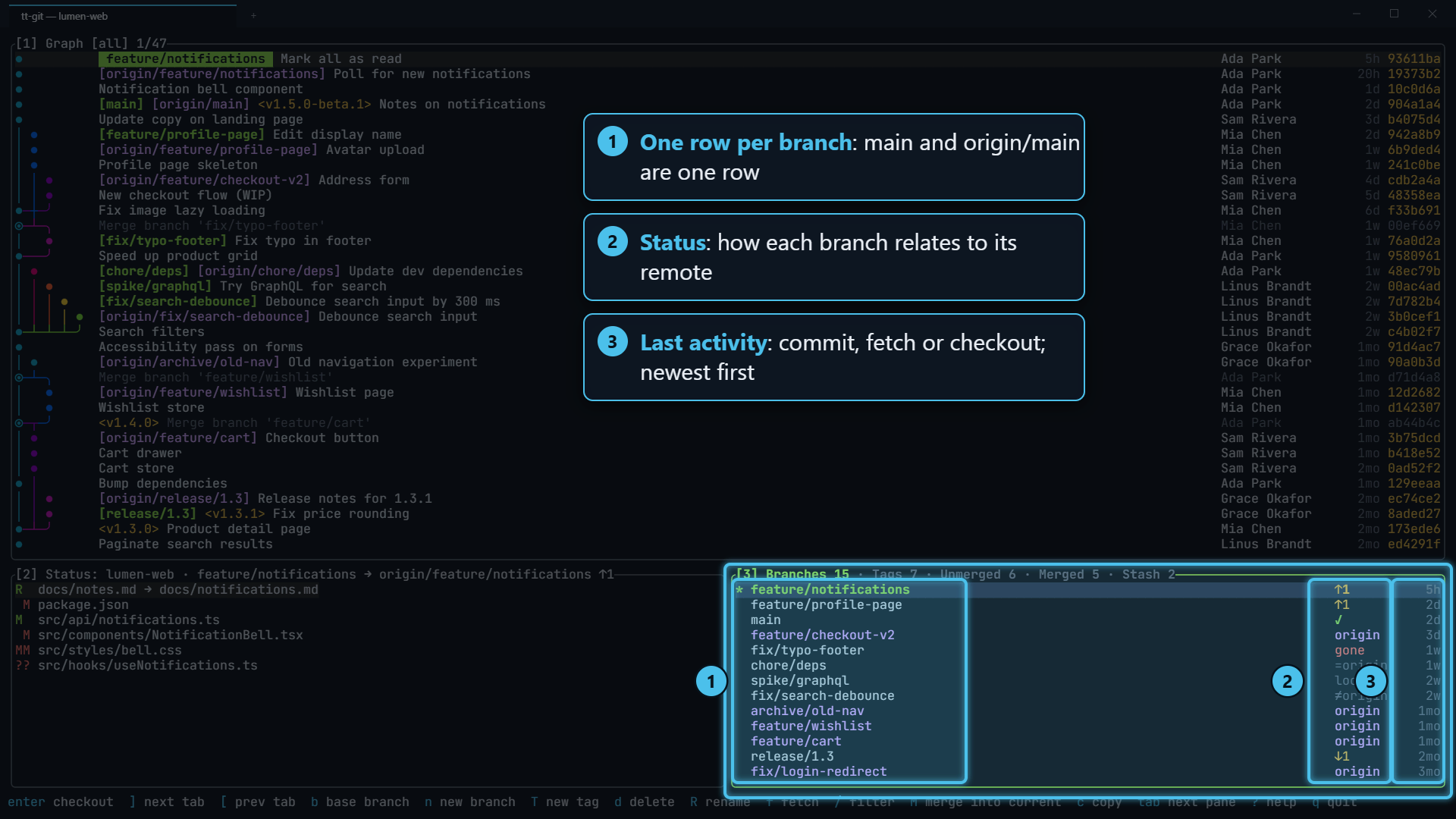
The branches pane (3) lists every local and remote branch in one
place. main, origin/main and upstream/main are a single row, the
branches you’re working on sit at the top because the list is sorted by
recent activity rather than by name, and a short status column tells you
whether each branch is pushed, behind, or gone from the remote. From here
you check out, create, rename, delete, fetch, merge and rebase. The same
pane has tabs for tags, merged and unmerged
branches, the stash and your
worktrees.
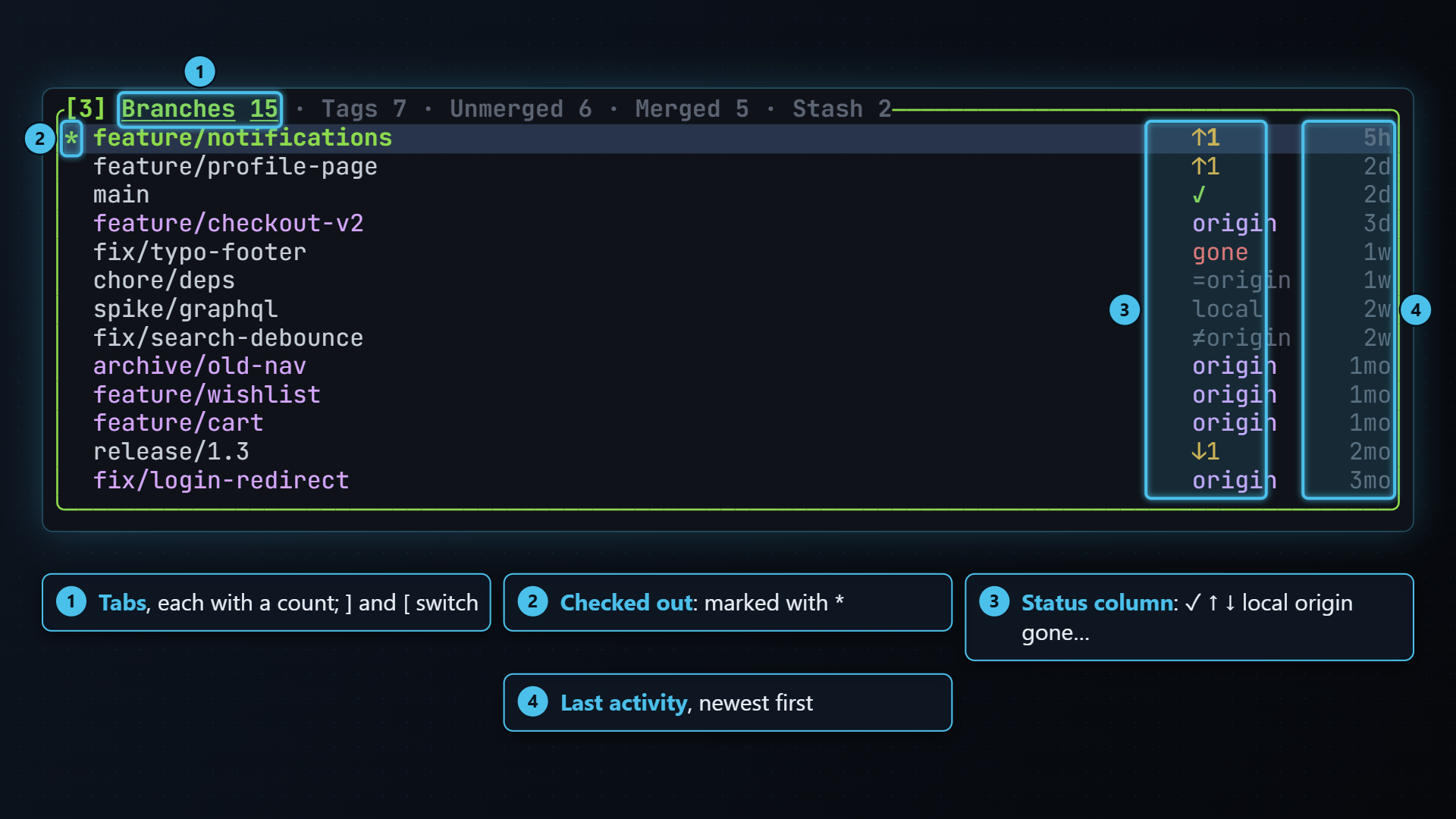
The tabs
Section titled “The tabs”] and [ (or } and {) move between the tabs, or click a tab’s name in the title. The same keys work from the graph, which keeps focus:
| Tab | Lists |
|---|---|
| Branches | Every local and remote branch, most recently active first. This page. |
| Tags | Every tag, newest first. See Tags. |
| Unmerged | Branches not yet merged into the base branch. See Merged and unmerged. |
| Merged | Branches that are. |
| Stash | Your stashes, once you have any. See Stash. |
| Worktrees | Every worktree of the repository, once there’s more than the main one. Open or remove them from here. See Worktrees. |
The title shows every tab with its count, the current one underlined, and the base branch on the tabs that compare against it:
Branches 12 · Tags 3 · Unmerged 4 (origin/main) · Merged 9When the pane is too narrow for all of that, only the current tab keeps its count, so every tab’s name still fits.
Each tab keeps its own cursor, so switching away and back returns you to the same row.
One row per branch
Section titled “One row per branch”Local and remote branches with the same name are grouped into one row:
- Each local branch is a row.
- A remote branch joins the local branch that tracks it, so a local
xtrackingorigin/feature-xis one row. If nothing tracks it, it joins the local branch with the same name. - A remote branch with no local counterpart gets a row of its own, shown in the remote color.
origin/HEADand other symbolic refs are left out, since they only repeat another branch.
Each row shows a marker (* for the checked-out branch, in green), the name,
the status column and how long ago the branch was last active:
* main ✓ 2h feature/login ↑2 3h fix-typo local 1d release/2.0 origin 4d old-spike gone 3wMoving the selection moves the graph to that branch’s tip.
Sorted by activity
Section titled “Sorted by activity”The list is sorted by when you last did something with each branch, not by name. A row’s activity is the newest of:
- the tip commit’s date on each of its refs,
- the last time the branch moved, from its reflog: a commit, a reset, a rebase, or a push to the remote branch,
- for local branches, the last time you checked it out.
Checking out an old branch today puts it at the top, even though its newest commit is old. Fetching doesn’t count: a fetch (or a pull, or your editor’s background fetch) only tells you about commits, so a remote branch it moves shows the date of its newest commit, not the time of the fetch. The branches you’re working with are always in view without scrolling or typing. Reading reflogs costs no git processes; see How tt-git uses git.
The status column
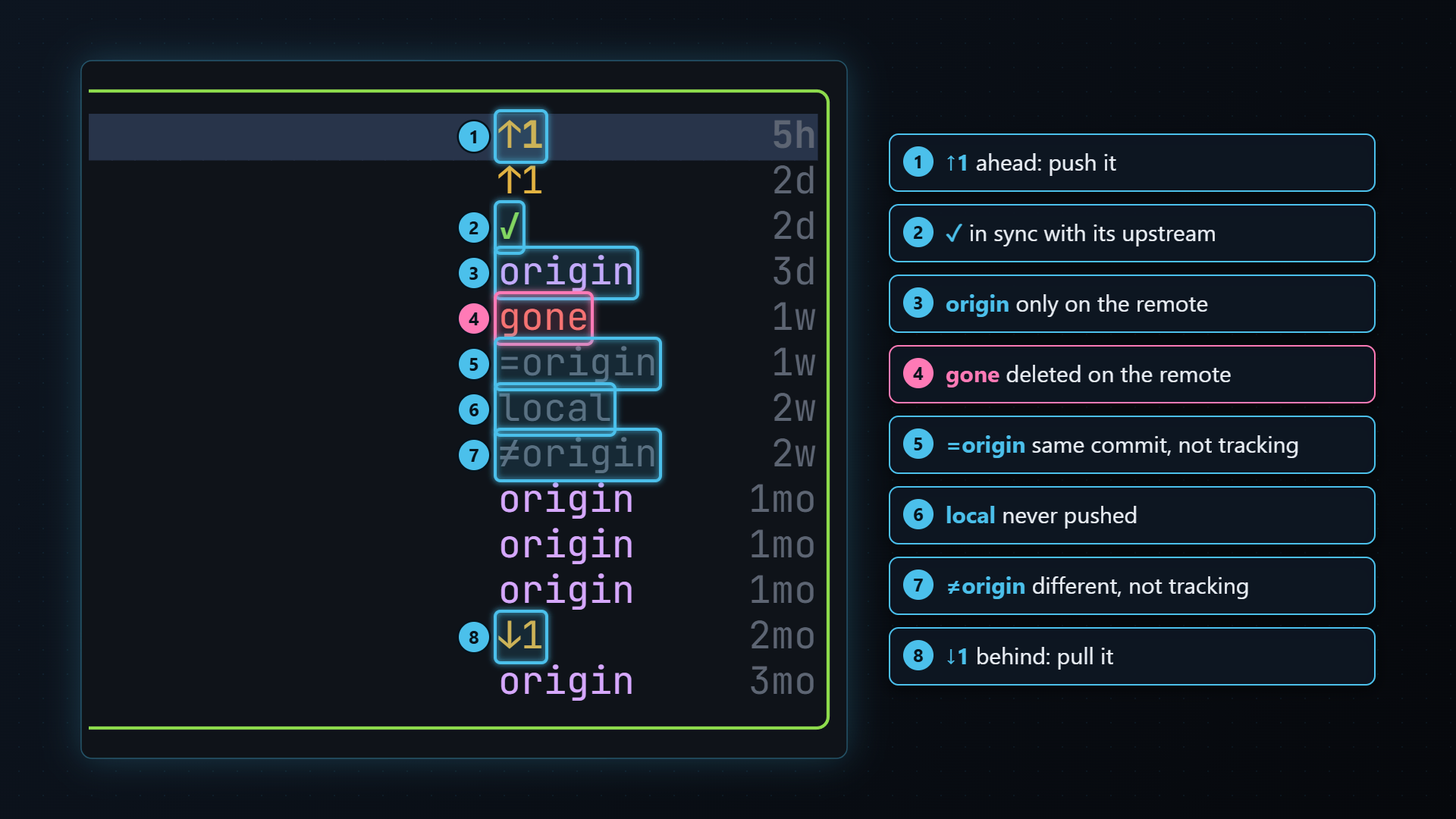
Section titled “The status column”Each row says how the branch relates to its remote:
| Shown | Means | When |
|---|---|---|
local | Local only: nothing on any remote | No upstream, and no remote branch of the same name |
origin / origin,upstream | Remote only: you don’t have it locally | No local branch; lists every remote that has it |
✓ (green) | In sync with its upstream | Upstream set, 0 ahead and 0 behind |
↑2 ↓3 ↑2↓3 | Ahead / behind its upstream | git’s own ahead and behind counts |
gone (red) | Its upstream was deleted on the remote | Usually seen after a fetch with --prune |
=origin | Not tracking, but origin has the same name at the same commit | No upstream configured |
≠origin | Not tracking, and origin’s same-named branch is elsewhere | No upstream configured |
The column answers “can I delete this?” and “did I forget to push this?” at a
glance: local has never been pushed, gone was merged and deleted
upstream, and =origin is safe to set an upstream for.
Plugin columns
Section titled “Plugin columns”Plugins can add a column of short text next to the branch names, such as the Azure DevOps plugin’s pull request numbers. Each plugin’s column sits between the name and the status column. It’s as wide as its widest value, up to 10 cells, so the values line up, and branches without one are left blank:
* main ✓ 2h feature/login !1423 ↑2 3h feature/search !1431 ✓ 1d fix-typo local 1dThe columns show on the Branches tab only. A plugin’s column goes away when you disable or remove the plugin. See Branch columns for writing one.
Checking out
Section titled “Checking out”enter or space checks out the selected branch.
- A local branch is switched to (
git switch <name>). - A remote-only branch gets a local tracking branch, created and checked
out without asking (
git switch -c <name> --track <remote>/<name>). If several remotes have it,originis preferred. Checking out a remote branch nearly always means “give me a local copy of it”.
Selecting the branch that’s already checked out does nothing.
Creating, renaming and deleting
Section titled “Creating, renaming and deleting”New branch
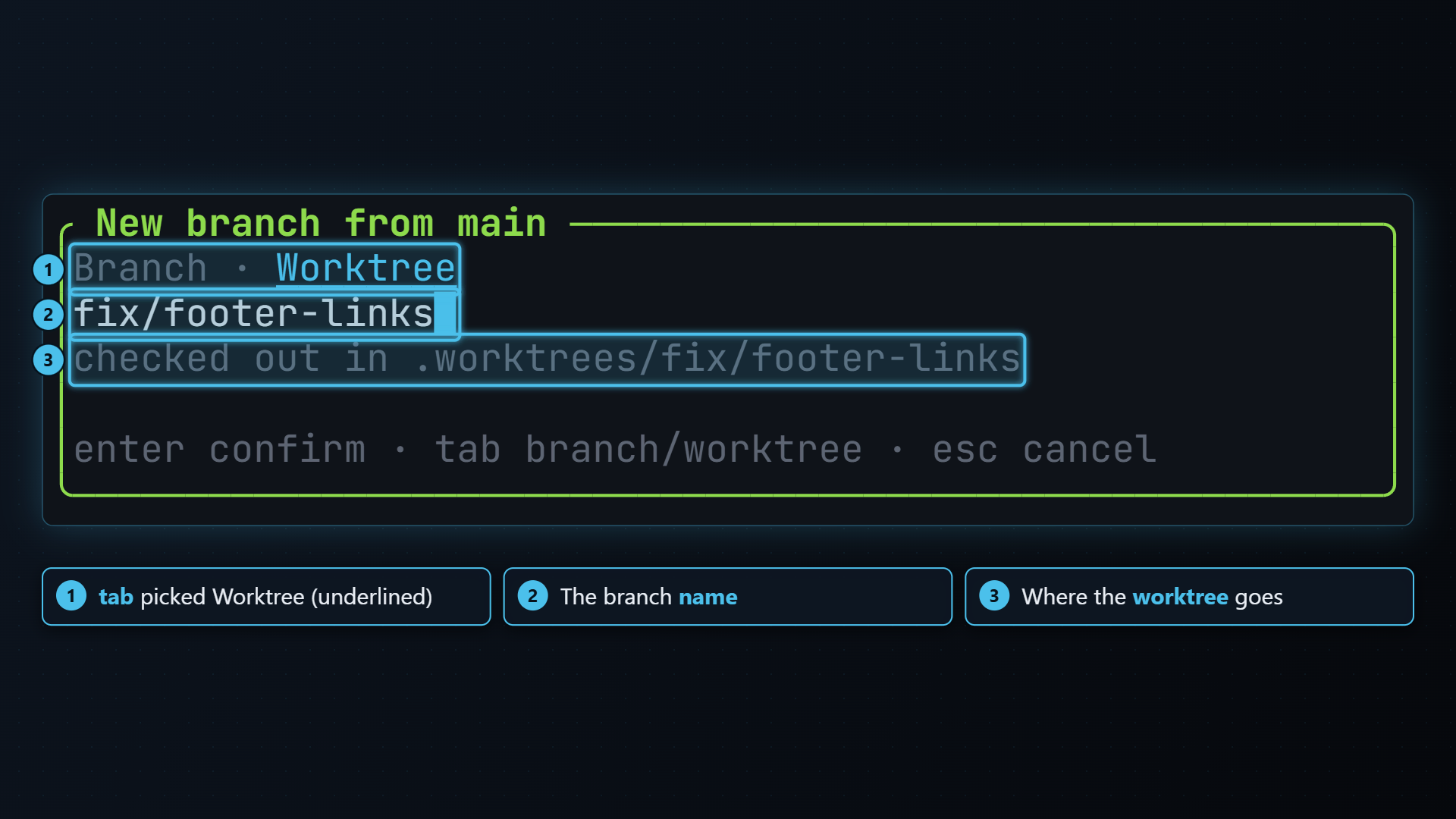
Section titled “New branch”n opens New branch from <name>, starting at the selected branch (the local one if there is one, else the remote). Type a name and press enter; tt-git creates it and switches to it.
Press tab in the dialog to switch from Branch to
Worktree: the branch is then created in a new worktree under
.worktrees/<name> instead of being checked out here. See
Worktrees.
New tag
Section titled “New tag”T opens New tag at <name>, to tag the commit the selected branch points at. See Tags for lightweight and annotated tags, and for pushing and deleting them.
Rename
Section titled “Rename”R opens Rename <name> with the current name filled in. Only local branches can be renamed.
Delete
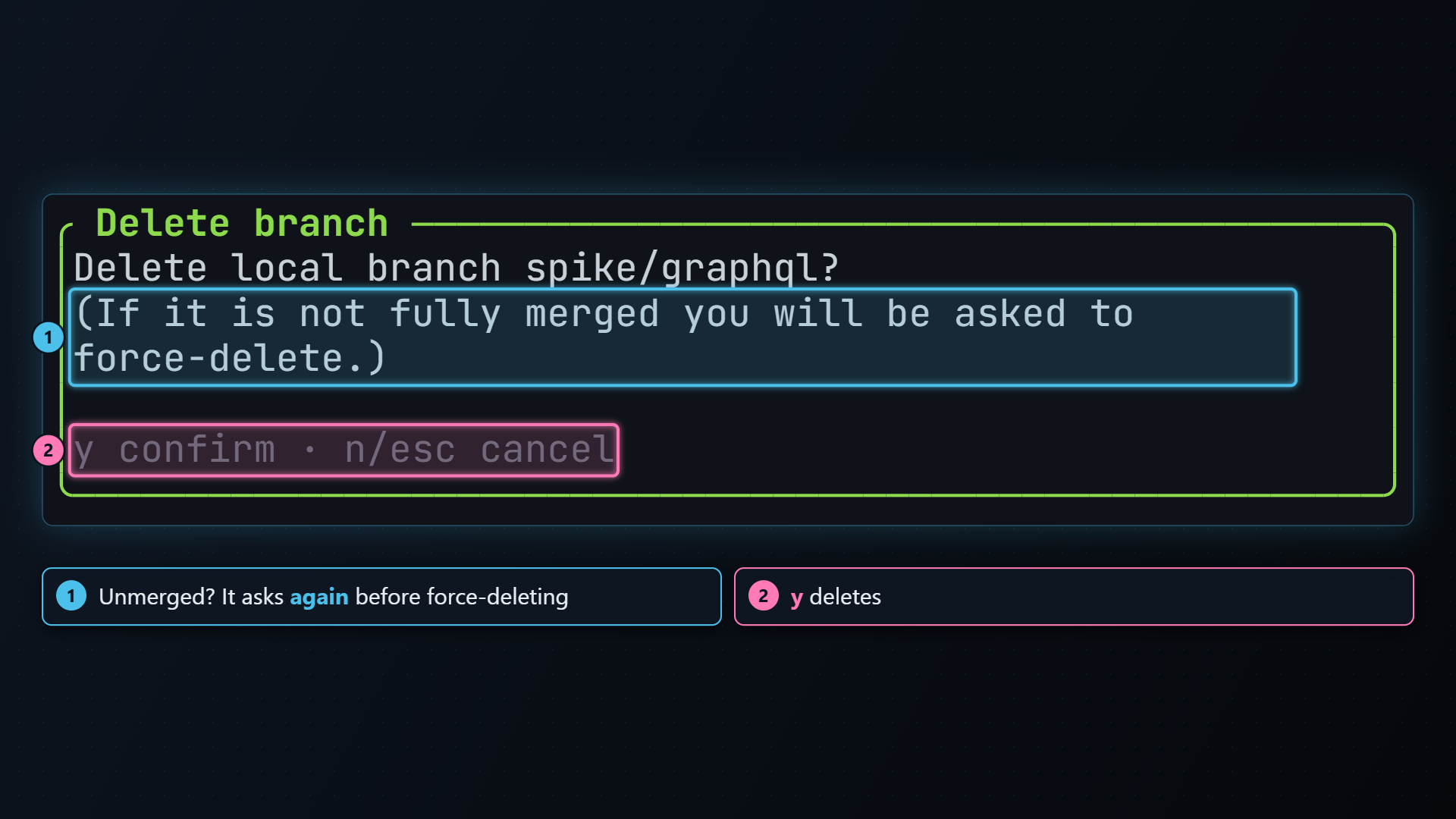
Section titled “Delete”d deletes the selected branch, after asking:
- A local branch is deleted with
git branch -d. If git says it isn’t fully merged, tt-git asks again (Force delete?) before runninggit branch -D. - A remote-only branch is deleted on the remote: the dialog shows the
command it will run,
git push <remote> --delete <branch>. - The checked-out branch can’t be deleted.
Every confirmation takes y to go ahead and n or esc to cancel.
Fetching
Section titled “Fetching”f runs git fetch --all --prune. --prune is what removes
remote branches that were deleted on the remote, and turns the local
branches that tracked them gone. See Push, pull and fetch.
Filtering the list
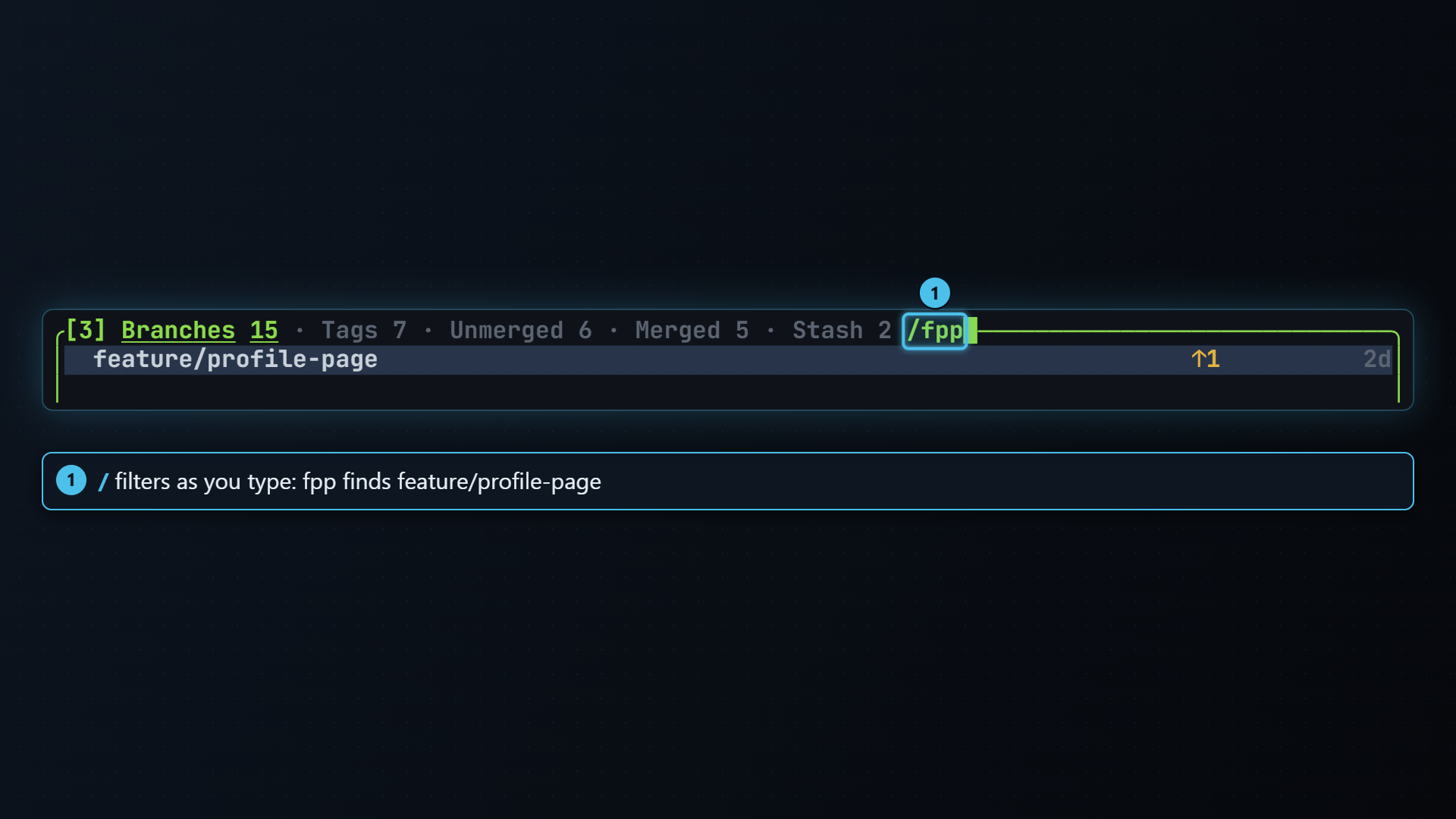
Section titled “Filtering the list”/ starts a filter on the current tab. The title shows what you’ve
typed (/flp█) and the list narrows as you type. Matching ignores case and
works on subsequences, so flp finds feature/login-page.
- ↑ ↓ move the selection while you type.
- enter stops typing and keeps the filter.
- esc clears it.
Merging and rebasing
Section titled “Merging and rebasing”- M merges the selected branch into the current one
(
git merge --no-edit). - r rebases the current branch onto the selected one, non-interactively.
Both ask first. If the result has conflicts, the status pane shows them and how to continue or abort. See Merge, rebase and cherry-pick.
Copying the name
Section titled “Copying the name”c copies the branch name to the clipboard. It uses the terminal’s OSC 52 clipboard support, so it also works over SSH.
| Key | Does |
|---|---|
| enter space | Check out (a remote-only branch gets a tracking branch) |
| ] [ | Next / previous tab |
| n | New branch from the selection (tab in the dialog: in a worktree) |
| R | Rename a local branch |
| T | New tag at the selection’s commit (tab in the dialog: annotated) |
| d | Delete (asks; asks again before force-deleting unmerged) |
| f | git fetch --all --prune |
| / | Filter as you type (esc clears) |
| b | Pick the base branch for the Unmerged, Merged and Tags tabs |
| M | Merge the selection into the current branch |
| r | Rebase the current branch onto the selection |
| c | Copy the branch name |
The keys that work everywhere (push, pull, focus, zoom) work here too. Every key can be changed; see Key bindings.