
Merge, rebase and cherry-pick
All three act on the current branch: you pick the other side in the graph, the branch list or the tag list. tt-git asks before it starts each one.
| Where | M | r | C |
|---|---|---|---|
| Graph | Merge the selected commit into the current branch | Rebase the current branch onto the selected commit | Cherry-pick the selected commit |
| Branches | Merge the selected branch | Rebase onto the selected branch | |
| Tags | Merge the selected tag | Rebase onto the selected tag |
In the graph, if the selected commit has a branch badge, tt-git uses the
branch name rather than the hash, so the merge commit says Merge branch 'feature'. In the branch list it uses your local branch if you have one,
and the remote branch otherwise.
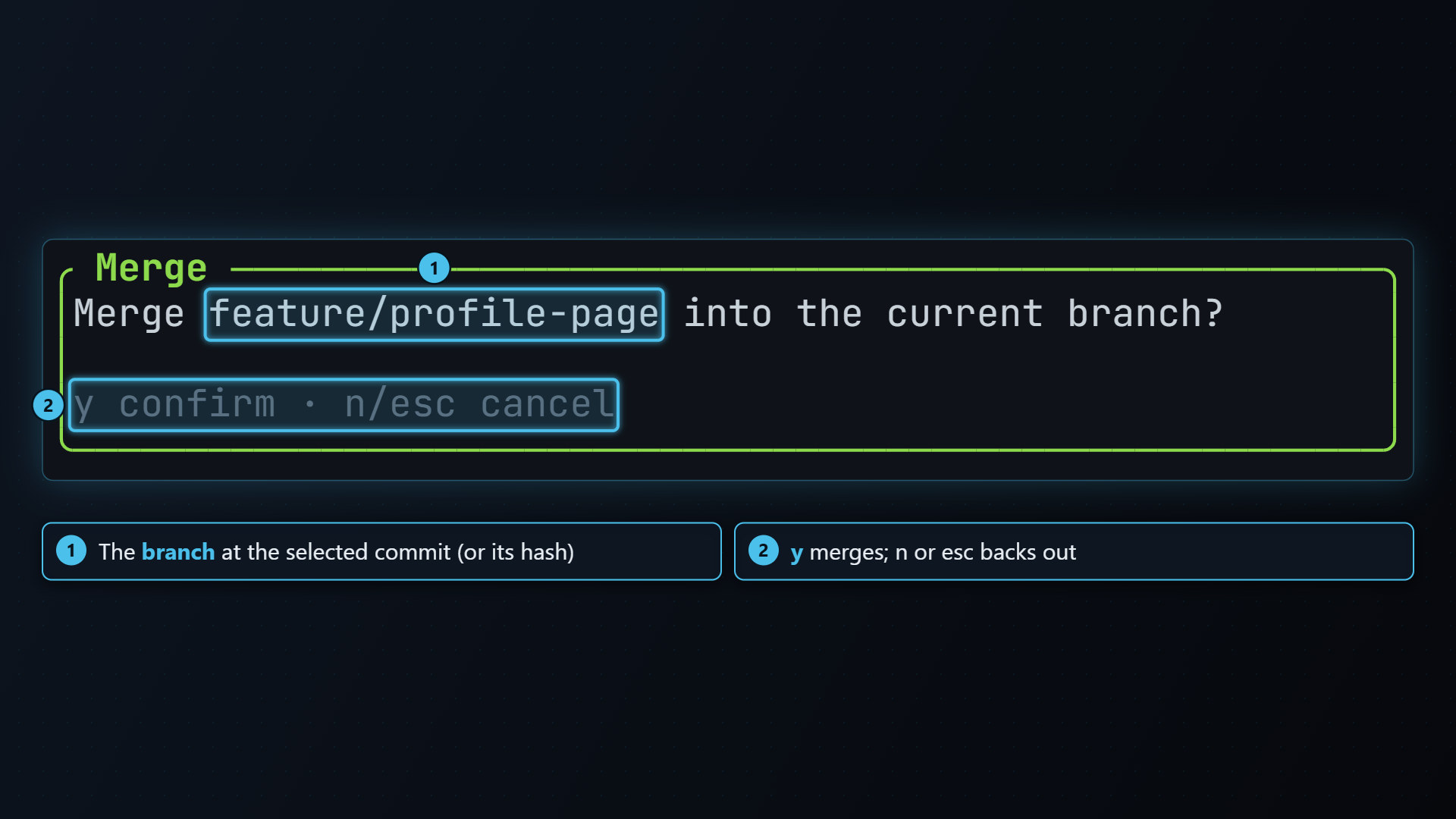
Press y or enter to go ahead, n or esc to cancel. When it’s done, the graph moves to the new head.
tt-git runs git merge --no-edit <branch>. A fast-forward just moves the
branch; otherwise git makes a merge commit with its default message.
Rebase
Section titled “Rebase”tt-git runs git rebase <onto>, not interactively: every commit of the
current branch that isn’t on the target is replayed on top of it. Git’s
editor is turned off for the rebase, so it never opens one inside the
terminal.
Cherry-pick
Section titled “Cherry-pick”C in the graph applies the selected commit on top of the current
branch with git cherry-pick <commit>. The confirm box shows the commit’s
hash and subject.
Resolving conflicts
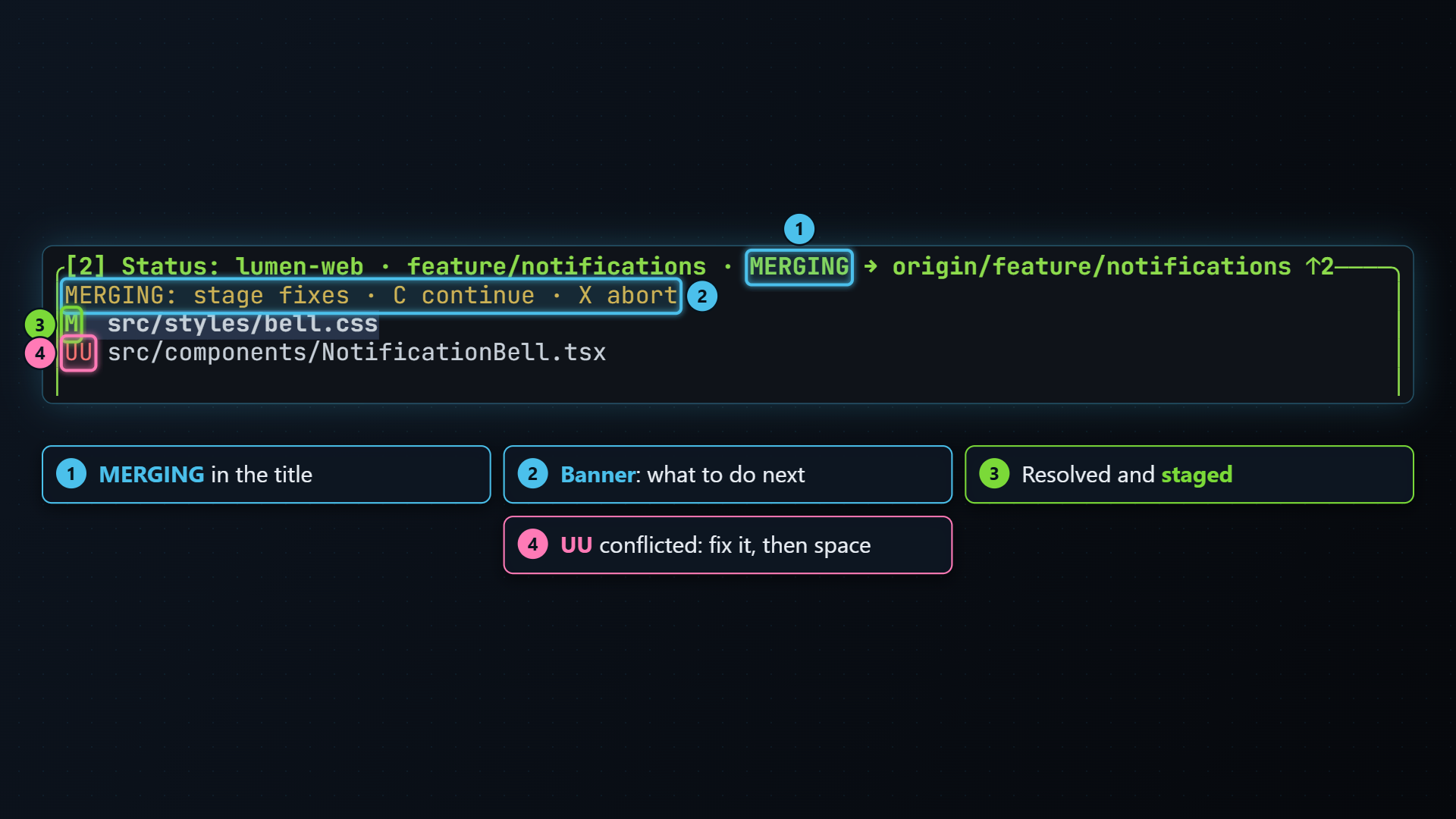
Section titled “Resolving conflicts”When a merge, rebase or cherry-pick stops on a conflict, the status pane shows what’s going on:
- The title adds
MERGING,REBASING,CHERRY-PICKINGorREVERTING. - A banner row at the top says what to do next, for example
REBASING: stage fixes · C continue · X abort. - Conflicted files show
UU(or anotherUcode) in the error color.
-
Open each conflicted file in your editor and fix the conflict markers. e in the status pane opens the selected file at its first one. The selected file’s diff shows in details.
-
Back in tt-git, press space on the file to stage it. Staging a conflicted file marks it resolved.
-
When every file is staged, press C to continue.
Conflicted files can’t be staged a hunk at a time; stage the whole file once it’s fixed.
Continue or abort
Section titled “Continue or abort”Press C or X in the status pane. From any other pane, open the command palette and pick Continue merge/rebase or Abort merge/rebase. (In the graph, C is cherry-pick.)
- C continue. tt-git refuses while a file is still conflicted.
A merge is finished with
git commit --no-edit; a rebase or cherry-pick withgit rebase --continueorgit cherry-pick --continue. Git’s prepared message is kept and no editor opens. A rebase may stop again on a later commit; resolve and continue the same way. - X abort. tt-git asks first, then runs
git merge --abort(orrebase,cherry-pick) and puts everything back as it was before you started.