
Install and open
Requirements
Section titled “Requirements”- git 2.31 or newer on your
PATH, as for the terminal app. - Windows (x64), macOS (Apple Silicon) or Linux (x64, arm64). There’s no desktop app for Windows on arm64 yet; the terminal app runs there.
- On Linux, a graphics driver with Vulkan, and the system libraries listed below.
Download a release
Section titled “Download a release”The desktop app is a download of its own on each
release, named
tt-git-gui-<version>-<platform>, such as
tt-git-gui-v0.10.0-linux-x64.tar.gz. The terminal app’s archives
(tt-git-<version>-<platform>) don’t contain it.
Every desktop app download also carries tt-git: next to tt-git-gui,
or in a bin folder beside it with the Windows installer. Plugins in the
app run that one (see Plugins),
so leave it where it is.
Pick one of two downloads:
tt-git-gui-<version>-windows-x64-setup.exe, an installer. It first asks whether to install for you alone (no admin rights needed) or for all users (asks for admin rights). For you alone it installs into%LOCALAPPDATA%\Programs\tt-git; for all users intoC:\Program Files\tt-git. It adds tt-git to the Start menu, and putstt-git.exein thebinfolder inside.tt-git-gui-<version>-windows-x64.zip, a folder holdingtt-git-gui.exeandtt-git.exe. Unpack it anywhere and runtt-git-gui.exe.
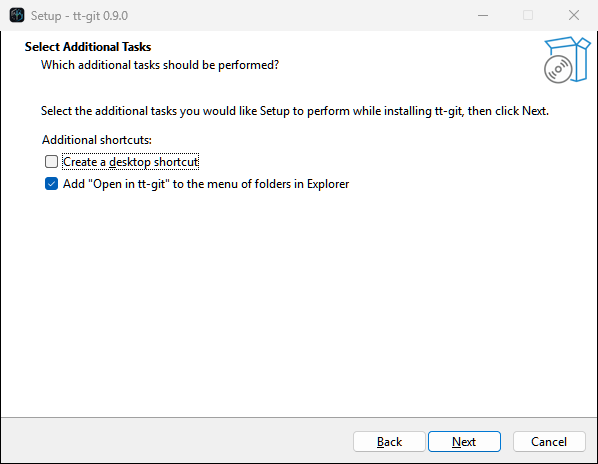
The installer’s Select Additional Tasks page offers three extras:
- Create a desktop shortcut, off unless you tick it.
- Add “Open in tt-git” to the menu of folders in Explorer, on unless you untick it. Right-click a folder, or the empty space inside one, and pick Open in tt-git to open its repository in a window. On Windows 11 the entry is under Show more options. A folder outside a repository opens the start window with a message saying so.
- Add tt-git to PATH, to run it in a terminal, on unless you untick
it. It adds the install’s
binfolder to your userPATH, or to the system’s for an install for all users, sott-gitruns the terminal app in a new terminal. Onlytt-git.exeis in that folder. Untick it when you upgrade and the installer takes the folder offPATHagain.
To uninstall, pick tt-git in Settings → Apps → Installed apps and
choose Uninstall. That removes the app, tt-git.exe and its PATH
entry, its Start menu entry, the desktop shortcut, the Explorer entry and
the registration
notifications use. Your settings and plugins in
%APPDATA%\tt-git stay. If tt-git is running when you install a new
version, the installer offers to close it first.
If the build is unsigned, SmartScreen stops the first run with Windows protected your PC. Click More info, then Run anyway.
For you alone, the installer’s bin folder is the same
%LOCALAPPDATA%\Programs\tt-git\bin the terminal app’s
install script uses. If you
ran the script before, the installer replaces its tt-git.exe with the
app’s, and uninstalling the app removes it. From then on tt-git updates
with the app, and tt-git update and the script refuse to replace it.
The zip doesn’t put tt-git on your PATH. For tt-git in a terminal,
add its folder yourself, or use the installer or the install script.
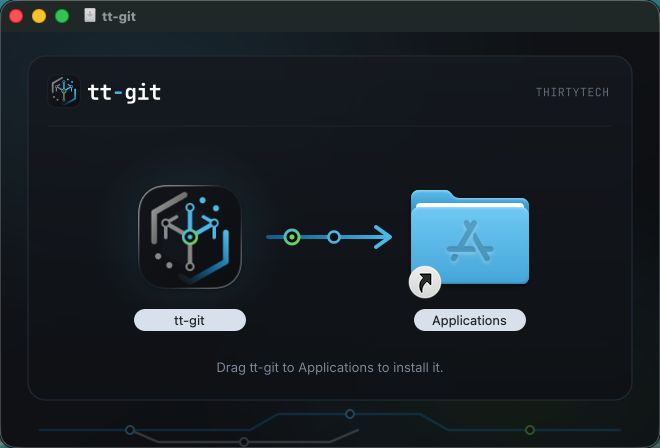
Download tt-git-gui-<version>-macos-arm64.dmg and open it. Drag
tt-git onto the Applications folder beside it, then open it from
Applications or Spotlight.
If the build is unsigned, macOS stops the first launch with “tt-git” Not Opened: Apple could not verify “tt-git” is free of malware, and offers only Done:
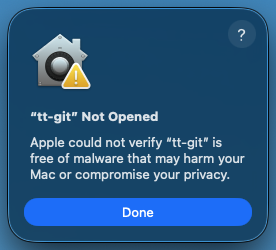
Click Done, open System Settings → Privacy & Security, and under Security click Open Anyway beside the message about tt-git. Confirm with your password, and tt-git opens; after that it starts like any other app. On macOS 14 and earlier you can instead right-click tt-git in Applications, choose Open, then Open again.
Once tt-git is in Applications, Finder offers Open in tt-git on folders. Right-click a folder and pick it (under Services or at the bottom of the menu, depending on how many services you have), or select a folder and choose Finder → Services → Open in tt-git. Its repository opens in a window of the running tt-git, which starts first if it isn’t running. A folder outside a repository opens the start window with a message saying so. If the entry is missing, turn it on under System Settings → Keyboard → Keyboard Shortcuts → Services → Files and Folders.
The app holds both binaries in tt-git.app/Contents/MacOS: tt-git-gui
and tt-git. For tt-git in a terminal, link to the app’s copy:
sudo ln -s /Applications/tt-git.app/Contents/MacOS/tt-git /usr/local/bin/tt-gitor install the terminal app on its own with the install script.
To uninstall, drag tt-git from Applications to the Trash. That takes
Open in tt-git off Finder’s menus too. Your
settings and plugins stay in ~/Library/Application Support/tt-git.
Each download comes for linux-x64 and linux-arm64. Pick the one that
suits your system.
A package for your distribution’s package manager. It installs
tt-git-gui and tt-git into /usr/bin, ThirtyTech.tt-git.desktop into
/usr/share/applications and the icons into /usr/share/icons/hicolor,
and pulls in what the app needs, git included (see below).
tt-git then shows up in your app launcher.
| Distribution | Download | Install | Uninstall |
|---|---|---|---|
| Debian, Ubuntu | tt-git-gui-<version>-linux-<arch>.deb | sudo apt install ./tt-git-gui-v0.10.0-linux-x64.deb | sudo apt remove tt-git |
| Fedora | tt-git-gui-<version>-linux-<arch>.rpm | sudo dnf install ./tt-git-gui-v0.10.0-linux-x64.rpm | sudo dnf remove tt-git |
| openSUSE | tt-git-gui-<version>-linux-<arch>.rpm | sudo zypper install ./tt-git-gui-v0.10.0-linux-x64.rpm | sudo zypper remove tt-git |
| Arch Linux | tt-git-gui-<version>-linux-<arch>.pkg.tar.zst | sudo pacman -U tt-git-gui-v0.10.0-linux-x64.pkg.tar.zst | sudo pacman -R tt-git |
The package is called tt-git because it holds both apps. It needs glibc
2.35 or newer: Debian 12, Ubuntu 22.04, a current Fedora or openSUSE
Tumbleweed. The packages aren’t signed, so zypper asks before it installs
one.
The install script puts the app in your home folder, without sudo
and without a package manager:
curl -fsSL https://github.com/ThirtyTech/tt-git/releases/latest/download/install-gui.sh | shIt downloads the tarball (below) for your machine, checks it against the
release’s checksums, and copies tt-git-gui and tt-git into
~/.local/bin, ThirtyTech.tt-git.desktop into ~/.local/share/applications and
the icons into ~/.local/share/icons/hicolor. The launcher entry runs
tt-git-gui by its full path, so it works whether or not ~/.local/bin
is on your PATH. If a library the app links is missing, the script says
which. Earlier releases named the launcher entry tt-git.desktop; the
script removes that one when it installs the new one.
| Variable | Default | Does |
|---|---|---|
TTGIT_VERSION | the latest release | The release to install, such as v0.10.0 |
TTGIT_PREFIX | ~/.local | Where to install. For every user, use /usr/local and run the script with sudo |
For example, for every user:
curl -fsSL https://github.com/ThirtyTech/tt-git/releases/latest/download/install-gui.sh | sudo TTGIT_PREFIX=/usr/local shTo uninstall, run it again with --uninstall (and the same
TTGIT_PREFIX, if you set one). It removes tt-git-gui, tt-git, the
launcher entry and the icons, and keeps your settings in
~/.config/tt-git:
curl -fsSL https://github.com/ThirtyTech/tt-git/releases/latest/download/install-gui.sh | sh -s -- --uninstalltt-git in ~/.local/bin is the same file the
terminal app’s install script
puts there, so uninstalling the desktop app removes the terminal app too.
tt-git-gui-<version>-linux-<arch>.tar.gz, a tree to unpack yourself,
into ~/.local (or /usr/local for every user, with sudo):
tar -xzf tt-git-gui-v0.10.0-linux-x64.tar.gz --strip-components=1 -C ~/.localThat puts the same files in the same places as the install script. Here
the launcher runs tt-git-gui from your PATH, so ~/.local/bin must be
on your session’s PATH, not only your shell’s.
tt-git-gui-<version>-linux-<arch>.AppImage, one file. Make it
executable and run it:
chmod +x tt-git-gui-v0.10.0-linux-x64.AppImage./tt-git-gui-v0.10.0-linux-x64.AppImageIt still uses the system’s Wayland or X11 and Vulkan libraries.
Updating
Section titled “Updating”The desktop app updates itself. In the tt-git menu, choose Check for Updates…, right under About tt-git. Update tt-git in the command palette does the same.
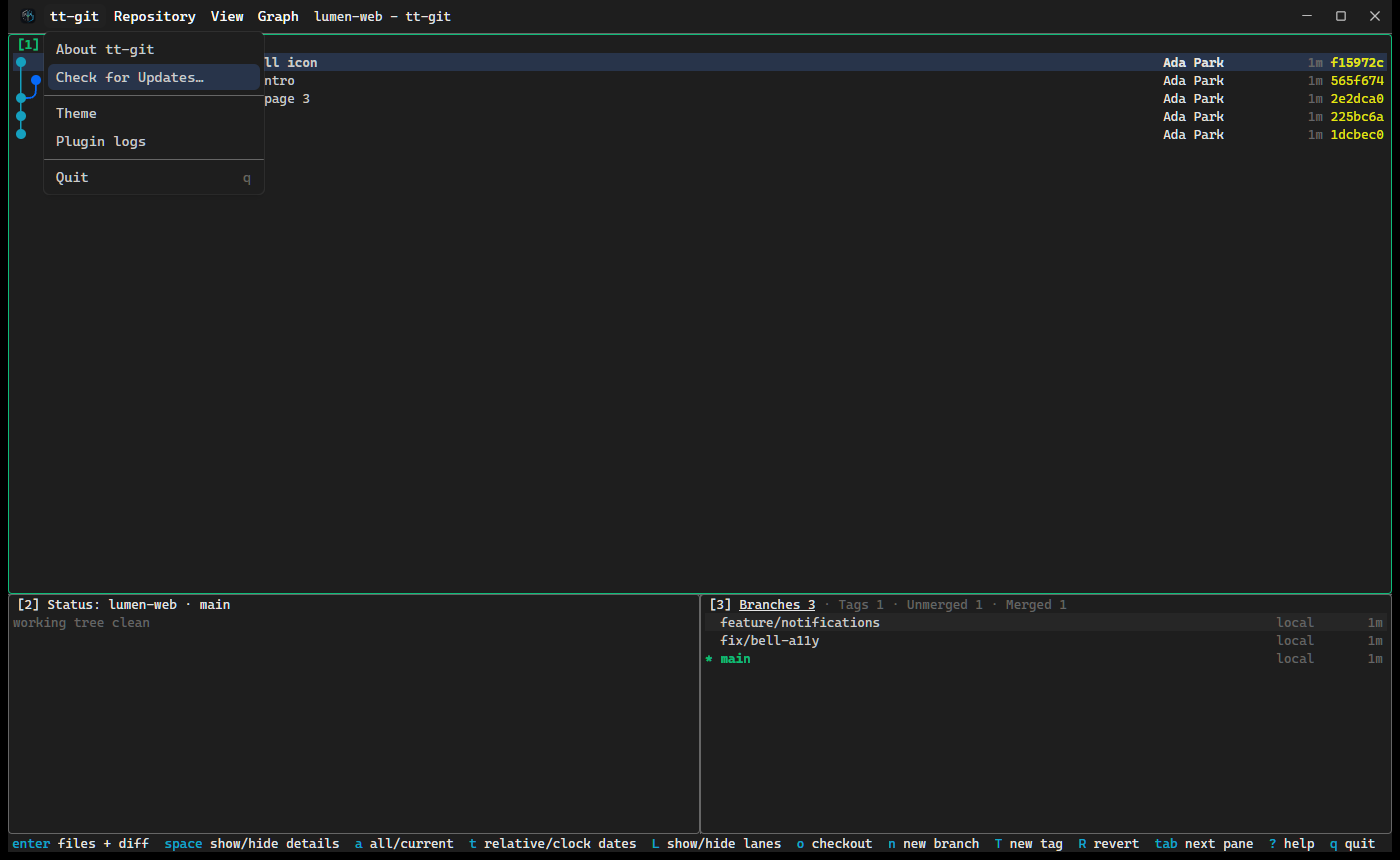
It looks on GitHub for the latest release, with checking for a tt-git update… in the help bar:
- If you have it, a dialog says tt-git is up to date.
- If there’s a newer one, a dialog says tt-git v0.10.0 is available and asks first. Choose Update and Restart, or Later (or press esc) to leave it.
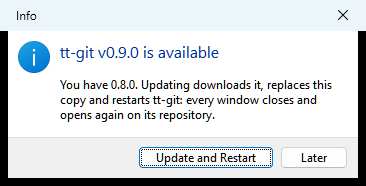
Update and Restart downloads the new release (the help bar says
downloading tt-git v0.10.0…), checks it against the release’s
SHA256SUMS.txt, and puts it in place of the copy you’re running. Then
every tt-git window closes and opens again on the same repository, in
every copy of the app you have open, so a second copy started with
--new-instance comes back too, as part of the one copy that comes back
(see One copy of the app). A copy
that only showed the start window comes back on the
start window.
Which download it uses, and how it’s put in place, depends on how you installed the app:
| Installed from | Downloads | Then |
|---|---|---|
| The Windows installer | …-windows-x64-setup.exe | Waits until every window has closed, runs the new installer without its wizard, and opens the windows again. Settings → Apps shows the new version. An install for all users asks for admin rights. |
| The Windows zip | …-windows-x64.zip | Replaces tt-git-gui.exe and tt-git.exe in their folder. Windows can’t overwrite a running program, so the old ones are renamed to tt-git-gui.exe.old and tt-git.exe.old and deleted the next time the app starts. |
| The macOS .dmg | …-macos-arm64.dmg | Replaces the whole tt-git.app, where it is. |
| A Linux AppImage | …-linux-<arch>.AppImage | Replaces the AppImage file. |
| The Linux tarball or the install script | …-linux-<arch>.tar.gz | Replaces bin/tt-git-gui and bin/tt-git. Under /usr/local that needs write permission there, so it fails for a normal user: update that copy by hand. |
The folder it’s in must be one you can write to. If the download, the checksum or the swap fails, an error popup says why, starting updating tt-git to v0.10.0 failed, and the copy you have stays as it was.
A window with a terminal editor running still asks before it closes. Choose Cancel and that copy of the app keeps running the old version; the others restart. With the Windows installer, nothing is installed until every copy has closed, and after 5 minutes it gives up and leaves the old version.
Some copies can’t update themselves. The dialog then says why and offers Open Download Page, which opens the release on GitHub:
- one built from source with cargo: build it again instead;
- one installed from the
.deb,.rpmor Arch package (in/usr/bin): install the new package the same way (apt,dnf,zypperandpacmanupgrade the installed one); - a copy not laid out the way a release download installs it, or on a platform without a desktop app download (Windows on arm64).
Checking in the background
Section titled “Checking in the background”Once a day, the app looks for a new release by itself (the first time 30 seconds after it starts). When there’s one, the help bar says so, once per release:

It never installs anything without asking: choose Check for Updates…
for that. The time of the last check is kept in gui-update.json in the
state folder, shared by every copy of the app, so
two windows don’t both go online. A check that fails (offline, say) waits
a day too. To turn it off, set check_for_updates = false in
[ui].
tt-git update refuses to replace the tt-git the app installed, as the
app updates it: on macOS the one inside the app, even through a link on
your PATH, and on Windows the one the installer put in bin. It says
tt-git is part of the desktop app (/Applications/tt-git.app); update the
desktop app instead.
The desktop app draws with the GPU through Vulkan and uses the system’s keyboard and window libraries and fontconfig’s settings to find fonts. Most desktops have them already, and the packages install them for you. With the install script, the tarball or the AppImage on Debian or Ubuntu:
sudo apt install libvulkan1 mesa-vulkan-drivers libwayland-client0 \ libxkbcommon0 libxkbcommon-x11-0 libxcb1 fontconfig-configOn Fedora, sudo dnf install vulkan-loader mesa-vulkan-drivers libwayland-client libxkbcommon-x11 libxcb fontconfig; on Arch, sudo pacman -S vulkan-icd-loader wayland libxkbcommon-x11 libxcb fontconfig
and the Vulkan driver for your GPU.
It runs on both Wayland and X11. The folder picker behind Open repository
needs the desktop portal (xdg-desktop-portal and the one for your
desktop, such as xdg-desktop-portal-gtk or -kde).
Build from source
Section titled “Build from source”You need Rust 1.89 or newer. On Linux, also the development packages
GPUI builds against (.github/workflows/gui.yml lists them for Ubuntu):
sudo apt install gcc g++ clang libfontconfig-dev libfreetype-dev libwayland-dev \ libxkbcommon-dev libxkbcommon-x11-dev libx11-xcb-dev libxcb1-dev \ libssl-dev libzstd-dev libasound2-dev libvulkan1Then, from a clone of the repository:
cargo install --path crates/tt-git-guicargo install --path crates/tt-git # for pluginsThe first build takes several minutes: the GPUI toolkit is large. A build
from source has no app bundle or .desktop file, so on macOS and Wayland
the window has no icon. crates/tt-git-gui/packaging/ has the scripts the
release uses to make them.
Starting it
Section titled “Starting it”Start it from your launcher, or from a terminal inside a repository or with a path:
tt-git-gui # the repository in the current directorytt-git-gui path/to/repo # another repositorytt-git-gui ~/src/a ~/src/b # two windowsAny folder inside a repository works, and so do linked worktrees. The
window’s title is <repo> - tt-git.
On Linux, the packages and the install script also make tt-git an app for folders. Right-click a folder in Nautilus, Dolphin, Thunar or another file manager and choose Open With > tt-git to open the repository it’s in, or the start window if it isn’t in one. Pick several folders and each opens in its own window. Right-click tt-git in the dock or the launcher for Open repository…, which starts it with the folder picker showing.
Your file manager stays the app that opens folders on GNOME and KDE, which
name it as the default. On a desktop that names none, folders can start
opening in tt-git instead: xdg-mime query default inode/directory then
says ThirtyTech.tt-git.desktop. Set the file manager back with
xdg-mime, for example:
xdg-mime default org.gnome.Nautilus.desktop inode/directoryIt takes the same options as tt-git, and
several repositories at once:
| Option | Does |
|---|---|
PATH… | Open these repositories instead of the current directory, each in a window of its own |
--config FILE | Read settings from this file instead of the default config.toml |
--no-plugins | Start without plugins and without the plugin API socket |
--filter-to-cwd, --no-filter-to-cwd | Started in a subfolder, narrow the graph and Status to it, or don’t |
--open-repository | Start with the folder picker showing, over the start window |
--version, --help | Print the version or help and exit |
tt-git-gui has no subcommands. Use tt-git for tt-git plugin list and
the others in Command line.
A config file tt-git can’t read stops it before any window opens, with the
error printed in the terminal. It logs to <state>/logs/tt-git-gui.log,
next to the terminal app’s tt-git.log (see Logs).
The start window
Section titled “The start window”Started outside a repository, from a launcher say, tt-git opens a small start window instead:
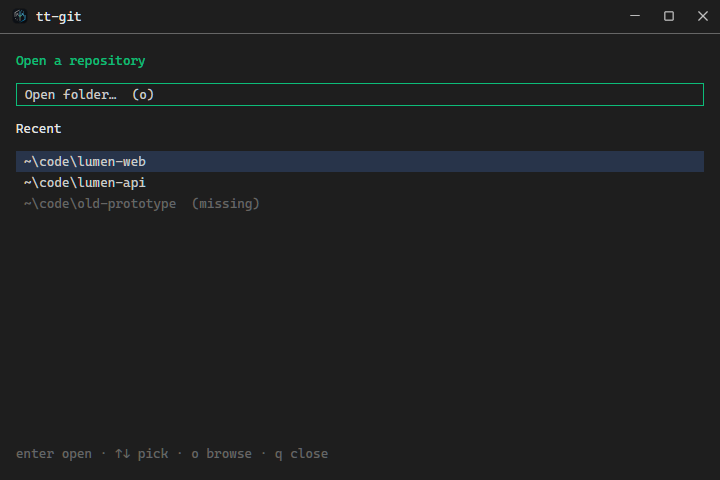
- Open folder… shows the system’s folder picker. Pick one or more repositories, and each opens in its own window.
- Recent lists the last 10 repositories you opened, newest first. Click one to open it. One whose folder is gone says (missing); opening it fails, says why, and drops it from the list.
| Key | Does |
|---|---|
| up down, k j | Pick a recent repository |
| enter | Open it |
| o | Open folder… (also ctrl+o, or cmd+o on macOS) |
| q esc | Close the window |
The start window closes once a repository opens. If you named a folder on the command line, or picked Open in tt-git in Finder on one, that isn’t in a repository, it opens with a message saying so.
Opening another repository
Section titled “Opening another repository”From a repository window, run Open repository from the command palette or the Repository menu. It shows the folder picker, and each folder you pick opens in a new window. A repository that already has a window isn’t opened twice: its window comes to the front. A folder that isn’t in a repository shows an error popup.
Open repository has no key. To give it one, bind open_repository (see
Key bindings):
[keys.global]open_repository = "ctrl+o"In the terminal app the palette doesn’t list it, and a key bound to it only says opening another repository needs the desktop app.
Each window is a repository of its own: its own panes, file watcher, plugins and API socket. Closing the last window quits the app.