
Worktrees
A git worktree is a second working folder for the same repository, with its own branch checked out. You can work on a fix in one while a long build or a half-finished change sits in the other, without stashing or switching branches.
tt-git can create a new branch straight into a worktree, list your worktrees, open one in place of the repository you’re in, and remove the ones you’re done with.
Creating a branch in a worktree
Section titled “Creating a branch in a worktree”-
Select where the branch should start: a commit in the graph, a branch in the branch list, or a tag on the Tags tab.
-
Press n. The New branch box opens on its Branch tab.
-
Press tab to switch to the Worktree tab. The line under the name shows where it will go, for example
checked out in .worktrees/fix-login. -
Type the branch name and press enter.
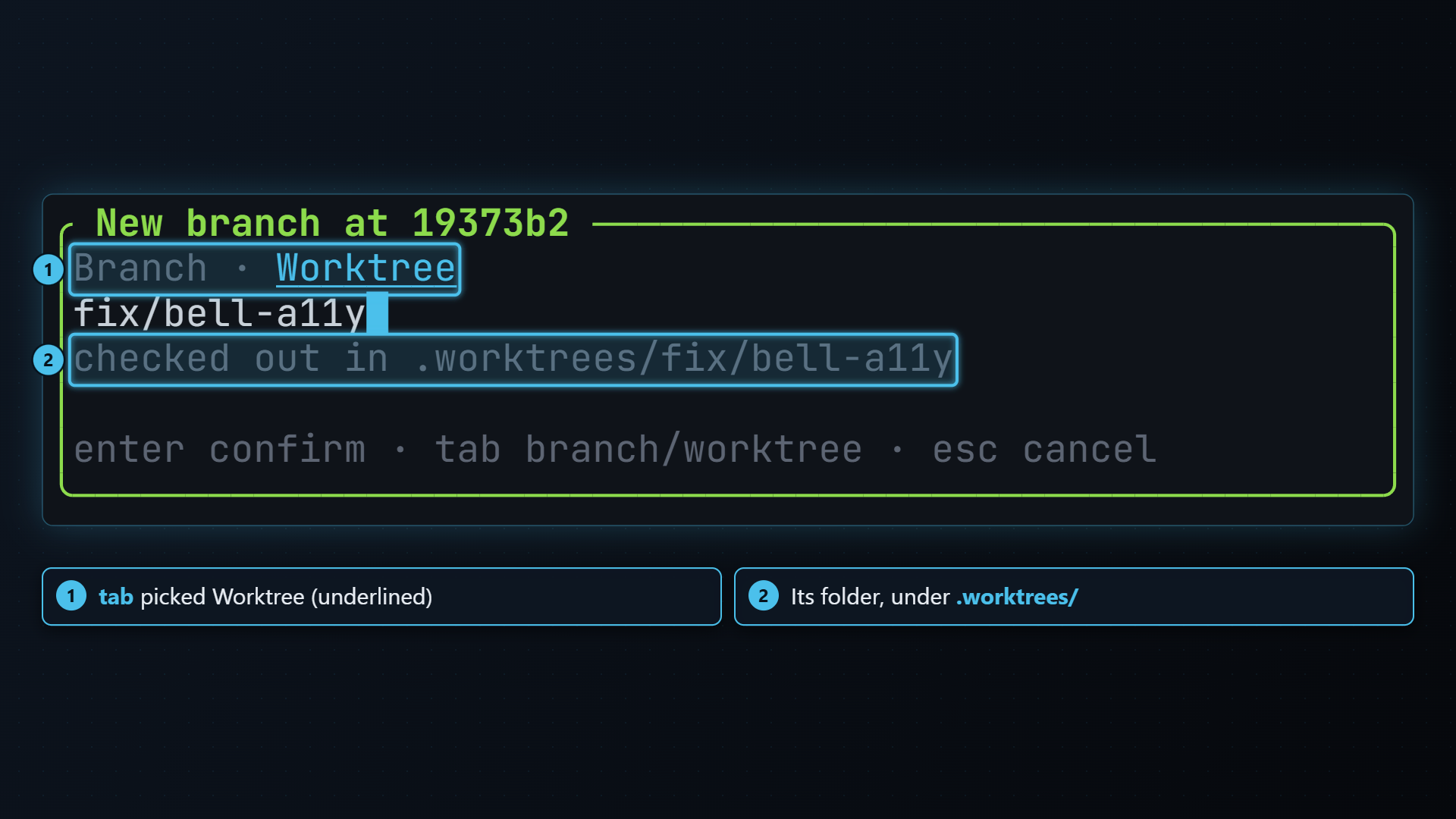
tt-git runs git worktree add -b <name> .worktrees/<name> <start>. Your
current checkout stays as it was: you stay on the same branch with the same
files. The new branch appears in the branch list and the graph.
On the Branch tab instead, enter creates the branch and switches to it
here, like git switch -c.
Where worktrees go
Section titled “Where worktrees go”Worktrees go in a .worktrees folder at the top of your main checkout, one
folder per branch:
my-project/├── .worktrees/│ ├── fix-login/│ └── spike-cache/├── src/└── ...When tt-git makes the first one, it adds /.worktrees/ to the repository’s
.git/info/exclude, so the folder never shows up as untracked. That file is
local to your clone and isn’t committed. Creating a worktree from inside
another worktree still puts it in the main checkout’s .worktrees/.
The Worktrees tab
Section titled “The Worktrees tab”The branches pane gets a Worktrees tab as soon as the repository has a worktree besides the main one. It’s the last tab: press 3, then [ from the Branches tab (or ] until you reach it), or click its name in the title.
* . main main · clean 1.2 GB .worktrees/fix-login fix-login ↑2 · 3 changed 48.3 MB .worktrees/review (detached 1a2b3c4) locked · clean 47.9 MB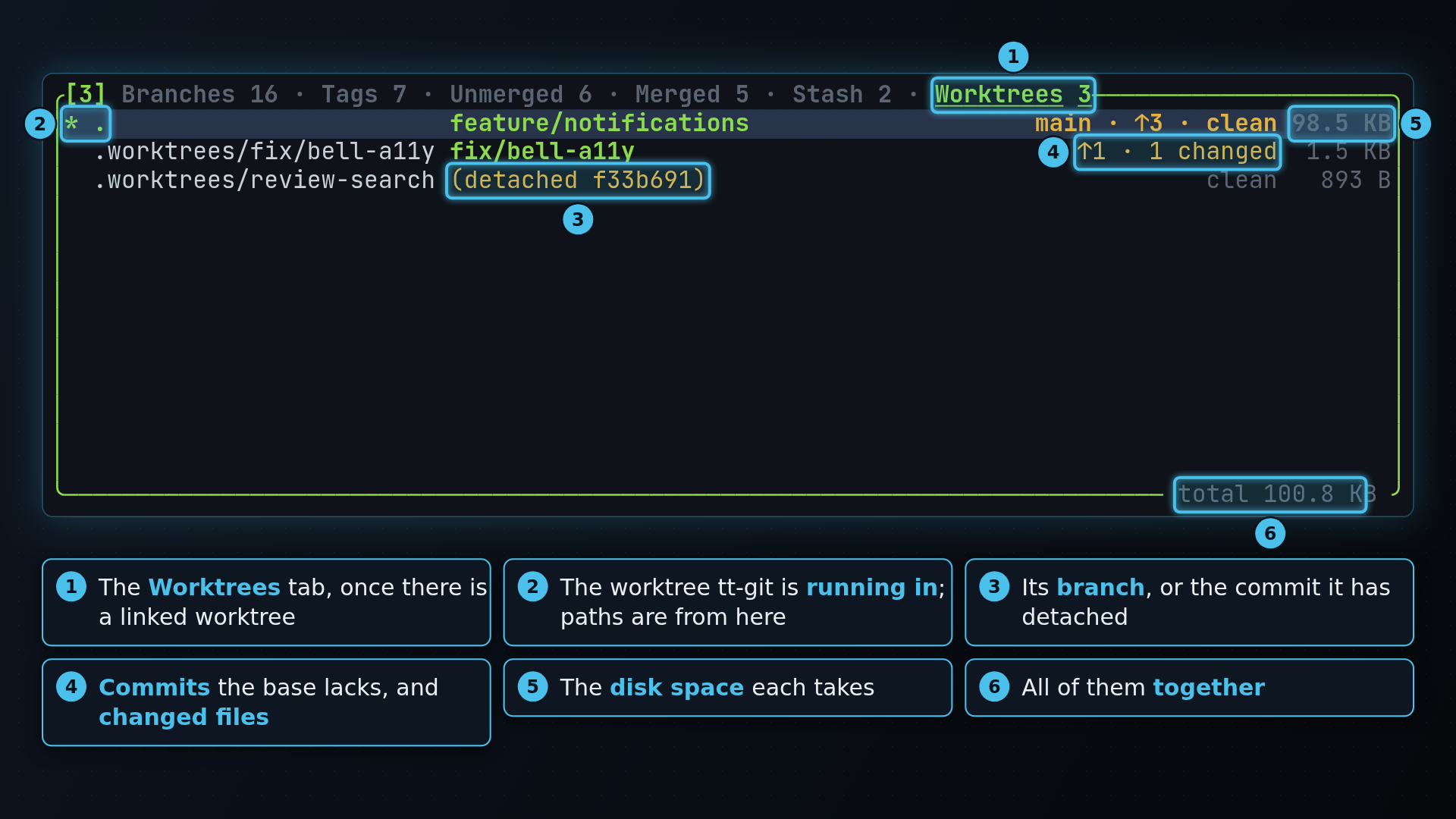
Each row shows:
*on the worktree tt-git is running in.- Its folder, as a path from the current directory:
.for the worktree you’re in,.worktrees/fix-loginbelow it,../..from a linked worktree back to the main one. If you started tt-git outside the worktree it runs in, paths are from that worktree’s root. A worktree on another drive shows in full. - What it has checked out: a branch, or
(detached <commit>). - Its state:
mainfor the main worktree,lockedif it was locked withgit worktree lock,missingif its folder is gone,↑2for two commits it has checked out that the base branch doesn’t have yet (nothing when there are none), and how many files have uncommitted or untracked changes (cleanfor none). The counts are worked out in the background each time you open the tab and when the branches reload, so…shows until they’re in. - How much disk space its folder takes, ignored files like build output
included. The main worktree’s size leaves out the worktrees inside it, so
nothing is counted twice. Sizes are measured in the background when you
open the tab and when a worktree is added or removed;
…shows until they’re in.
The pane’s bottom border shows the total for every worktree, like
total 1.3 GB.
Moving the selection also selects the worktree’s commit in the graph.
/ filters by path, and c copies the selected
worktree’s absolute path, with \ separators on Windows.
Opening a worktree
Section titled “Opening a worktree”Select a worktree and press enter (or space). tt-git
closes the repository it’s in and opens that worktree in the same terminal,
as if you’d started tt-git there: the panes start over, the file watcher
follows the new folder, and plugins restart (their startup commands run
again and they get repo.opened for the new path). tt-git also changes its
working directory to the worktree, so it doesn’t hold the old folder open.
The plugin API socket gets a new address, so a plugin process still running
from before can’t reach the new one. To go back, open the main worktree the
same way.
It won’t open:
- the worktree you’re already in;
- one whose folder is gone (remove it instead);
- anything while a git command it started is still running (it asks you to wait).
You can still open a worktree in a second tt-git, side by side with the first:
tt-git .worktrees/fix-loginEverything that lives in .git is shared between worktrees: commits,
branches, tags, remotes, stashes and config, including the
base branch you picked. A commit
in one shows up in the other’s graph right away. The checked-out branch, the
staged changes and any merge or rebase in progress are separate.
Removing a worktree
Section titled “Removing a worktree”On the Worktrees tab, select the worktree and press d. tt-git
asks first (Remove worktree), then runs
git worktree remove <path>: the folder is deleted, ignored files like build
output included, and git forgets the worktree. Its branch stays; delete it
from the Branches tab once it’s merged.
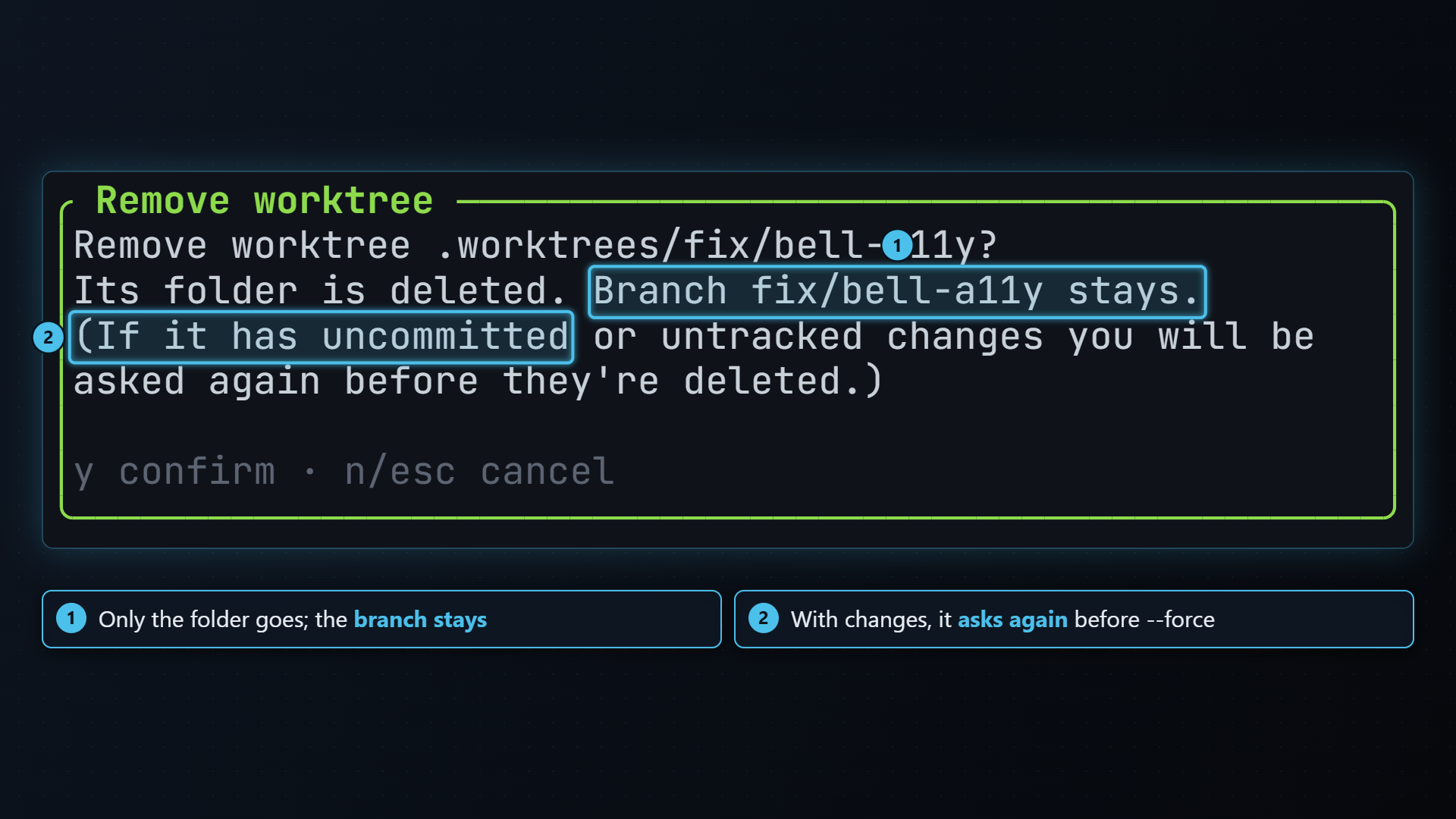
If the worktree has uncommitted or untracked changes, git refuses, and
tt-git asks again (Uncommitted changes) before running
git worktree remove --force, which deletes them for good. Answer
n to keep everything as it was.
tt-git won’t remove:
- the main worktree;
- the worktree it’s running in. Open another one first;
- a locked worktree. Unlock it with
git worktree unlock <path>first.
A worktree whose folder you already deleted by hand shows as missing;
d on it drops it from git’s list.
A new worktree from the tab
Section titled “A new worktree from the tab”n on the Worktrees tab opens New branch already on its Worktree tab, starting from the selected worktree’s branch (or its commit, if it’s detached).
On the Worktrees tab:
| Key | Does |
|---|---|
| enter space | Open the worktree here, in place of this one |
| n | New branch in a new worktree, from the selected one |
| d | Remove the worktree (asks; asks again before --force) |
| c | Copy its absolute path |
| / | Filter as you type |
| ] [ | Next / previous tab |
The tab has its own key context, worktrees, which doesn’t fall back to the
branches keys. See Key bindings.