
Stash
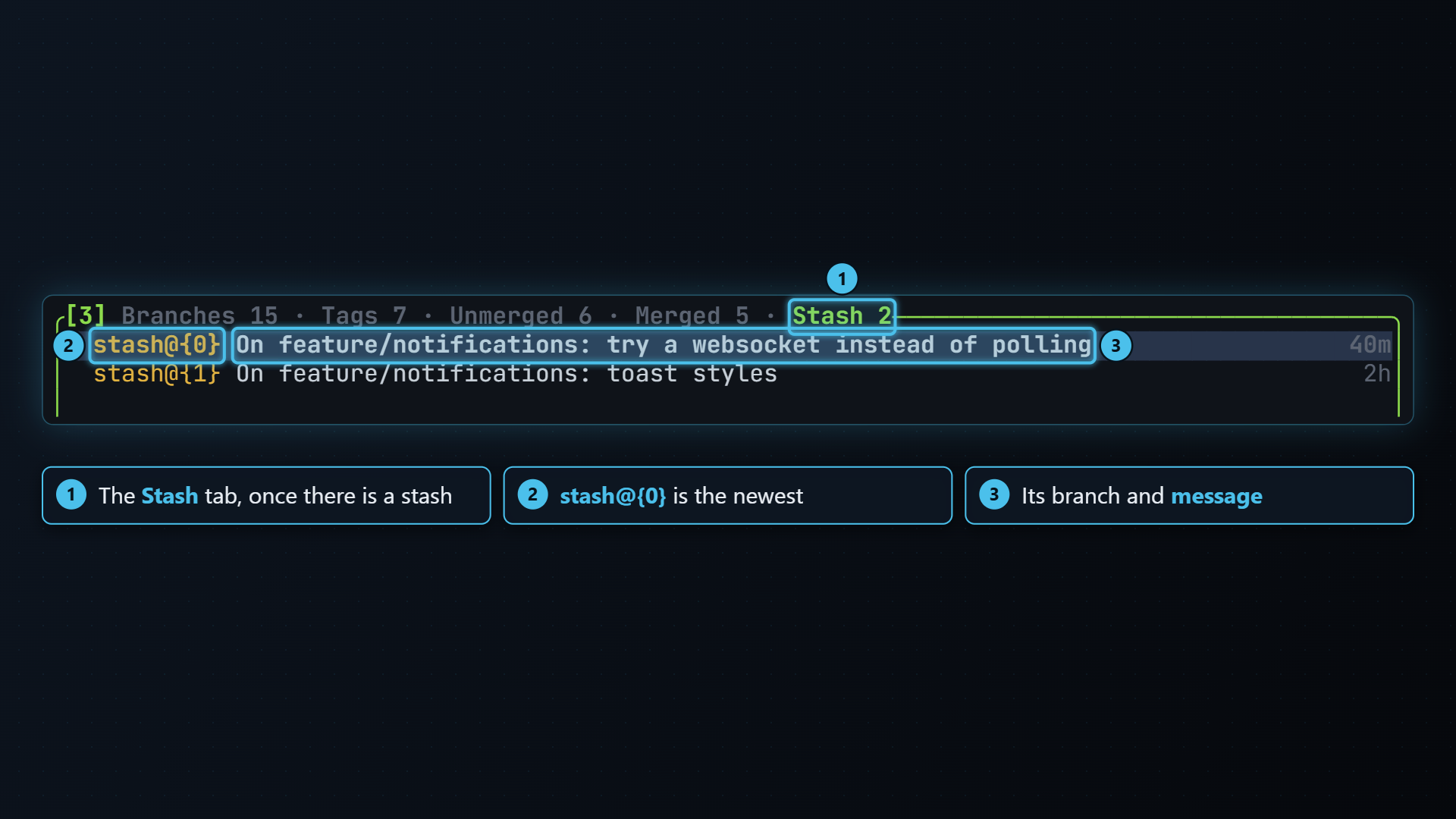
A stash puts your uncommitted changes aside so you can work on something else, then brings them back later. You make one from the status pane with s, choosing whether to stash everything, only what’s staged, only what isn’t staged, everything but the staged changes, or just one file. Once you have a stash, the branches pane grows a Stash tab that lists them, newest first, where you can pop, apply, drop, branch from and look inside each one.
Making a stash
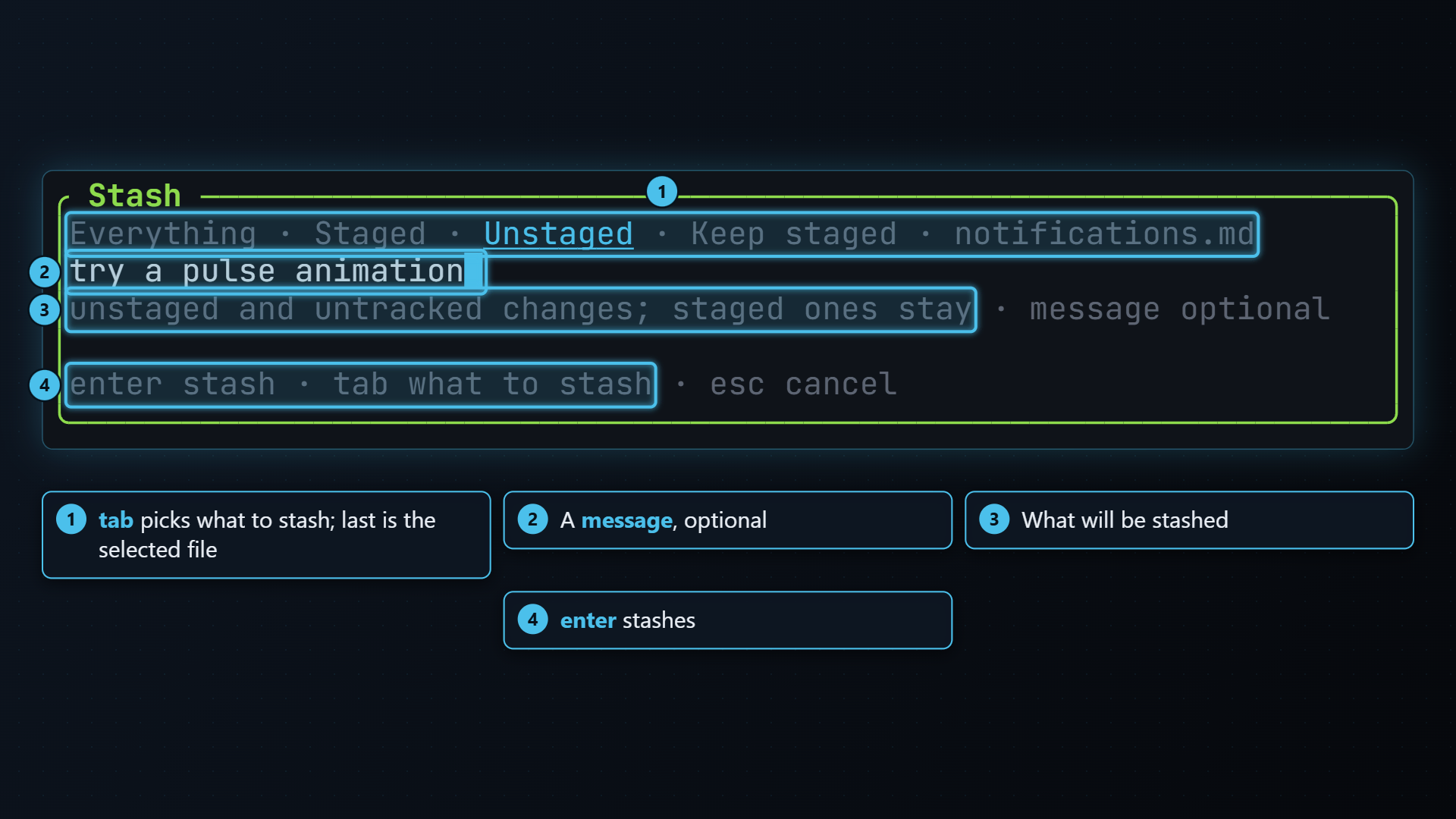
Section titled “Making a stash”Focus the status pane (2) and press s. The Stash dialog has a row of choices; tab moves between them:
| Choice | Stashes | git |
|---|---|---|
| Everything | Staged, unstaged and untracked changes | git stash push --include-untracked |
| Staged | Only what’s staged | git stash push --staged |
| Unstaged | Only the unstaged and untracked changes; the staged ones stay staged and aren’t in the stash | see below |
| Keep staged | Everything, but leaves the staged changes in place | git stash push --include-untracked --keep-index |
| the selected file | Only that file (both paths of a rename), untracked or not | git stash push --include-untracked -- <path> |
Unstaged and Keep staged both leave your staged changes in place.
The difference is what goes in the stash: Keep staged stashes the staged
changes too, so popping it later brings them back a second time, while
Unstaged stashes only what you hadn’t staged. With nothing staged,
Unstaged is the same as Everything; with nothing unstaged, it says
no unstaged changes to stash.
The last choice is named after the file selected in the status pane. Type a message if you want one (it’s optional) and press enter, or esc to cancel. With nothing to stash, tt-git says so instead of opening the dialog.
Checking out a commit from the graph with uncommitted changes offers to stash them too, as Everything with git’s default message. So does undo: after undoing a checkout the stash stays here, and after undoing a merge, reset or rebase it’s popped straight back unless the changes conflict. Undoing a commit never stashes.
When one file has staged and unstaged changes on the same lines, git can’t
stash one without the other. Staged and Unstaged then refuse with
the staged and unstaged changes overlap, leaving your files and the stash
list as they were. Stage or unstage the rest of the file, or stash
Everything.
Stashing a single file that’s a staged deletion, or a staged rename, unstages the deletion first, because git can’t stash a staged deletion by path. When you pop that stash, the file comes back deleted but not staged; a rename comes back as the new file staged and the old one deleted. Stage the deletion again with space.
The Stash tab
Section titled “The Stash tab”Press ] on the branches pane until you reach Stash, the tab after Merged. It’s only there once you have a stash. Each row shows the stash’s name, its message and its age:
stash@{0} On main: half-done login form 5m stash@{1} WIP on feature/login: 3f2a1c9 Add … 2dstash@{0} is always the newest. Names shift as you add and drop stashes,
the same way they do in git.
If you have no stashes left, the tab says so and points you to s in the status pane; once you leave it, it’s hidden again.
Pop, apply and drop
Section titled “Pop, apply and drop”- space pops the selected stash: applies its changes to the working tree, then drops it. If the changes conflict, git keeps the stash so nothing is lost.
- a applies it and keeps it in the list.
- d drops it. tt-git asks first (Drop stash), since a dropped stash can’t be brought back from tt-git.
If applying a stash conflicts, the status pane shows the conflicted files; resolve and stage them as usual.
A branch from a stash
Section titled “A branch from a stash”n opens New branch from stash@{n}. Type a name and
press enter: tt-git runs git stash branch, which creates the
branch at the commit the stash was made on, switches to it and pops the
stash there. Because the branch starts where the stash was made, the changes
always apply cleanly, even if the original branch has moved on since.
Seeing what’s in a stash
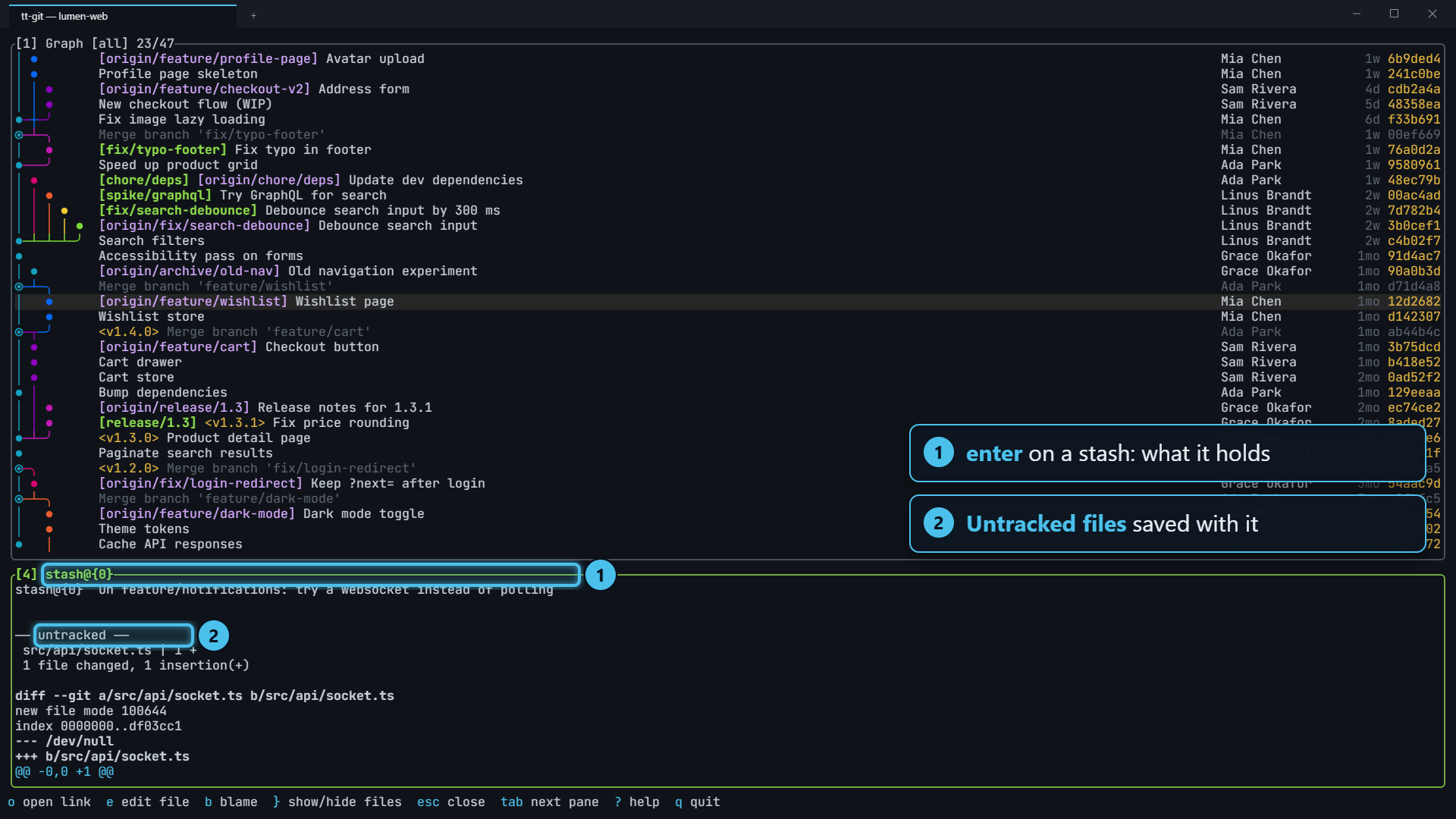
Section titled “Seeing what’s in a stash”enter opens the stash fullscreen in the details
pane: its name and message, then a diffstat and the full
patch of its changes. Untracked files the stash saved are listed after a
── untracked ── line, with their contents. esc goes back.
On the status pane:
| Key | Does |
|---|---|
| s | Stash (tab in the dialog: everything, staged, unstaged, keep staged, or the selected file) |
On the Stash tab:
| Key | Does |
|---|---|
| space | Pop the selected stash (apply, then drop) |
| a | Apply it and keep it |
| d | Drop it (asks first) |
| n | New branch from it, at the commit it was made on |
| enter | Show what it holds fullscreen (esc back) |
| / | Filter as you type |
| ] [ | Next / previous tab |
The Stash tab has its own key context, stash, which doesn’t fall back to
the branches keys. See Key bindings.